

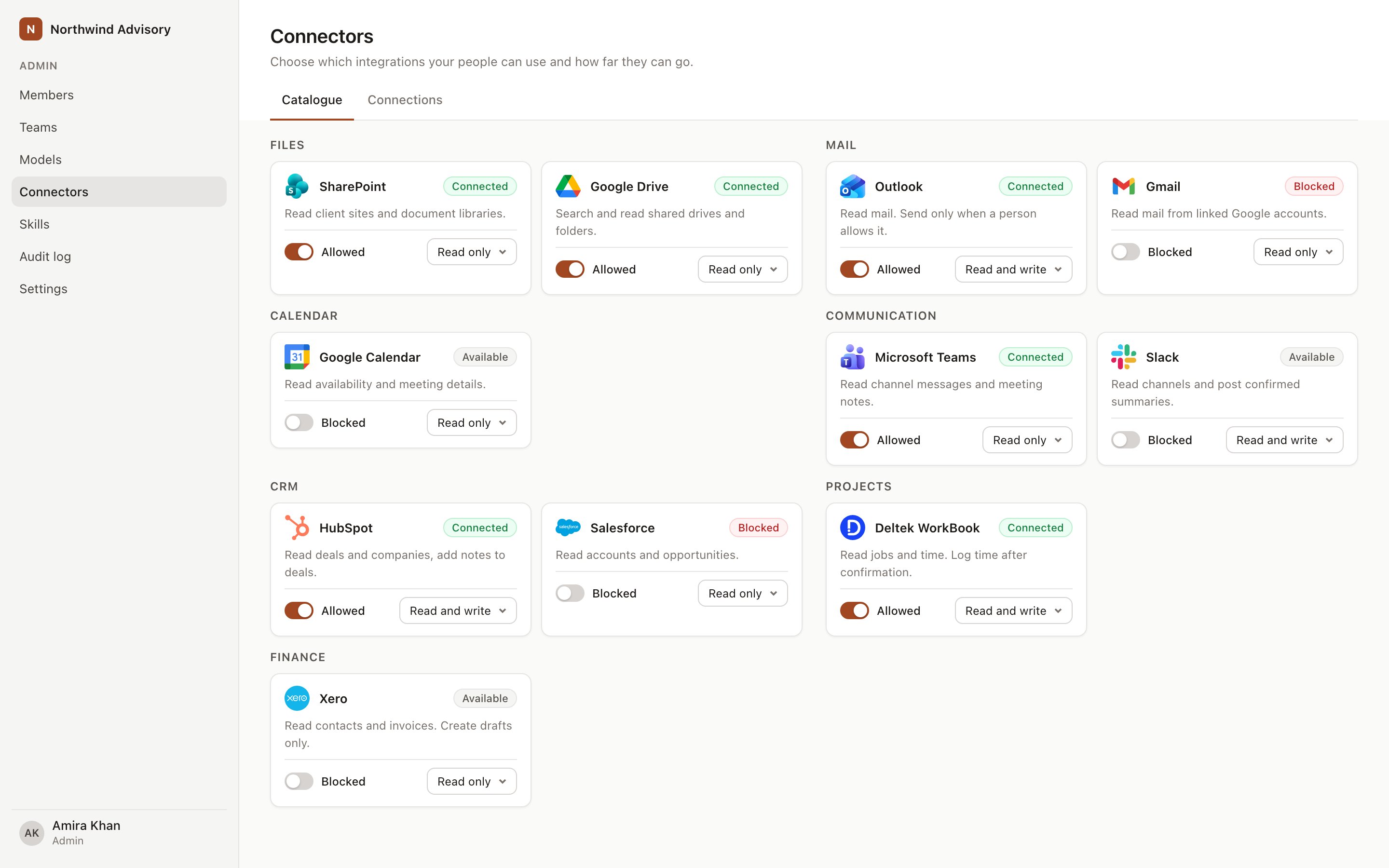
Admin → Connectors → Catalogue, with each integration's status and Allow / Block control.
Catalogue
The catalogue lists every integration, grouped by kind: Files, Knowledge, Mail, Calendar, Communication, CRM, ERP, Finance and Projects. Each card shows the app logo, its status and how many members are connected.Allow or block an integration
Use the Allow switch on a card to allow or block that integration for the organisation. Integrations are allowed by default. Blocking an integration hides it in chat and stops new authorisations, including personal accounts. Existing member connections stop being used. Allow it again to restore it.Set access
Each integration has an Access setting.
The default is Read and write for files, mail, calendar, knowledge, communication, CRM and project tools, and Read only for ERP and finance. Whatever you choose, Hebno never writes without a member selecting Confirm (or Send for email and invitations). Finance and ERP writes create drafts only.
Organisation connections
Systems of record such as ERP and finance tools are connected once for the whole organisation, using an integration user or API credentials you create in the other system.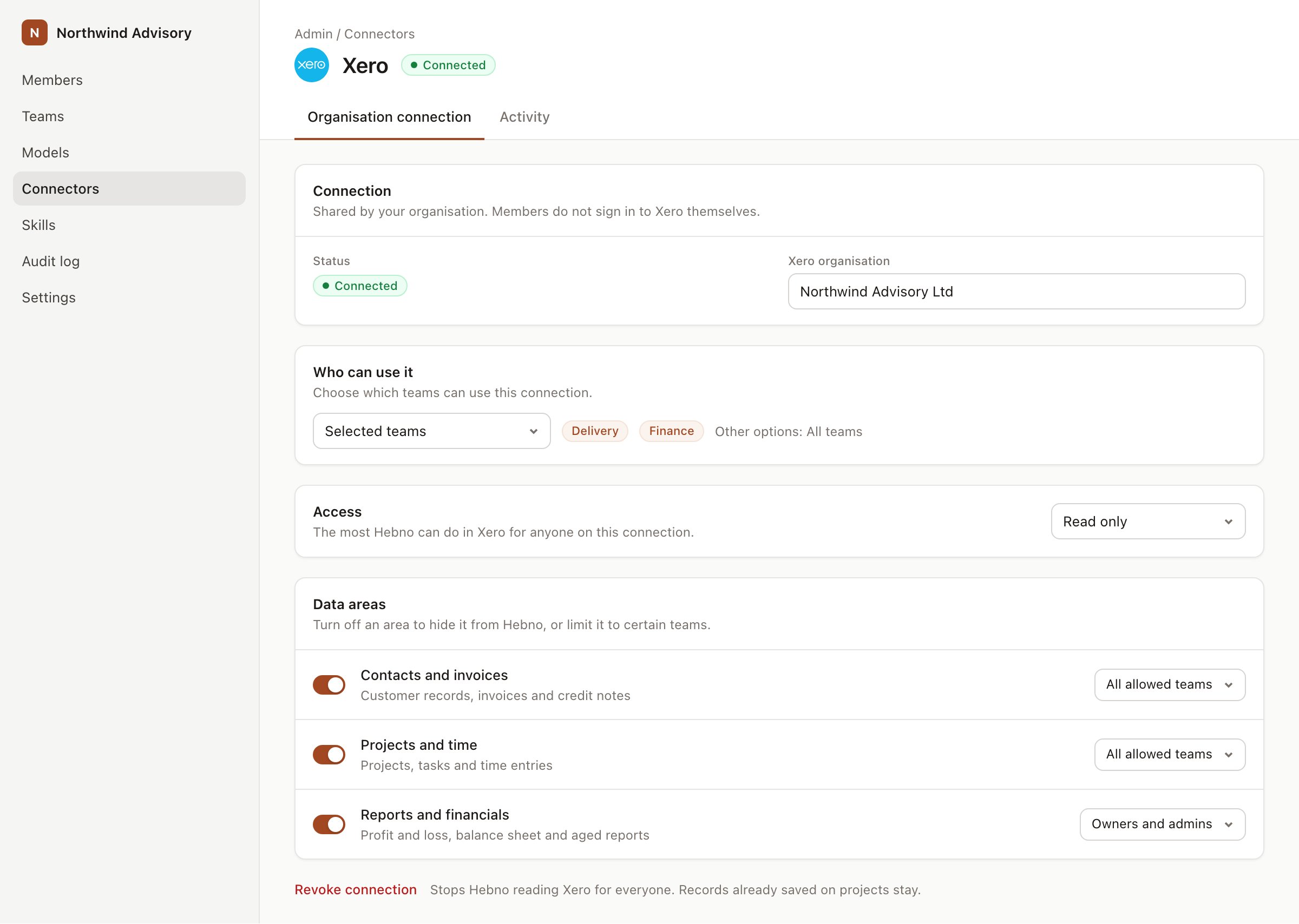
Teams and data areas on an organisation connection. Financial figures default to owners and admins.
1
Create credentials in the other system
Create an integration user or API key with the access you want Hebno to have. Each integration page lists exactly what it needs.
2
Connect it in Hebno
On the Catalogue tab, open the integration’s card and select Connect. Enter the credentials.
3
Choose teams
Select which teams can use the connection. Members outside those teams do not see it in chat.
4
Choose data areas
Select the data areas members can reach. In a project management system these might be jobs and tasks, time, resource planning and financials.
Enable for the organisation
Microsoft 365 and Google Workspace integrations are normally approved by each member on a consent screen, and some permissions need a directory administrator. Enable for the organisation lets that administrator approve the permissions once. Members then connect without seeing a consent screen. This removes a prompt only. Each member still connects their own account, and Microsoft or Google still enforces that member’s own permissions, so nothing becomes visible that the member could not already open.1
Open the card
On the Catalogue tab, open the Microsoft 365 or Google Workspace integration and select Enable for the organisation.
2
Approve as an administrator
Sign in as a directory administrator and approve the permissions.
3
Check the badge
The card shows Organisation-wide. If consent was not granted, try again from a directory administrator account.
Connections
The Connections tab lists every member connection in the organisation.
It also shows when each connection was last used.
Select Revoke to remove a member’s connection. They lose access to that linked account until they reconnect. They can reconnect unless you have blocked the integration. Revoke connections when someone leaves, or when an account was connected by mistake.
Connection changes, enable and block actions, and revocations are recorded in Logs under Integrations.
Hebno indexes only the document sources you select under Organisation brain. Business records, email, calendars and chat are read live and not copied. Excerpts a reply uses are stored with that conversation and are readable by anyone it is shared with. See Data handling.
Next steps
- Browse every integration in the catalogue.
- Read Permissions and access for how each connection model limits what members can see.
- Review Logs to check connector activity.