

How access is decided
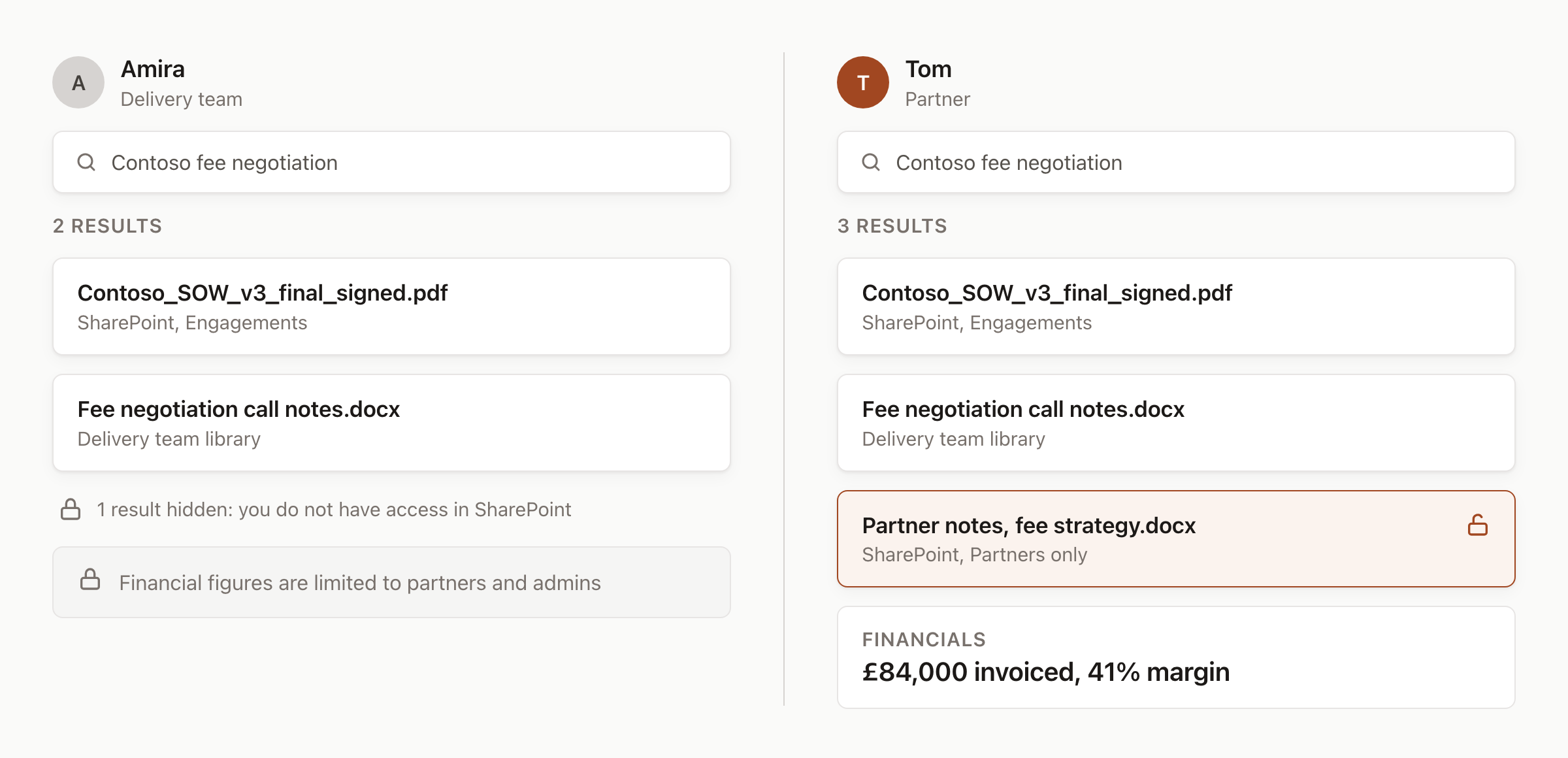
Same search, different people. Each sees only what their own access allows.
Personal connections
Each member connects their own account. Hebno reads and writes with that member’s permissions in the other system, so Microsoft, Google, Slack, CRM and project tools show only what the member can already open. Nobody can use another member’s connection. Admins can allow or block an integration for the organisation and set its Access. For Microsoft 365 and Google Workspace, a directory administrator can approve permissions once so members skip the consent screen. That removes a prompt and widens nothing.Organisation connections
For systems of record such as ERP and finance tools, an owner or admin connects the system once with an integration user or API credentials. Two controls then decide who sees what: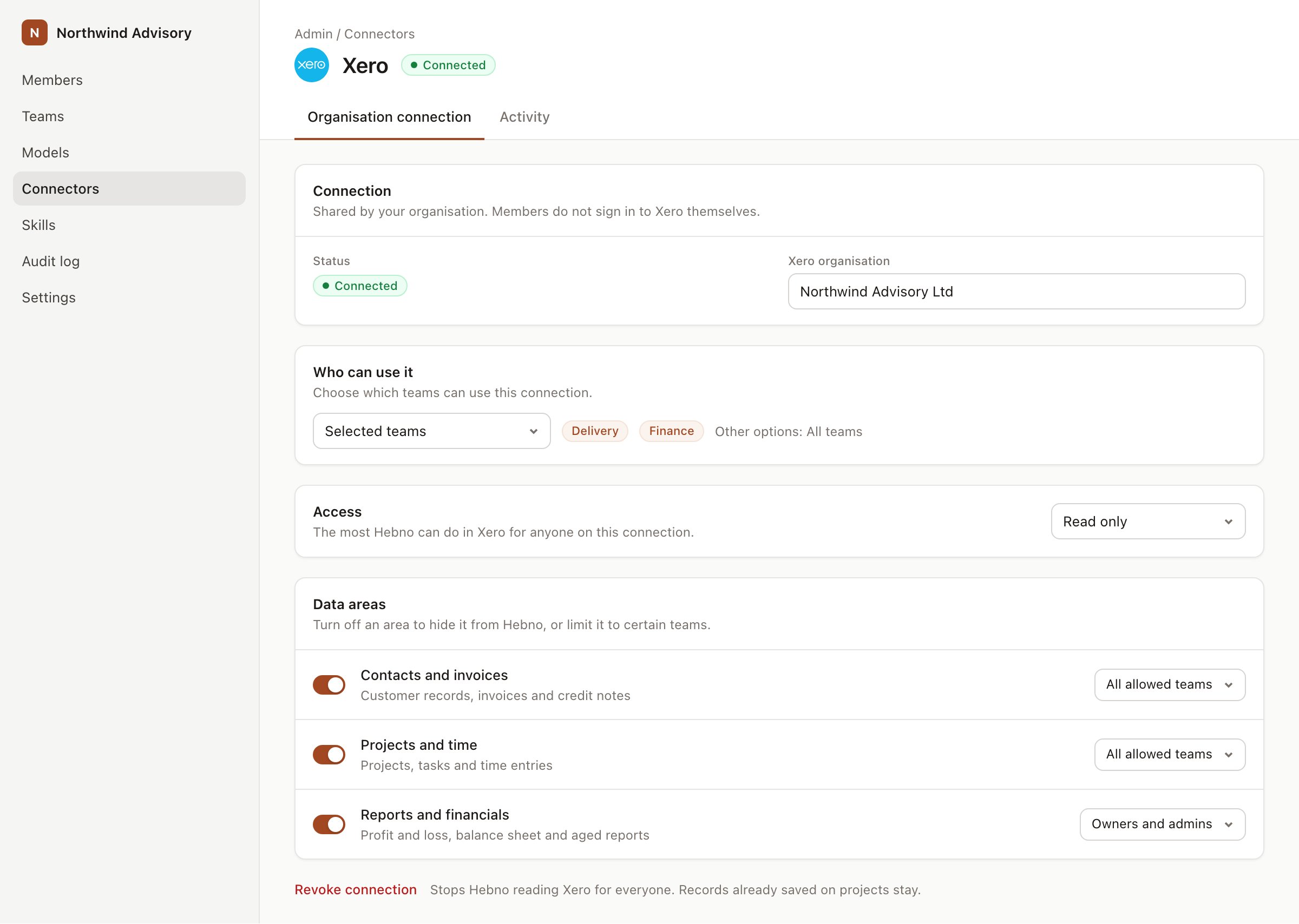
An organisation connection with team access and data areas.
- Who can use it: all teams, or selected teams.
- Data areas: which kinds of data are visible, for example jobs and tasks, time, resource planning and financials. Everything except financial figures is visible to allowed teams by default. Financial figures are visible to owners and admins until you share them.
Hebno roles and projects
A linked record marks where Hebno looks first. It does not grant access: each member still reads through their own connection or the teams and data areas allowed for them.
Shared chats
Excerpts and records a reply used are stored with the conversation. Anyone a chat is shared with can read them, including email, meeting and finance excerpts the original member could open. Review a conversation before you share it. See Share a chat.Read only and read and write
Each integration has an Access setting.
Finance and ERP writes create drafts only. Hebno never approves, posts, sends or pays.
Confirmation cards
Hebno never writes to a connected system on its own. A write appears as a card showing the system, the action, the target record and every field it will set. You can edit any field. Nothing is written until you select Confirm (Send for email and invitations). Dismiss discards it. After a write, the card shows Done with a link to the record.Agents
An agent that proposes a write adds a confirmation card under Agents → Approvals and notifies its owner. The write happens only when a person confirms it. See Agent approvals.Logs and revocation
- Admin → Logs → Integrations records every confirmed write: who, what, which record and when.
- Admin → Logs also records connector administration, member connections and revocations.
- Admin → Connectors → Connections lists every connection with who, system, account, when connected and last used. Select Revoke to remove one.
- Members can disconnect their own connections at any time under Settings → Connections.