

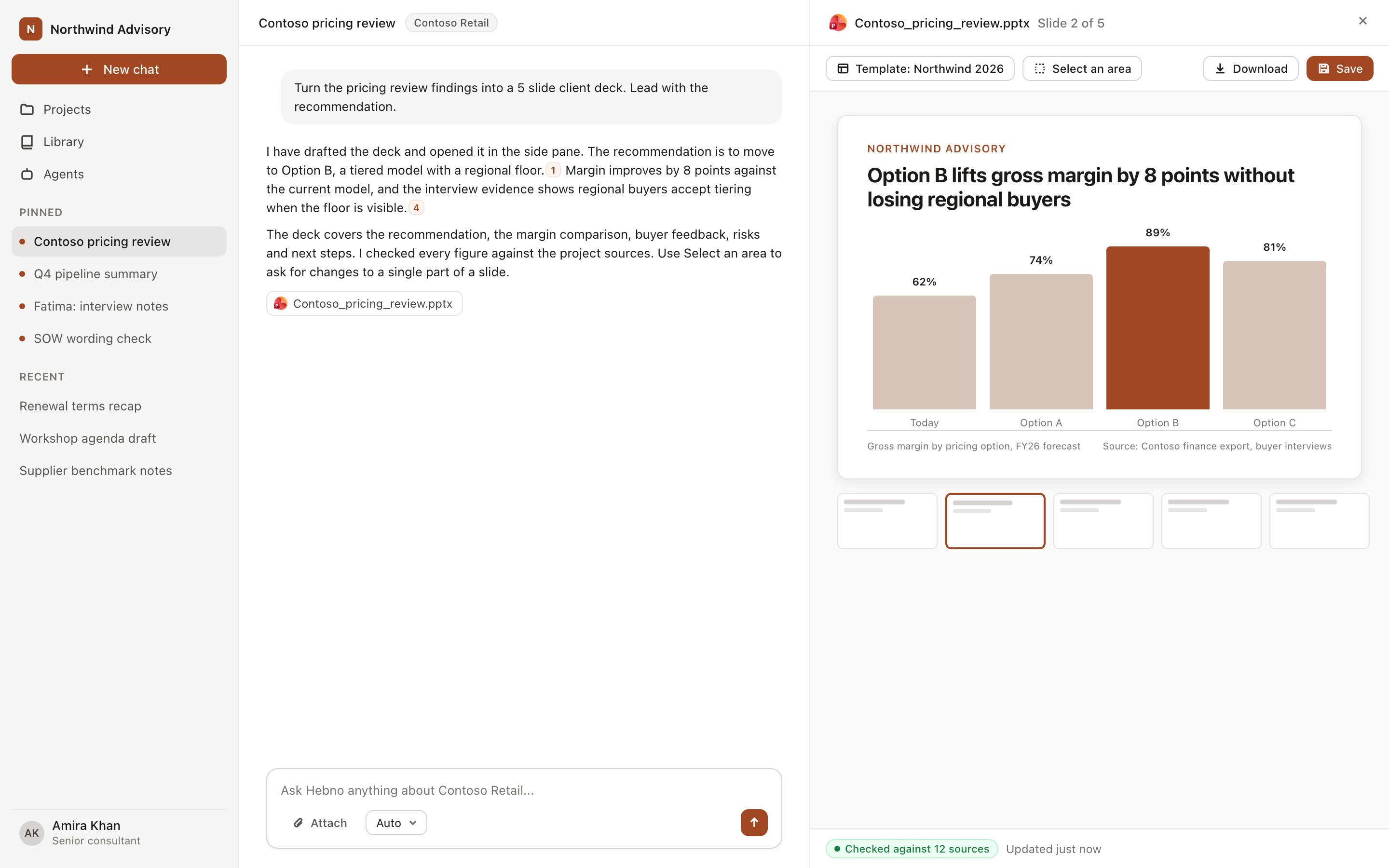
A deck open in the side pane, with the chat that built it on the left.
Request a deck
Ask for a deck, slides or a presentation in chat: “Create a steering committee update from this month’s status notes”, “Build a proposal deck for Contoso using the discovery call”. When the material is already in the conversation or the project, Hebno builds the deck straight away. When it needs new evidence, it runs research first. A deck has 1 to 24 slides. Each deck is shaped to the kind of story you ask for.Slide layouts
Hebno chooses a layout for each slide from the content. You can name one in your request (“show this as a timeline”).
Slides can contain text, figures, tables, rating grids against criteria (filled dots, or red, amber and green for status), Gantt-style plans, issue trees and several charts side by side. Bar charts start at zero and show their values. A footnote explains assumptions, how a figure was calculated, or that a figure is an industry benchmark rather than your own.
Slides have no citation markers or source lines. The sources are stored with the work in Hebno: open the Sources button under the reply, or verify the deck against its sources.
Themes and templates
Every deck is drawn in a look: one of the built-in themes (classic, bold, minimal, dark, editorial) or a template from your library or project. Geometry and colour come from the template, so slides are consistent whatever the model writes. See Templates to choose or switch one, and Deck design to change colours, add logos or adjust the footer.Preview and download match
The preview in the pane is drawn by the same layout engine as the PowerPoint and PDF downloads. Fonts, colours, shapes, photos and additions appear in the file exactly as in Hebno. Select Download PowerPoint in the pane header for a.pptx, or use Download in the toolbar for another format. See Save and export.
Move through the deck
Use Previous slide and Next slide in the pane header, or select a slide in the list. Select Expand preview to open the deck in a larger window, inset from the screen edges: slides run down the left, the current slide is in the middle, and Download, Save and Close are at the top right. Closing returns you to the side pane.Ask about a part of a slide
The pane header has two tools.- Browse for scrolling, reading and selecting text.
- Select an area for drawing a box over part of a slide.
Keep notes
After Hebno answers, select Keep as note to save the question and answer against that box. Notes appear as outlines on the slide the next time you open the deck. The note button shows Note kept once saved. Select Download notes in the pane header to save every note as Markdown, grouped by slide.Speaker notes
Each slide can have speaker notes of up to 1,200 characters. Ask for them (“add speaker notes to each slide”). They export to the PowerPoint file.Edit slide text
Select text on a slide to see Rephrase, Shorten and Edit.- Rephrase and Shorten rewrite the selection straight away. Edit opens a box where you ask about the text or say how to change it (“say 15% instead”, “less jargon”).
- Hebno detects whether you asked a question or want a change. The reply states in one line what it did.
- A change appears on the slide at once. The box shows Current, with the words that go marked in red, and After replacement, with the new words marked in green. The back arrow returns to Rephrase, Shorten and Edit.
- Select Accept to keep the change and save the deck, including its project copy. Select Reject, or click outside the box, to restore the slide. Nothing is saved until you accept.
Change the deck in chat
Ask in plain words: “Add a slide on risks after slide 6”, “Rework the storyline to lead with cost”, “Remove the chart from slide 4”, “Tighten the wording on every slide”. Slides you did not mention are unchanged. A plain edit never starts a research run. A change that needs new evidence starts one first. If your message looks like new work, such as a different client, You are asked whether to update the deck, start a new deck here, or open a new chat. A new chat separates each client’s material.Open an existing deck
Attach a.pptx file to open it in the pane. You can ask about its slides, keep notes on it and edit its text. Fonts and colours are read from the file’s theme.
Related
Deck design
Colours, logos, photos, footer and hidden slides.
Templates
Choose the template a deck is drawn in.