

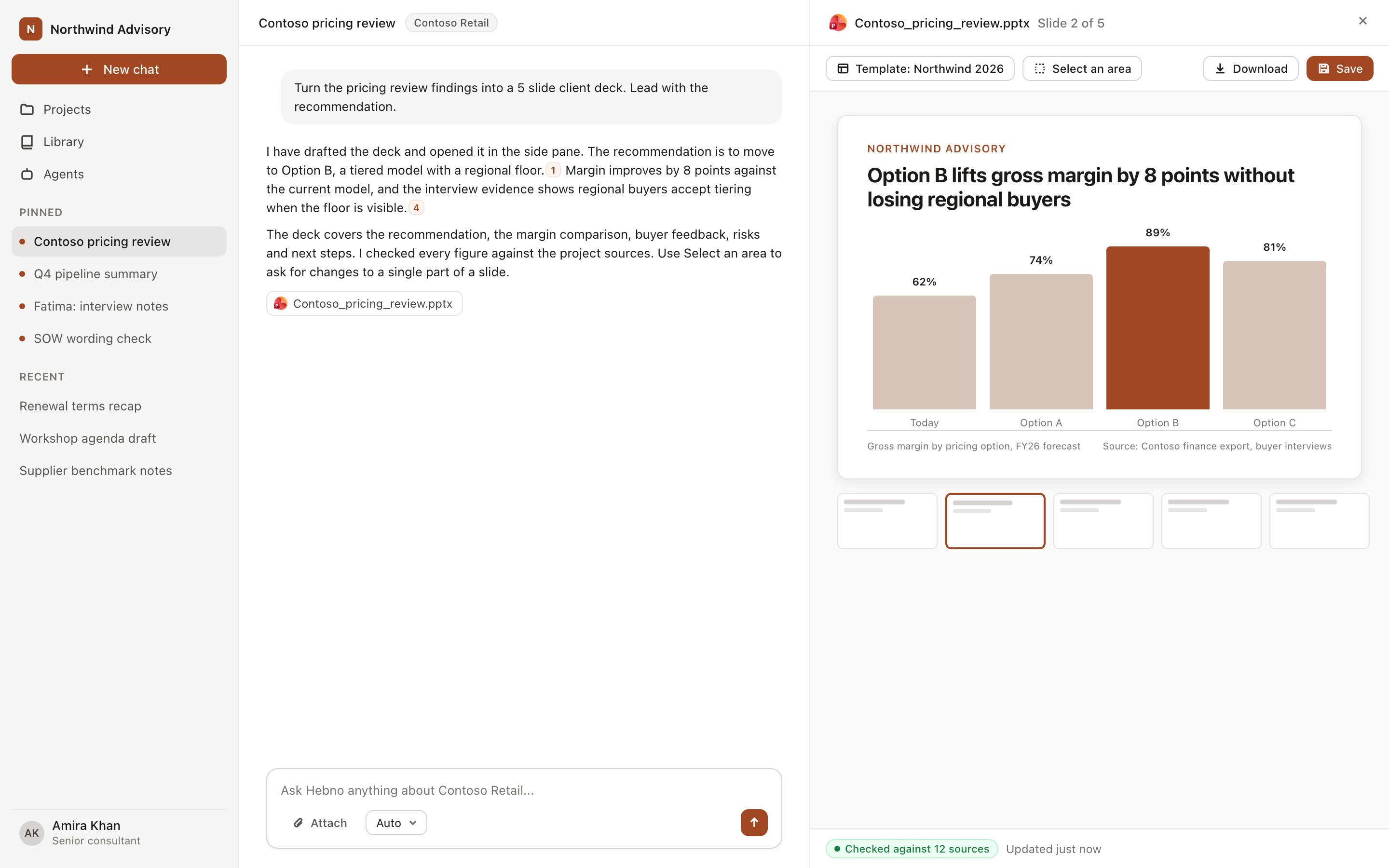
A document open in the side pane next to the chat that produced it.
Ask for a document
Describe what you need: “Write a board paper recommending we enter the Nordic market”, “Draft a statement of work for the Contoso data migration”, “Turn these meeting notes into minutes”. Hebno picks the document kind from the request and builds the structure for it. When the request needs sources, it runs research first and cites what it found.
If none fits, Hebno uses a general structure and applies your instructions.
How a document is built
Hebno outlines the document first, drafts it section by section, then checks the draft for gaps: a placeholder left in, a missing summary, a citation that points to a source the document does not have. It rewrites those sections before you see the result. The answer comes first, each section heading states its point, and tables present material where several items share the same attributes, such as options, risks, or actions with owners. If the project or library has a Word template, the document uses its structure. See Templates.Edit in the pane
Select Edit in the pane toolbar to open the document editor. Select Done editing to return to the read view. The header shows the document status (Draft, In review, Approved, Archived), the title field (Untitled document until you name it), and the save state: Saved, Saving, Unsaved or Save failed. The toolbar has:- Undo and Redo
- Bold, Italic, Underline, Strikethrough and Link
- Heading 1, Heading 2, Heading 3, Paragraph, Bullet list, Numbered list and Quote
- Table, with Insert table, row and column insert and delete, and Delete table
- Ask Hebno and Cite source
Type / for blocks
Type/ on an empty line to insert a block.
Tables
Insert a table with/table or the Table button. Use the table menu to add a row above or below, add a column before or after, or delete a row, a column or the whole table. Tables export to Word, PDF and Markdown with their header row.
Ask Hebno about a selection
Select text to open Edit with Hebno.- Rephrase rewrites the selection in different words.
- Shorten tightens it.
- Edit opens the Ask Hebno box: ask a question about the text, or say how to change it (“say 15% instead”, “less jargon”).
Citations
Citations appear as numbers in the text, such as [3]. Each number points to a source in the Sources tab and in the Sources button under the reply: a project file, an email, a meeting, a CRM record or a web page, with a link back to the original. Select Cite source to add a citation at the cursor, or insert a source card with/.
When you save or download the document, a Sources section at the end lists every source it cites, in citation order. See Sources and evidence for how sources are collected, and Verify against sources to check a finished document against them.
Change a document in chat
Ask for specific changes in plain words: “Add a section on risks after the options”, “Rework the recommendation to lead with cost”, “Tighten the executive summary”, “Move the timeline above the budget”. Only the sections you name change, and the rest is unchanged word for word. A plain edit never starts a new research run. A change that needs new evidence (“Incorporate the regulations we just attached”) gathers it first. If your message looks like new work rather than a change, you choose before anything changes: update this document, start a new document here, or start a new chat. Choose Update to keep working on the same file.Open a Word file
Attach a.docx file and open it from the chat’s files. It opens as an editable document with headings, lists, tables, and bold and italic text preserved. Conversion preserves structure, not exact page layout, so check the result before it goes to a client.
Save and export
Save files the document in the project as Word, PDF or Markdown. Saving again updates the same file. Word exports offer a library or project template. The full list of formats and destinations is in Save and export. Leaving the editor with unsaved changes prompts you to keep editing, finish editing or discard the changes.Related
Save and export
Formats, project files and linked folders.
Templates
Choose the look a document is exported in.