

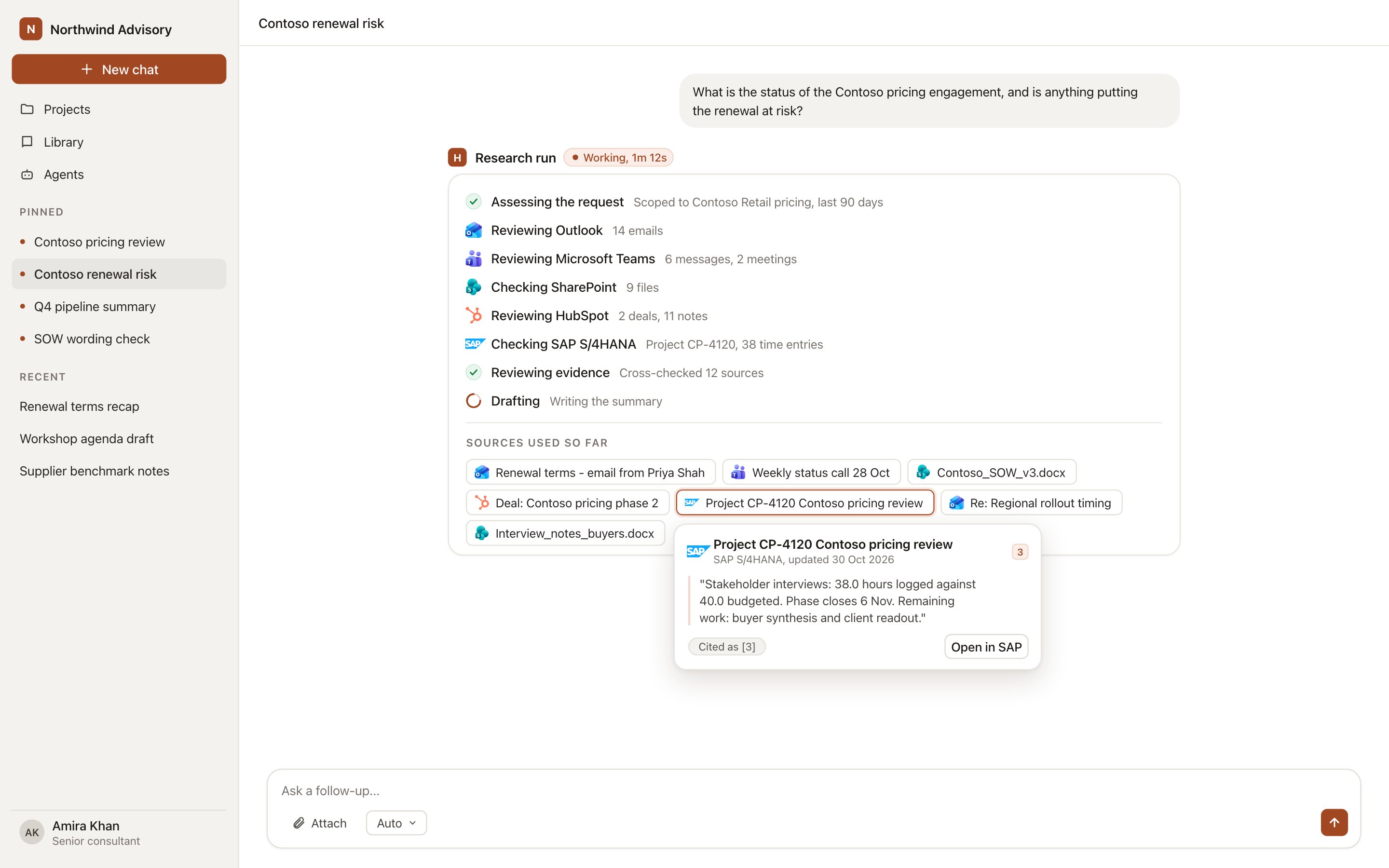
A research run reading from connected systems, with each record shown as a chip in the work trace.
When a run starts
When a request proves partway through to need more work, Hebno starts a run itself. To force one, hover over an answer and select Go deeper. The same message is answered again as a run, or as a revision when the message targeted an existing deck or document.
Scoping questions
When a different answer would change the deliverable, Hebno pauses first. The Before I start card reads “Pick what fits so the run targets the right thing, or skip and I will use my own judgement.”- You get at most two questions, each with two to four options.
- Some questions allow several picks (“choose any that apply”).
- Choose Something else to answer in your own words.
- Select Start research to begin with your picks, or Skip to let the run use its own judgement.
The live work trace
The trace is titled Steps and lists what ran, in order.- Understanding the request
- Building a plan
- Reading source files
- Searching firm & client context
- Researching external sources
- Checking evidence
- Synthesising findings
- Drafting the research brief
- Drafting the email, when you asked for one
- Revising the deliverable, on a follow-up to existing work
Chips and popovers
Under each step, chips show what Hebno pulled in, each with the app logo, file type or website icon. Hover over a chip, or tap it on a touch screen, to open a popover with the record name, a short excerpt and a link that opens the original. Chips show Cited as [n] or Source [n] when a deliverable uses them, and a step can show Findings backed: N. +N more expands a long list. Documents come from the knowledge index. Records, email and calendars are read live at the moment of the request, with your own permissions. What the reply used is stored with the chat so its history remains complete.Sources and claims
The Sources button under a reply shows the logos of the first few sources and how many there are. It lists each file, page, email, record or cell range with its app and citation number, grouped as Internal, Client or Public. See Sources and evidence. The claims panel grades each finding:
Review Inferred and Uncertain claims before the work goes to a client.