

Personal and organisation connections
A system connects in one of two ways. Some systems support both.
Where a system supports both, an admin connects the organisation and members can select Link your account. Hebno then acts as the member, with their permissions and their name on anything written.
Members can disconnect at any time. Admins can revoke any member connection under Admin → Connectors → Connections. Tokens and credentials are encrypted at rest.
How Hebno connects to each system
Documents in connected file and knowledge systems are stored in the knowledge index, so Hebno can search them by meaning with source permissions applied. Records and figures in CRM, ERP and finance systems are never copied: Hebno queries the system at that moment with the relevant credentials, so statuses and figures are current. Email, calendar, meetings and chat messages are searched live in the member’s own account. See How Hebno works.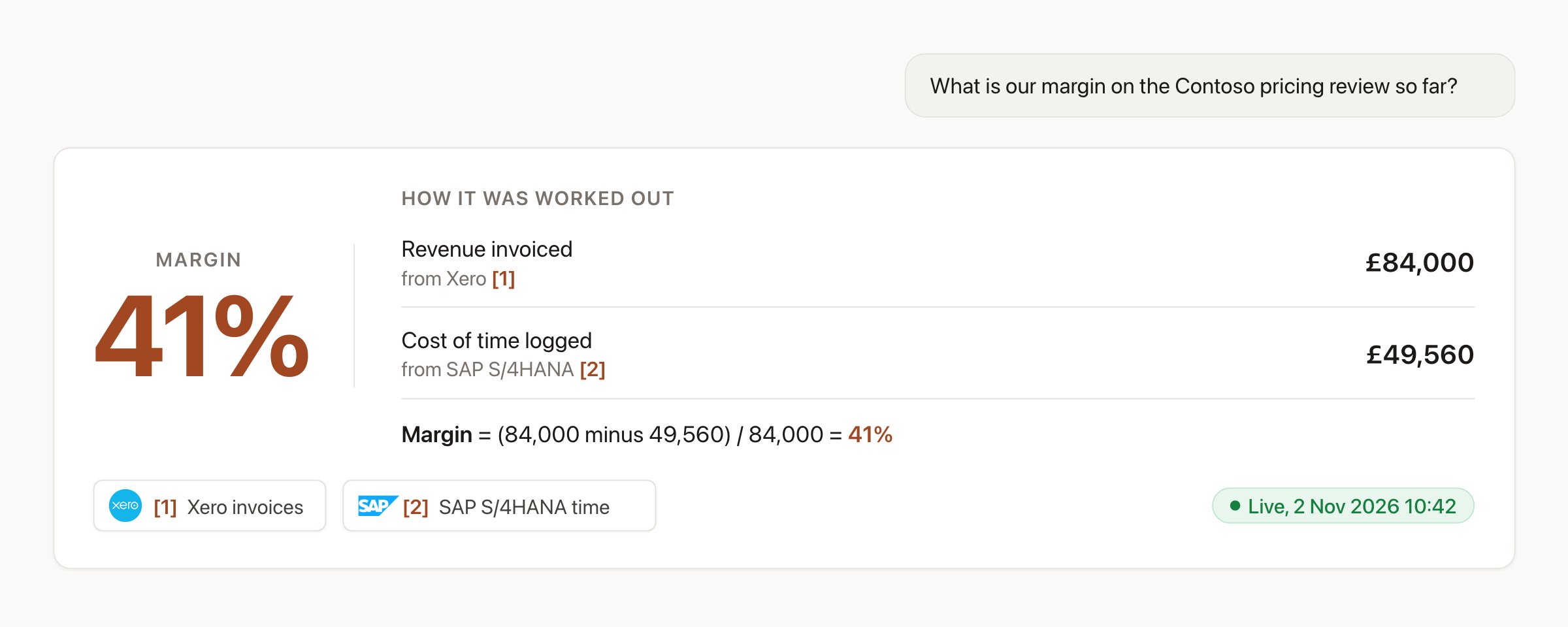
Figures come live from the system that owns them, each cited, with the calculation shown.
- Attach: use the + menu under Sources, or type
/and choose the integration, then pick an item. - Ask: name the client, system or record in your request, and Hebno searches the connected systems itself.
- Link: connect a project to its counterpart record (a deal, job, channel or folder) so every chat in that project starts from it. See Linked records.
Writes use confirmation cards
Hebno never writes to a connected system on its own. When a request implies a change, such as logging time, updating a deal stage, posting to a channel or sending an email, the reply shows a confirmation card. The card shows the system, the action, the target record and every field it will set, and every field is editable. Nothing is written until you select Confirm. For email and calendar invitations the button is Send. Dismiss discards the card. After a write, the card shows Done with a link to the record, and the write is recorded in Admin → Logs → Integrations. Two further rules apply:- Writes proposed by an agent queue under Agents → Approvals until a person confirms them.
- In ERP and finance systems, Hebno creates drafts only. It never approves, posts, sends or pays.
Data areas
An organisation connection can expose a large system, so admins choose which parts of it Hebno may read. For an ERP, the data areas might be Jobs and tasks, Time, Resource planning and Financials. Admins also choose which teams can use each organisation connection. Data areas default to everything except financial figures, which default to owners and admins only. A member on an allowed team sees only the areas enabled for that team.How permissions are respected
Several layers apply to every read and write. The most restrictive layer wins.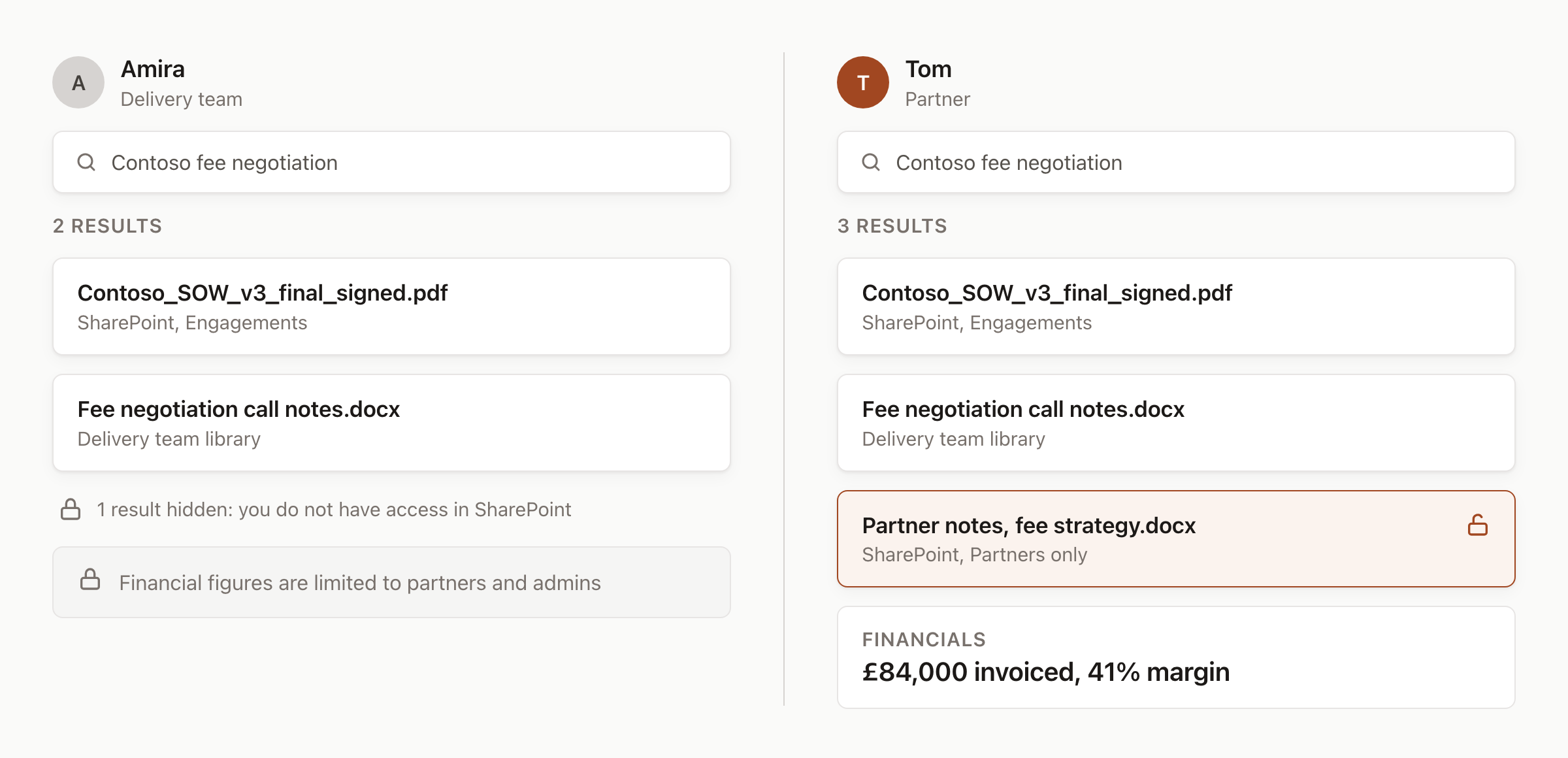
Same search, different people. Each sees only what their own access allows.
- The other system controls access. A member never sees anything through Hebno that they could not open directly in that system.
- Admins decide what is available. Under Admin → Connectors → Catalogue, each integration is Allowed or Blocked for the organisation, and has an Access setting of Read only or Read and write. Read and write is the default for files, mail, calendar, knowledge, communication, CRM and project tools. Read only is the default for ERP and finance.
- Organisation-wide approval removes a prompt, not a limit. Microsoft 365 and Google Workspace integrations can be enabled for the organisation so a directory administrator approves permissions once. Each member still connects their own account and sees only what their own permissions allow.
- People confirm every write, whatever the access setting.
Related pages
Permissions and access
Scopes, data areas and what each connection model exposes.
Admin connectors
Allow integrations, set access and revoke connections.
Sources and evidence
How cited records appear in replies and deliverables.
Linked records
Tie a project to its counterpart in other systems.