

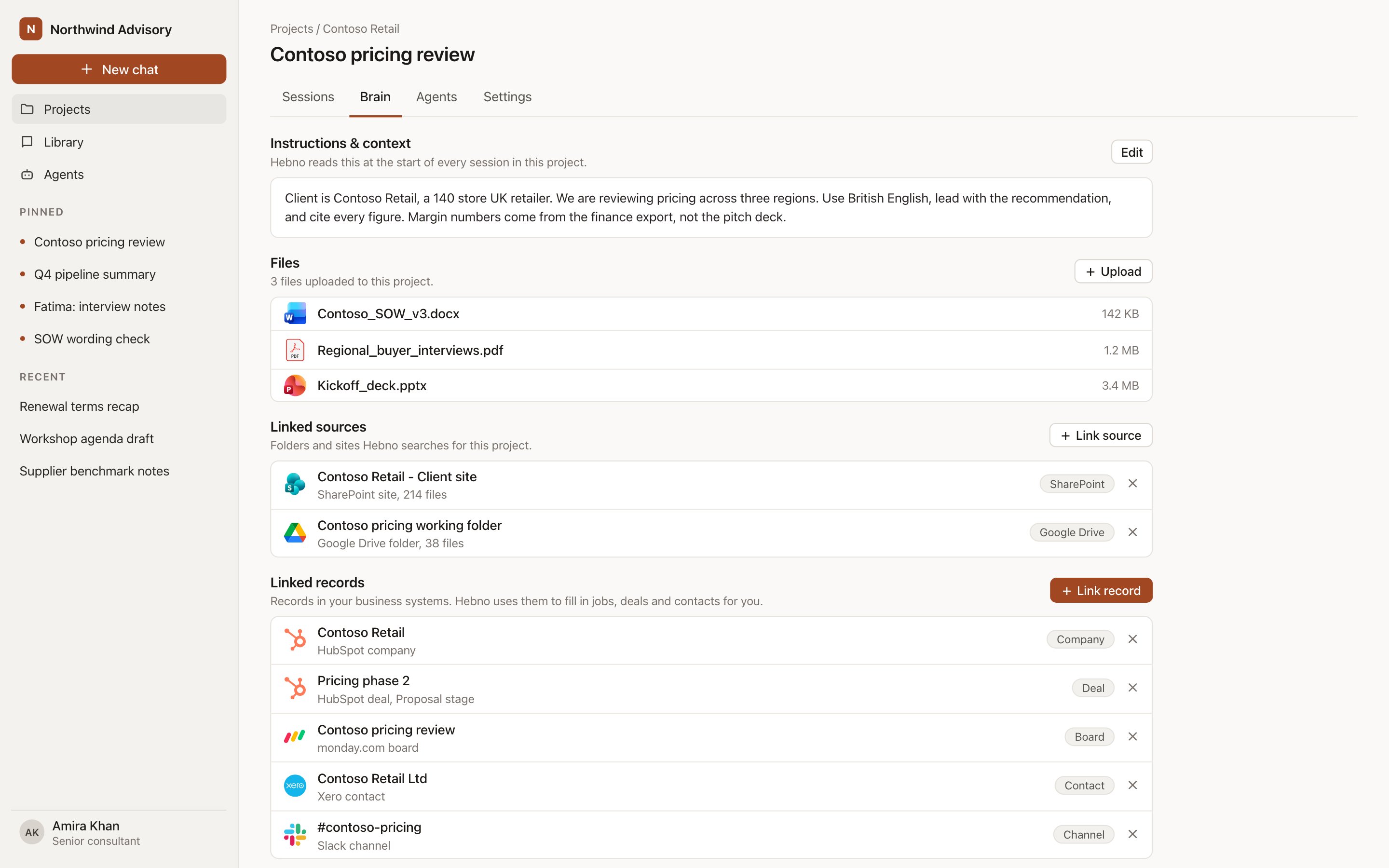
Linked records on a project's Brain tab.
What you can link
A project can have several linked records, and one per system is typical: the HubSpot deal, the SAP project, the Xero contact and the client’s Slack channel. Folders from SharePoint, OneDrive, Google Drive, Dropbox, Box, Egnyte, iManage Work and NetDocuments are linked sources and appear alongside. See Project brain.
Link a record
1
Open the Brain tab
Open the project and select Brain.
2
Select Link record
Choose Link record and pick the system. If your organisation has not connected it, or you have not connected your own account, Hebno shows Connect first.
3
Search and pick
Search by name and select the record. It appears under Linked records with the system’s logo and a link to open it.
Who can manage linked records
Project admins link and unlink records. Organisation owners and admins can manage them on every project. Project members see the linked records and use them in chat.How chats use linked records
In every chat tagged to the project: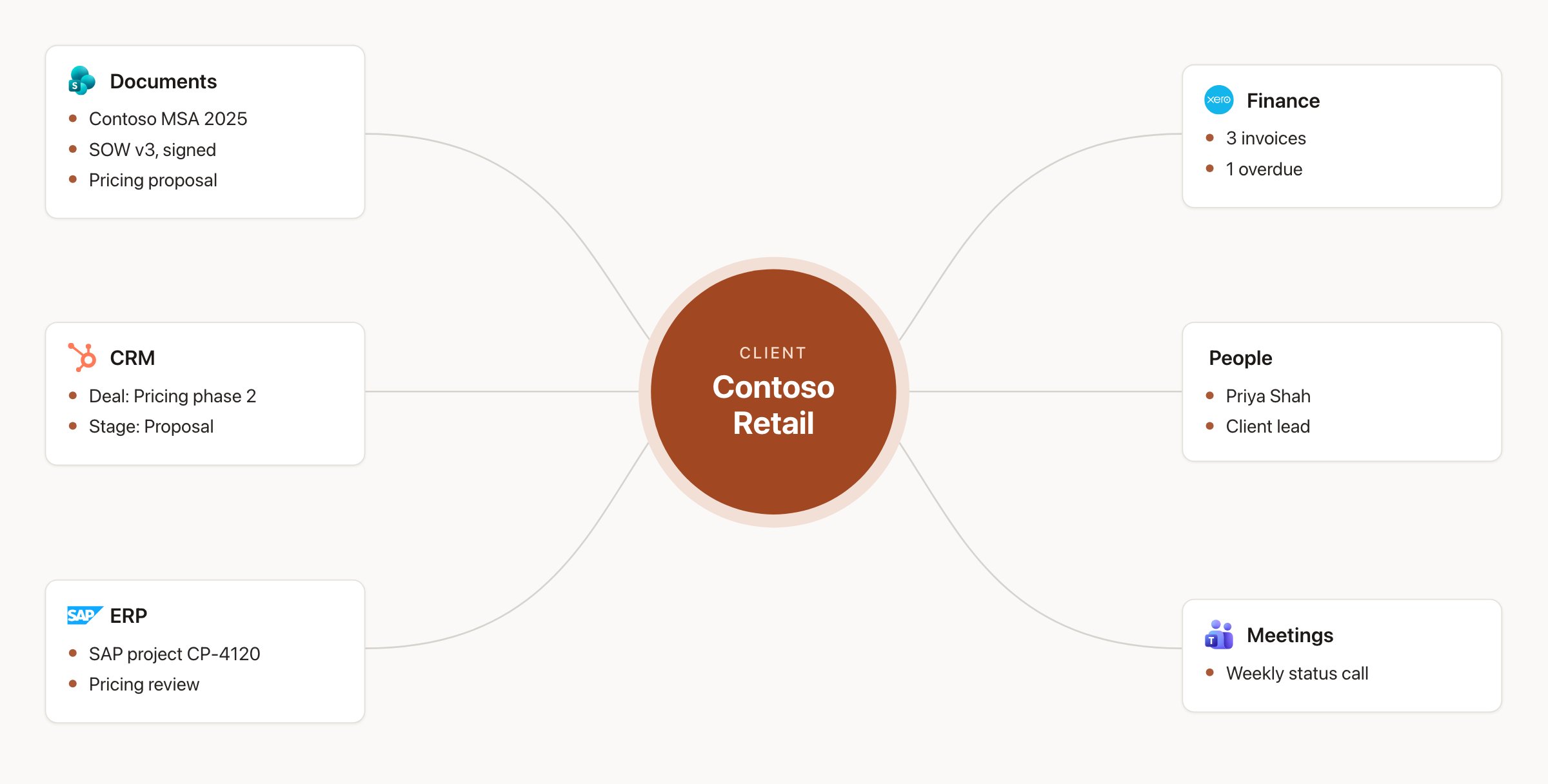
Linked records show a client's documents, deals, jobs and invoices side by side.
- Reads start there. Ask “what’s our budget burn” and Hebno reads the linked SAP project. Ask “latest from the client” and it checks the linked deal, channel and space first.
- Cards default to the record. A confirmation card for a time entry, a task, a deal note or a Slack post opens with the linked record already chosen. You can change it before you confirm.
- Sources show the record. The record appears as a chip in the work trace and in the Sources button, with its logo and a link to open it in the other system.