

At a glance
The integrations
One connection, approved step by step
Hebno connects to Google once per member. The first time you use a product, Google requests approval of only that product’s permissions. A member who connects Drive is never asked for Gmail, Calendar or Meet permissions until they use those products. Grants are cumulative, so approving Calendar later leaves your Drive access in place.1
Open Connections
Go to Settings → Connections. Or start in chat: type
/, choose a Google product, and select Connect.2
Connect Google
Find the product (for example Google Drive), select Connect, sign in to Google and approve the permissions on the consent screen. You return to the chat.
3
Add products as you need them
Each other Google product shows Grant access on its row. Select it to approve that product’s permissions. The row shows Connected once Google has granted them.
4
Allow sending, if you want it
Gmail shows Allow sending and Google Calendar shows Allow invitations after you connect them. These are separate grants, so reading and sending are your own choices.
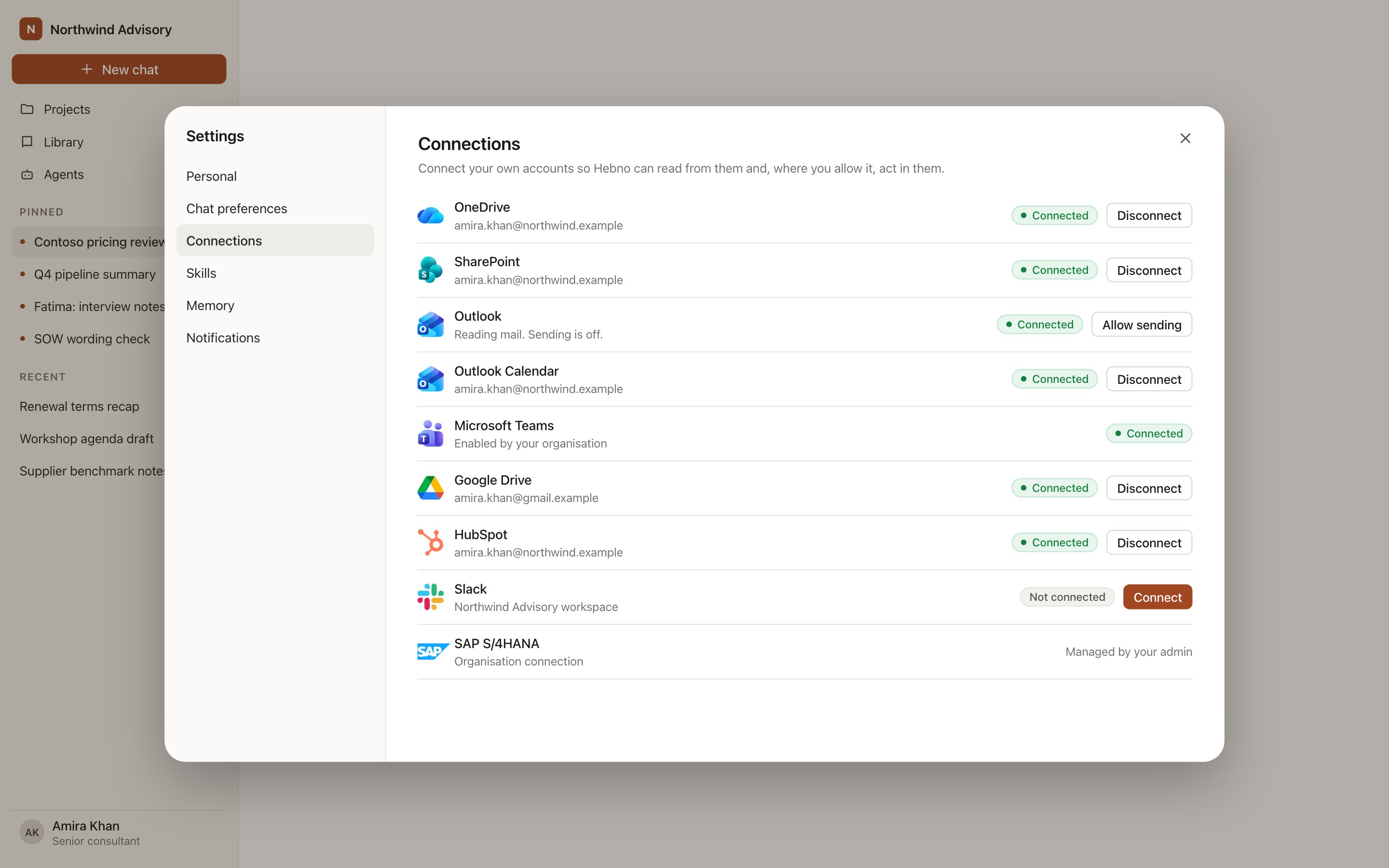
Google products listed on the Connections page, each with its own status.
Disconnecting any Google product removes the whole Google connection, including Drive, Gmail, Calendar and Meet. You can connect again at any time.
Permissions Hebno requests
Every authorisation includesopenid, email and profile to identify the account. Each product adds its own scopes.
Each product page explains why Hebno needs its scopes.
What Google enforces
Hebno uses your Google token, so it can read only what your account can already open. Google’s own sharing, shared drive membership and Meet participation rules apply on every request. Hebno stores the excerpts a reply used with the conversation, and nothing else from your Google account.Admin trust and organisation settings
Google Workspace administrators decide whether third-party apps can access restricted data such as Gmail and Drive. If your organisation restricts these services, a super admin marks Hebno as trusted once, and members then connect as normal. See Google Workspace admin. Owners and admins can allow or block each Google integration under Admin → Connectors → Catalogue, choose Read only or Read and write for each, and revoke any member’s connection under Admin → Connectors → Connections. A blocked integration disappears from chat and cannot be authorised.An owner or admin can also select Enable for the organisation on a Google card. A Workspace super admin approves that product’s permissions once for the domain, and members connect without seeing a Google consent screen. This removes a prompt only. Each member still connects their own account and sees only what their own permissions allow.
Where to go next
Google Drive
Search and attach files, link folders and save deliverables as Docs, Slides or Sheets.
Gmail
Search threads and send emails from a confirmation card.
Google Calendar
Read events, find shared free time and send invitations with a Meet link.
Google Meet
Read transcripts, Gemini notes and recording details from client meetings.
Google Workspace admin
Trust Hebno, scope it by organisational unit and revoke access.