

At a glance
Before you start
You need:- An owner or admin role in Hebno.
- Your Looker instance address, for example
https://northwind.cloud.looker.com. - A Looker user for the integration, created by a Looker admin under Admin → Users. Give it a role whose permission set and model set cover only what Hebno should read.
- API credentials for that user. A Looker admin opens the user under Admin → Users, selects Edit Keys under API Keys, then New API Key, and copies the Client ID and Client Secret.
Leave out permissions such as
develop, deploy, save_content, schedule_look_emails and manage_models. Hebno does not need them.
Connect Looker
1
Allow the integration
Open Admin → Connectors → Catalogue, find Looker under Data and analytics, and set it to Allow.
2
Connect the organisation
Select Connect, enter the Looker address, Client ID and Client Secret, then select Test connection. Hebno signs in to the Looker API and lists the models and folders the integration user can read.
3
Choose teams and data areas
Under Who can use it, choose All teams or pick teams. Under Data areas, choose which models and content each team can use. See Data areas.
4
Confirm access
Access is Read only. Looker has no write actions in Hebno.
Link your own account
Members can link their own Looker account so queries run with their own Looker role, model set, user attributes and access filters.- In Hebno, open Settings → Connections, find Looker and select Link your account.
- Sign in to Looker and select Allow.
Data areas
Data areas control what members of the allowed teams can see through the organisation connection. They apply on top of whatever the integration user can read in Looker.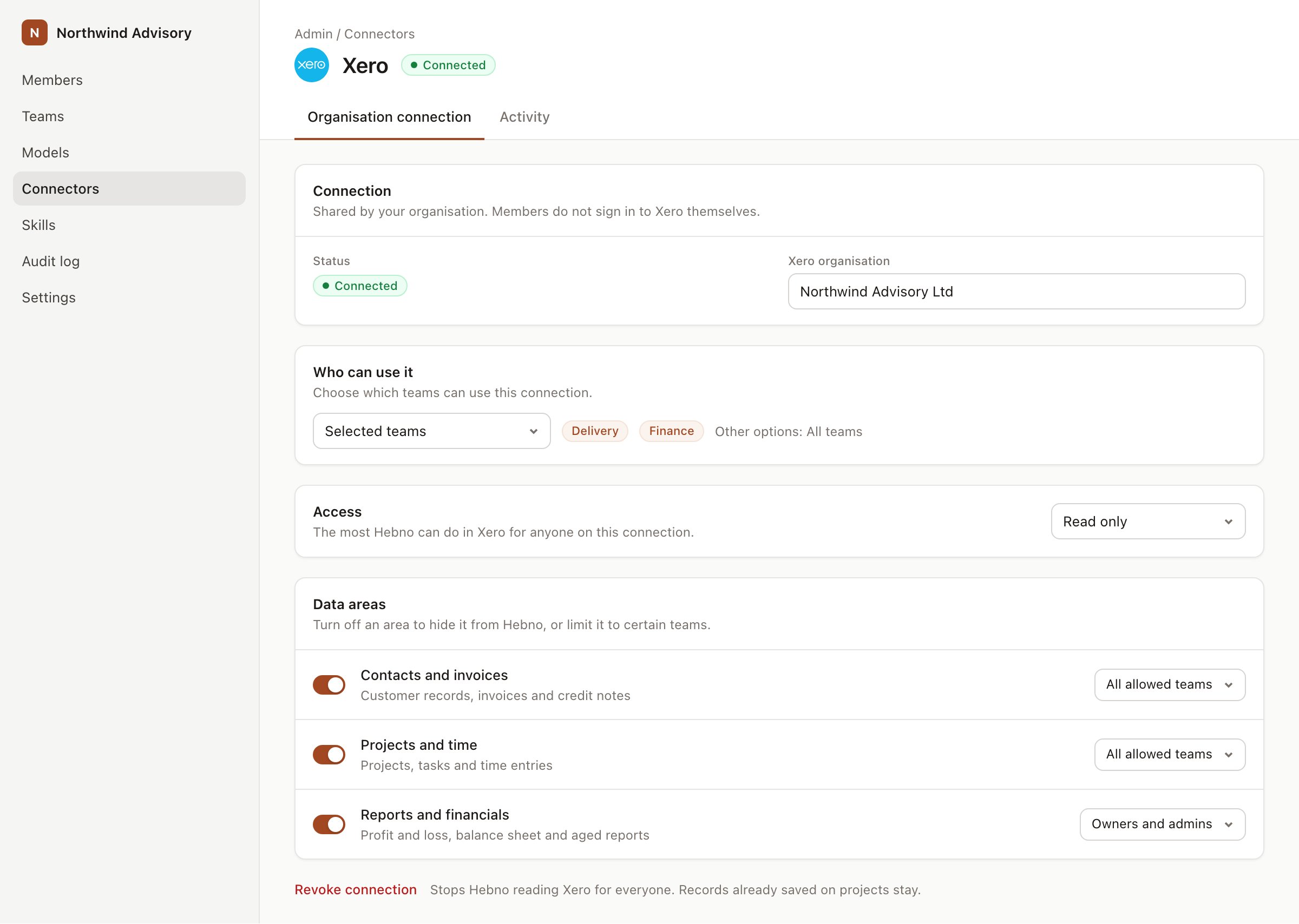
An organisation connection with team access and data areas. Financial figures default to owners and admins.
When a member has linked their own account, Hebno uses that member’s Looker permissions instead of the organisation connection. Data areas still apply, so a member never sees more through Hebno than both Looker and your Hebno settings allow.
What Hebno reads
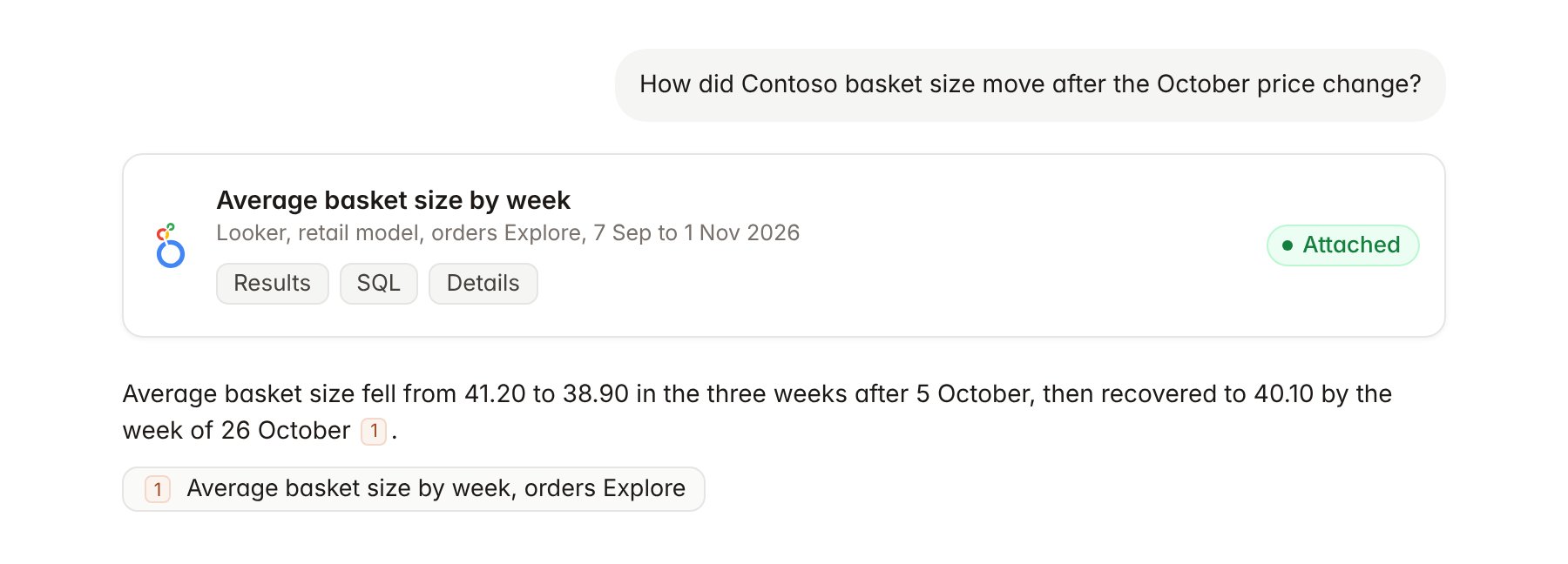
A Looker dashboard tile attached to a chat.
Hebno reads only
Hebno does not write to Looker. It does not save Looks or dashboards, change LookML, schedule deliveries, or create alerts.Link a project to a dashboard
Linking marks which Looker dashboards or Looks belong to an engagement, so you can ask “how are the numbers moving?” without naming the dashboard.- Open the project and select Brain.
- Under Linked records, select Link record, then Looker.
- Search by dashboard or Look title and select it. Repeat for each one in the engagement.
Use Looker in chat
-
Attach: open the + menu, choose Sources → Looker, and pick a Look, a dashboard, a tile or an Explore. Or type
/and choose Looker. -
Ask: name the metric, dashboard or filter in your request. For example:
Using the Contoso pricing dashboard, which store clusters lost margin in October?
Show average basket size by week for Contoso since 1 September, split by region, and explain the change.
Which Explore should I use for promotion uplift, and what do its measures mean?
- Research runs show a Checking Looker step, with a chip for each Look, dashboard and query it ran.
- Agents can read Looker on a schedule, for example a Monday brief on the Contoso pricing dashboard. Writes an agent proposes elsewhere appear in agent approvals for review.