

At a glance
Before you start
You need:- An active Sales Navigator seat on your LinkedIn account.
- Partner integrations turned on for your seat. A Sales Navigator admin manages this under Admin settings → Integrations in Sales Navigator.
- An allowed integration. An owner or admin sets LinkedIn Sales Navigator to Allow under Admin → Connectors → Catalogue.
LinkedIn issues access for 60 days at a time. Hebno shows a Reconnect prompt before it expires.
Connect LinkedIn Sales Navigator
1
Start the connection
Open Settings → Connections, find LinkedIn Sales Navigator under Company and market data and select Connect. You can also select Connect from the prompt in a chat.
2
Sign in to LinkedIn
Sign in with the LinkedIn account with your Sales Navigator seat, review the access and select Allow.
3
Return to Hebno
The card shows Connected with your name and your Sales Navigator contract.
What Hebno reads
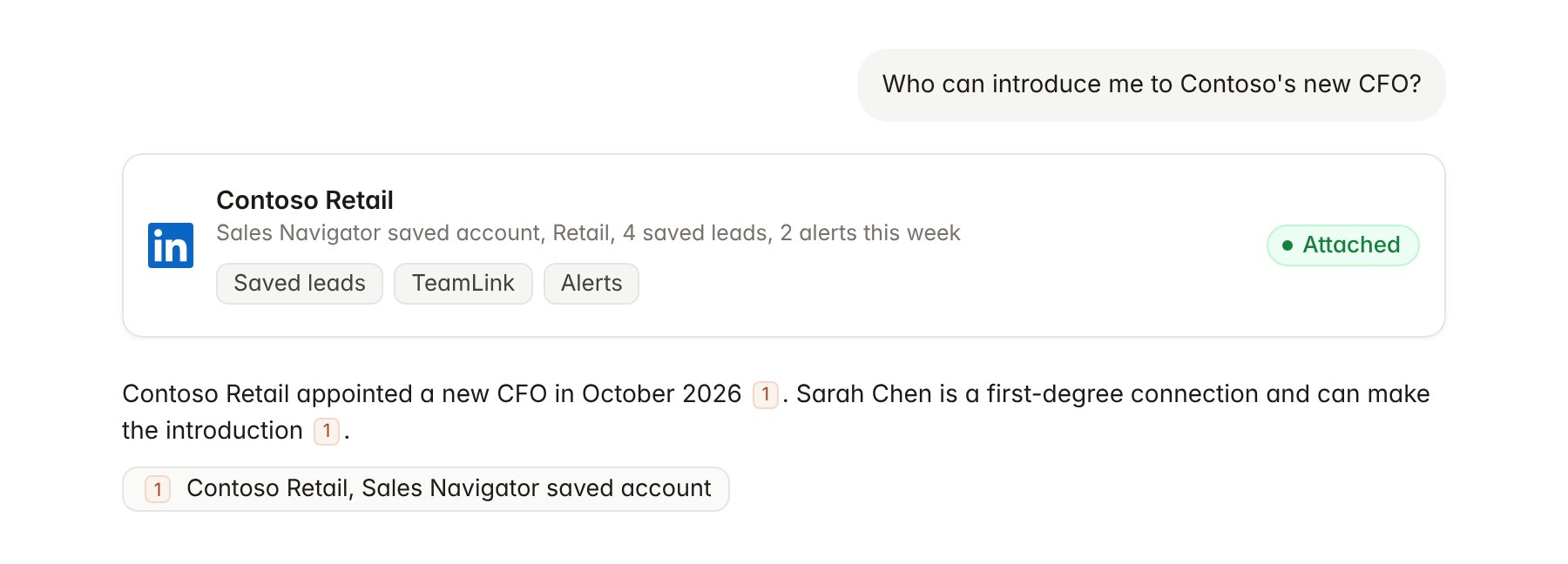
A LinkedIn Sales Navigator account attached to a chat.
What Hebno writes
Hebno does not write to Sales Navigator. It does not save or unsave accounts or leads, change lists, send InMail or connection requests, or add notes. To record a relationship or a follow-up, use your CRM integration, for example HubSpot or Salesforce.Link a project to a saved account
Linking marks which Sales Navigator account belongs to a project, so you can ask “what changed at the client?” without naming it.- Open the project and select Brain.
- Under Linked records, select Link record, then LinkedIn Sales Navigator.
- Search your saved accounts and select the client.
Use LinkedIn Sales Navigator in chat
-
Attach: open the + menu, choose Sources → LinkedIn Sales Navigator, and pick a saved account, a saved lead or a list. Or type
/and choose LinkedIn Sales Navigator. -
Ask: name the account, person or list in your request. For example:
Who is new in a senior role at Contoso Retail since September, and who at the firm is connected to them?
Summarise this week’s alerts across my 2027 retail targets list and flag any leadership change.
Build a stakeholder map for the Contoso pricing review from my saved leads, grouped by function.
- Research runs show a Checking LinkedIn Sales Navigator step, with a chip for each account, lead and list it read.
- Agents can read Sales Navigator on a schedule, for example a Monday digest of alerts on saved accounts. Writes an agent proposes elsewhere appear in agent approvals for review.