

At a glance
Before you start
You need:- A Google Workspace account with Google Chat turned on. A super admin controls this under Apps → Google Workspace → Google Chat in the Google Admin console.
- Membership of each space you want to use. Hebno never joins a space on your behalf.
- An allowed integration. An owner or admin sets Google Chat to Allow under Admin → Connectors → Catalogue.
openid, email and profile.
If your organisation restricts third-party apps, a super admin trusts Hebno once in App access control. See Google Workspace admin.
Connect Google Chat
1
Open Connections
Go to Settings → Connections and find Google Chat under Communication. Or type
/ in the composer, choose Google Chat and select Connect.2
Approve access
Select Connect (or Grant access if you already connected another Google product), sign in to Google and approve reading your spaces and messages.
3
Allow posting (optional)
Select Allow posting on the Google Chat row to add
chat.messages.create. The same button appears on a message card if you try to post first.What Hebno reads
Hebno reads Chat live, with your account. Only the messages a reply used are stored with the conversation as its sources.
The Chat API lists messages by space and time rather than by keyword. Hebno finds the spaces that match your request, reads recent messages there, and filters them by your terms, so naming the space or a date range gives faster, more precise answers. Each message in a source links back to the message in Chat.
What Hebno writes
Every write appears first as a confirmation card. You can change any field before you select Confirm.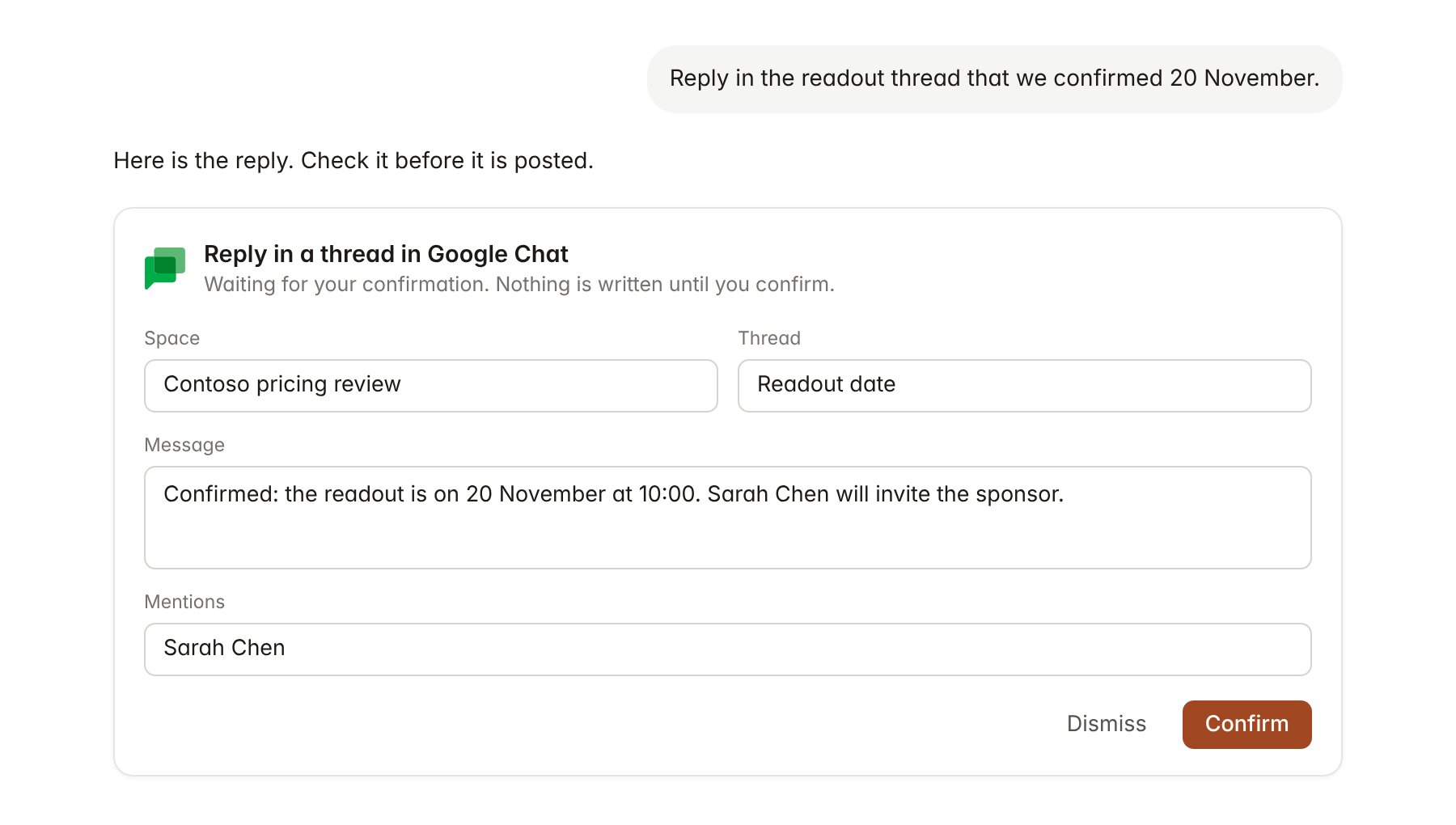
A Google Chat change pending confirmation. Nothing is written until you confirm.
Link a project to a space
Linking marks which Chat space belongs to a project, so you can ask “what has the team said?” without naming the space.- Open the project and select Brain.
- Under Linked records, select Link record, then Google Chat.
- Search by space name and select the space. Only spaces you belong to appear.
Use Google Chat in chat
-
Attach: open the + menu, choose Sources → Google Chat, and pick a space, a conversation or a thread. Or type
/and choose Google Chat. -
Ask: name the space, person or topic in your request. For example:
Find where the Contoso team agreed to move the readout to 20 November and quote the messages.
Summarise what the Contoso pricing review space discussed this week and list any open questions.
Post a short status update to the Contoso space with the three decisions from this chat.
- Research runs show a Reviewing Google Chat step, with a chip for each message or thread Hebno read.
- Agents can read Chat on a schedule, for example a Friday summary of a project space. Posts an agent proposes appear in agent approvals for review.