

At a glance
Before you start
You need:- An owner or admin role in Hebno.
- A Qualtrics user for the integration that owns the surveys Hebno should read, or that the survey owners share them with through Collaborate. Hebno sees only what this user can open.
- The Access API permission on that user. A Qualtrics Brand Administrator turns it on under Admin → Users, by opening the user and selecting User permissions → General → Access API, or on the user type.
- An API token for that user, created in Qualtrics under Account Settings → Qualtrics IDs → API → Generate Token.
- Your datacentre ID, shown on the same Qualtrics IDs page under User, for example
fra1oriad1.
Connect Qualtrics
1
Allow the integration
Open Admin → Connectors → Catalogue, find Qualtrics under Surveys and research, and set it to Allow.
2
Connect the organisation
Select Connect, enter your datacentre ID and the integration user’s API token, then select Test connection. Hebno checks that it can reach Qualtrics and lists the surveys the integration user can read.
3
Choose teams and data areas
Under Who can use it, choose All teams or pick teams. Under Data areas, choose what members can see. See Data areas.
4
Set access
Leave Access on Read and write to let members propose draft surveys, or choose Read only.
Link your own account
Members can link their own Qualtrics account so they read their own surveys and drafts are created in their name.- In Qualtrics, open Account Settings → Qualtrics IDs, and under API select Generate Token. Your user needs the Access API permission.
- In Hebno, open Settings → Connections, find Qualtrics and select Link your account.
- Paste the token and select Link.
Data areas
Data areas control what members of the allowed teams can see through the organisation connection. They apply on top of what the integration user can open in Qualtrics.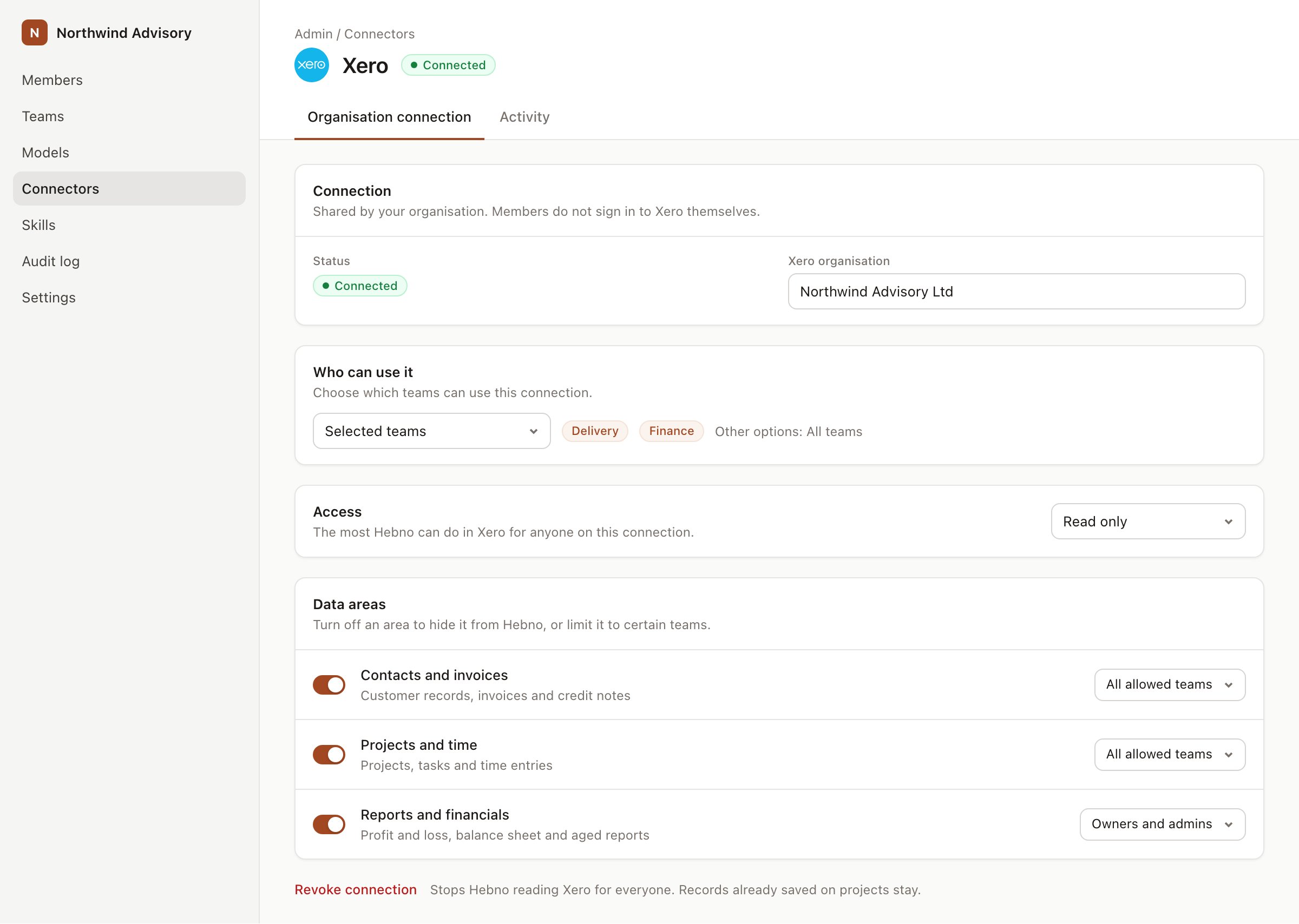
An organisation connection with team access and data areas. Financial figures default to owners and admins.
When a member has linked their own account, Hebno uses that member’s Qualtrics permissions instead of the organisation connection. Data areas still apply, so a member never sees more through Hebno than both Qualtrics and your Hebno settings allow.
What Hebno reads
Reads are live. Hebno exports responses from Qualtrics when a request needs them and counts answers from the export, saying how many responses an answer is based on. Large exports take longer, and the research run shows progress while Qualtrics prepares the file. Only what a reply used is stored with the conversation as its sources.
What Hebno writes
Every write appears first as a confirmation card. You can change any field before you select Confirm.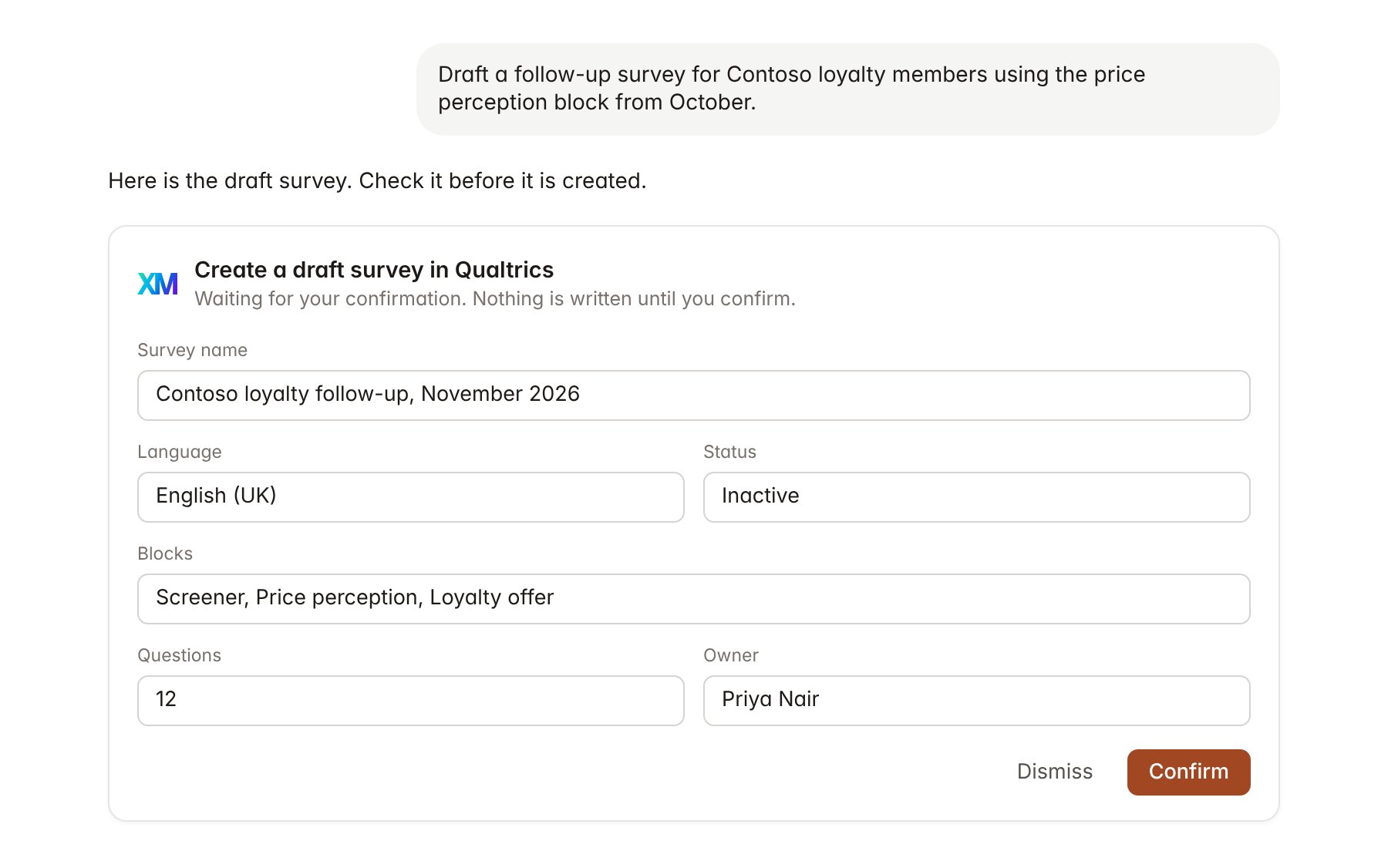
A Qualtrics change pending confirmation. Nothing is written until you confirm.
Link a project to a survey
Linking marks which Qualtrics surveys belong to an engagement, so you can ask “what did the study find?” without naming the survey.- Open the project and select Brain.
- Under Linked records, select Link record, then Qualtrics.
- Search by survey name and select it. Repeat for each survey in the engagement.
Use Qualtrics in chat
-
Attach: open the + menu, choose Sources → Qualtrics, and pick a survey, its responses or a distribution. Or type
/and choose Qualtrics. -
Ask: name the survey, client or segment in your request. For example:
Summarise the Contoso October pricing study: mean price perception score by store format, and the three most common themes in the text answers.
How did the November distribution perform? Show sent, opened and finished counts and the response rate.
Create a draft follow-up survey for loyalty members with the price perception block from the October study.
- Research runs show a Checking Qualtrics step, with a chip for each survey, export and distribution it read.
- Agents can read Qualtrics on a schedule, for example a daily response count while a study is in field. Writes an agent proposes appear in agent approvals for review.