

At a glance
Before you start
You need a Google account with Google Calendar. Free and busy times are available for colleagues in your Google Workspace domain who share availability with you.Permissions
Connect Google Calendar
1
Open Connections
Go to Settings → Connections and find Google Calendar under Calendar. Or type
/ in the composer, choose Google Calendar and select Connect.2
Approve read access
Select Connect (or Grant access if you already connected another Google product), sign in to Google and approve reading your calendar.
3
Allow invitations, if you want them
Select Allow invitations on the Google Calendar row and approve the event permission. Without it, Hebno can suggest times and draft an invitation but cannot send it.
Enable for the organisation
An owner or admin can select Enable for the organisation on the Google Calendar card under Admin → Connectors → Catalogue. A Workspace super admin approves the read permissions for the domain, and members connect without a Google consent screen. Invitations remain a personal grant. See Google Workspace admin.What Hebno reads
The picker shows upcoming events for the next 90 days. Searching spans the past year and the next 90 days. When you attach an event, it becomes a Markdown file with the title, time (UTC), organiser, location, link, attendees and description. Hebno searches your calendar by client, company, domain or person across the last three years by default, and you can name a date range.
Free-time suggestions need colleagues in your own Workspace domain. Hebno cannot read the availability of a client outside it, and says so. Suggestions fall within 08:00 to 18:00, from 5 to 480 minutes long, and only offer slots that suit every attendee. Nothing is booked until you agree and an invitation is sent.
Reads are live. Hebno queries Calendar when a request needs it, and only what a reply used is stored with the conversation as its sources.
What Hebno writes
Hebno shows a card titled Calendar invitation. Edit any field, then select Send. Dismiss discards it.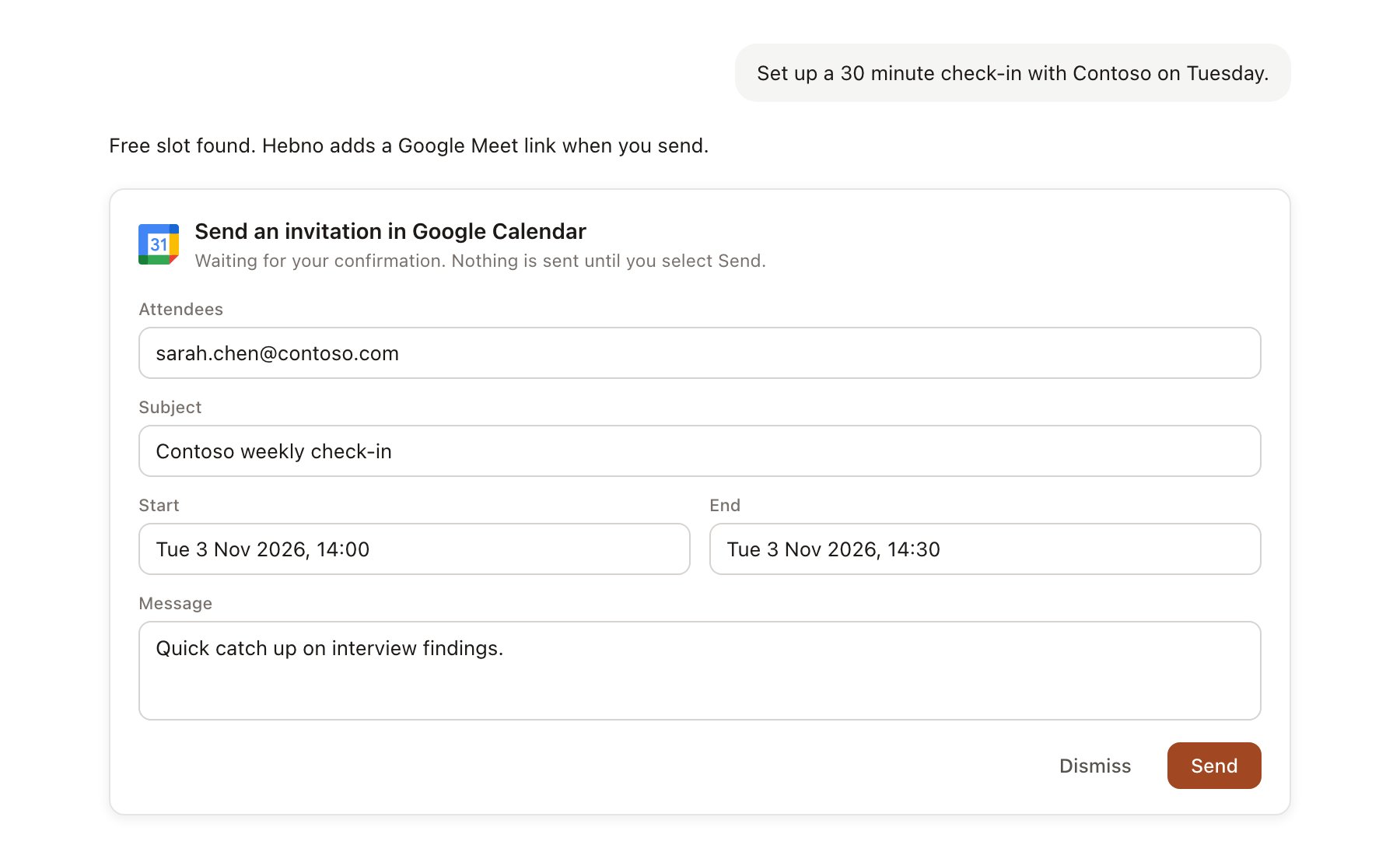
A Google Calendar change pending confirmation. Nothing is written until you confirm.
Use Google Calendar in chat
-
Attach: open the + menu, choose Sources → Google Calendar, and pick an event. Or type
/and choose Google Calendar. -
Ask: name the client, person or time. For example:
How many times have we met Contoso this year, and who attended?
Find 90 minutes this week when Priya, Marcus and I are free, and draft an invitation for the pricing workshop.
Invite the delivery team to a Contoso readout rehearsal on Thursday at 10:00.
- Research runs show a Checking Google Calendar step, with a chip for each event.
- Agents can read your calendar on a schedule, for example a Monday brief on client meetings. An agent cannot send. Any invitation it proposes appears in agent approvals.