

At a glance
Before you start
You need a Google account with Gmail. If your Workspace restricts Gmail for third-party apps, a super admin must mark Hebno as trusted first. See Google Workspace admin.Permissions
Hebno does not request permission to delete, label, archive or modify messages.
Connect Gmail
1
Open Connections
Go to Settings → Connections and find Gmail under Mail. Or type
/ in the composer, choose Gmail and select Connect.2
Approve read access
Select Connect (or Grant access if you already connected another Google product), sign in to Google and approve reading your mail.
3
Allow sending, if you want it
Select Allow sending on the Gmail row and approve the send permission. Without it, Hebno can draft an email but cannot send it.
Enable for the organisation
An owner or admin can select Enable for the organisation on the Gmail card under Admin → Connectors → Catalogue. A Workspace super admin approves the read permission for the domain, and members connect without a Google consent screen. Sending remains a personal grant each member chooses. See Google Workspace admin.What Hebno reads
When you attach a message, it becomes a Markdown file named after the subject, with the headers and body as plain text. Attachments on the email are not included.
Hebno searches with Gmail’s own search syntax. Name a person or domain, or use operators such as
from:priya@contoso.com, subject:"renewal", has:attachment or after:2026/09/01. Hebno returns one result per thread and reads up to five threads in chat and six in a research run. Reads are live: Hebno searches Gmail when a request needs it, and only what a reply used is stored with the conversation as its sources.
What Hebno writes
Hebno drafts the email and shows a card titled Email. Edit any field, then select Send. Dismiss discards it.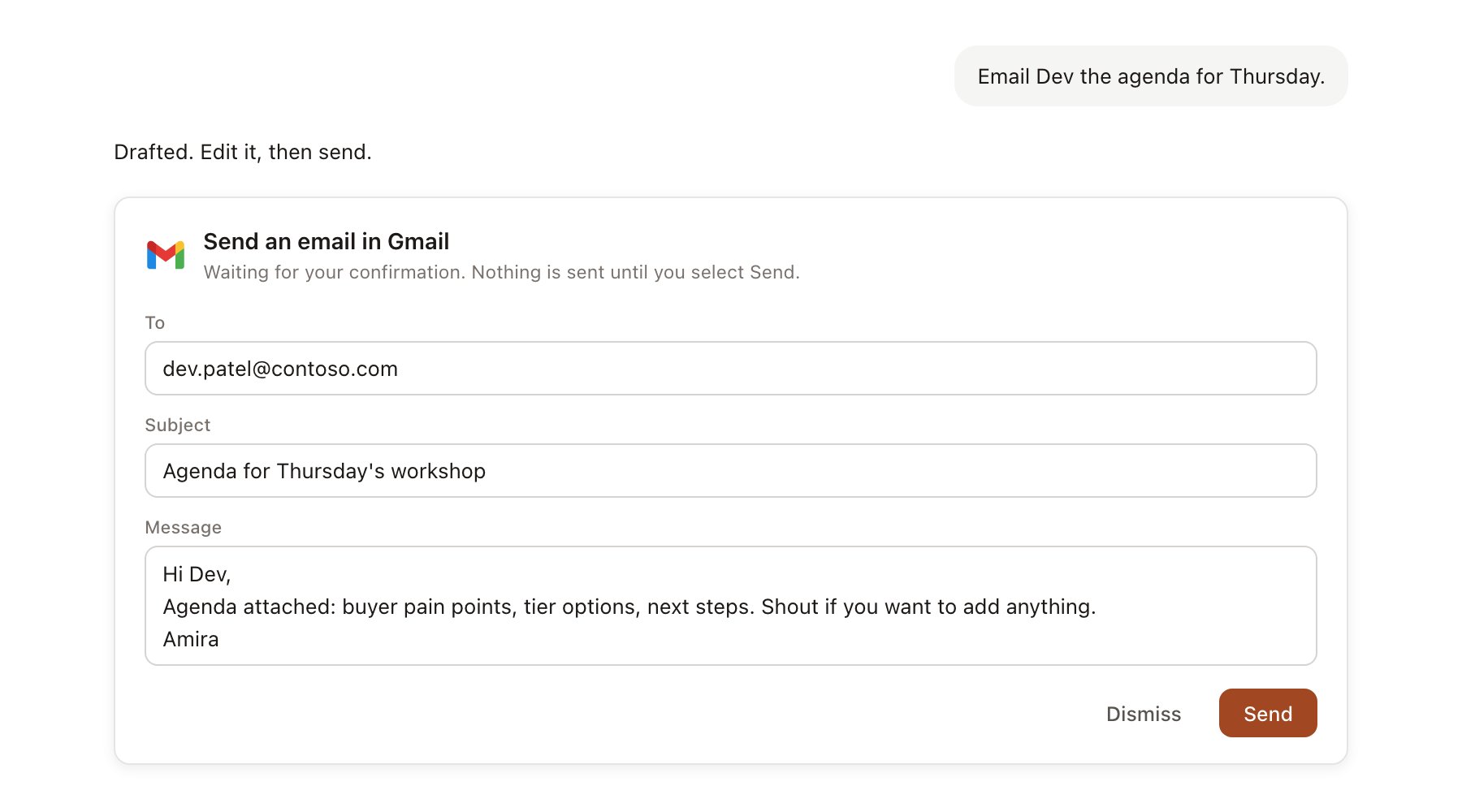
A Gmail change pending confirmation. Nothing is written until you confirm.
Use Gmail in chat
-
Attach: open the + menu, choose Sources → Gmail, and pick a recent message or type to search. Or type
/and choose Gmail. -
Ask: name the client, person or topic. For example:
What has Contoso procurement asked us to change in the master services agreement?
Summarise every email with contoso.com since the kickoff and list open questions.
Draft a reply to Priya confirming the revised workshop dates.
- Research runs show a Reviewing Gmail step, with a chip for each thread.
- Agents can read mail on a schedule, for example a Friday digest of client threads awaiting a reply. An agent cannot send. Any email it proposes appears in agent approvals.