

At a glance
Before you start
You need:- An Otter account that recorded the conversations, or that the owner shared them with.
- An allowed integration. An owner or admin sets Otter.ai to Allow under Admin → Connectors → Catalogue.
- Approval from your Otter workspace admin if they restrict which apps members can connect.
Connect Otter.ai
1
Start the connection
Open Settings → Connections, find Otter.ai under Meetings and calls and select Connect. Or type
/ in the composer, choose Otter.ai and select Connect.2
Sign in to Otter
Sign in with your Otter account, choose the workspace if you belong to more than one, and select Allow.
3
Return to Hebno
The card shows Connected with your Otter email address.
What Hebno reads
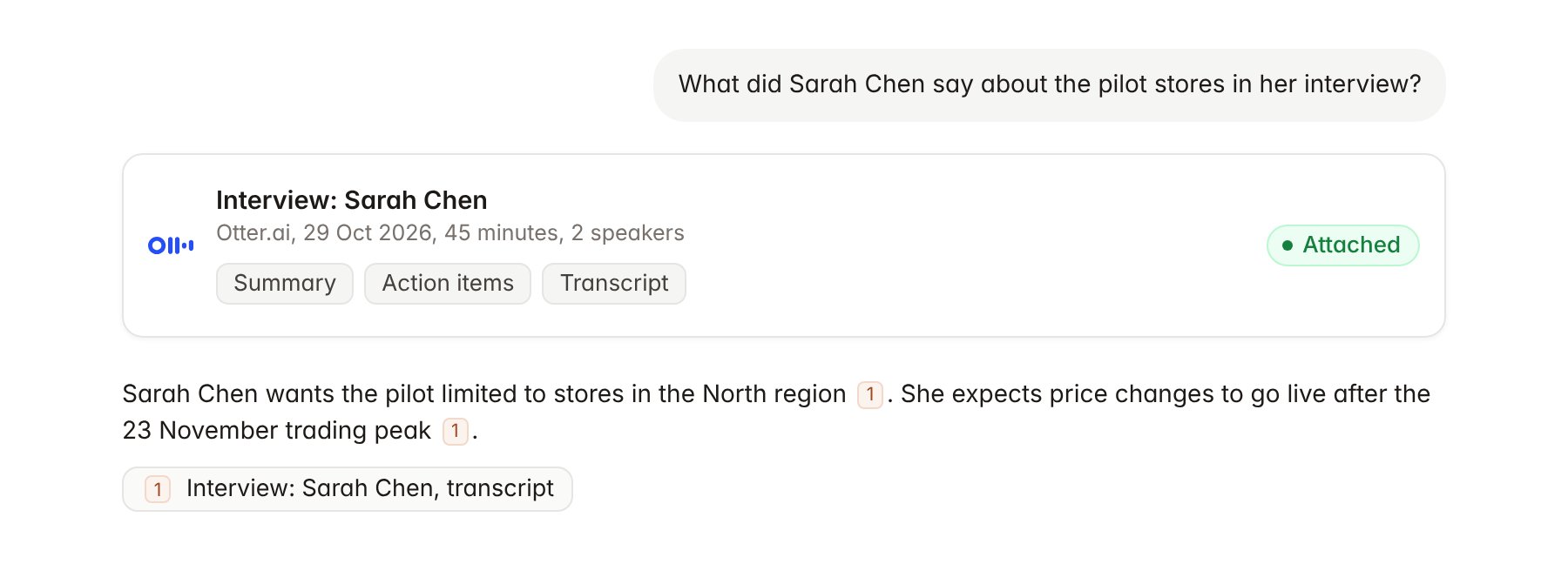
An Otter.ai conversation attached to a chat.
Hebno reads only
Hebno does not write to Otter. It does not start recordings, send the Otter notetaker to meetings, edit transcripts, add comments or highlights, or change sharing. To schedule a follow-up, use Google Calendar or Outlook Calendar.Link a project to an Otter folder
Linking marks which Otter folder or channel belongs to an engagement, so you can ask “what did the interviews say?” without naming each conversation.- Open the project and select Brain.
- Under Linked records, select Link record, then Otter.ai.
- Search by folder or channel name and select it, for example the Contoso stakeholder interviews folder.
Use Otter.ai in chat
-
Attach: open the + menu, choose Sources → Otter.ai, pick a conversation, then pick the summary, action items, transcript or full record. Or type
/and choose Otter.ai. -
Ask: name the client, person, keyword or date. For example:
Compare what the six Contoso stakeholders said about regional pricing, with a quote from each.
Pull the action items from Thursday’s Contoso workshop and draft the follow-up email.
Which interviewees raised concerns about the November rollout date?
- Research runs show a Reviewing Otter.ai step, with a chip for each conversation and the source used.
- Agents can read Otter on a schedule, for example a Friday digest of the week’s client interviews. Otter has no write actions, so agents only read.