

At a glance
Before you start
You need:- A Canva account that can open the designs and folders you want to use, in your own account or a Canva team you belong to.
- Access to your team’s Brand Kit if you want to read brand templates.
- An allowed integration. An owner or admin sets Canva to Allow under Admin → Connectors → Catalogue.
Connect Canva
1
Start the connection
Open Settings → Connections, find Canva under Design and whiteboards and select Connect. You can also select Connect from the prompt in a chat.
2
Sign in to Canva
Sign in, choose the team if you belong to more than one, review the access request and select Allow.
3
Return to Hebno
The card shows Connected with your Canva name and team.
What Hebno reads
Designs are exported through a Canva export job when you attach them, so Hebno reads the text and images as they are now. Reads are live. Hebno queries Canva when a request needs it. Only what a reply used is stored with the conversation as its sources.
What Hebno writes
Every write appears first as a confirmation card. You can change any field before you select Confirm.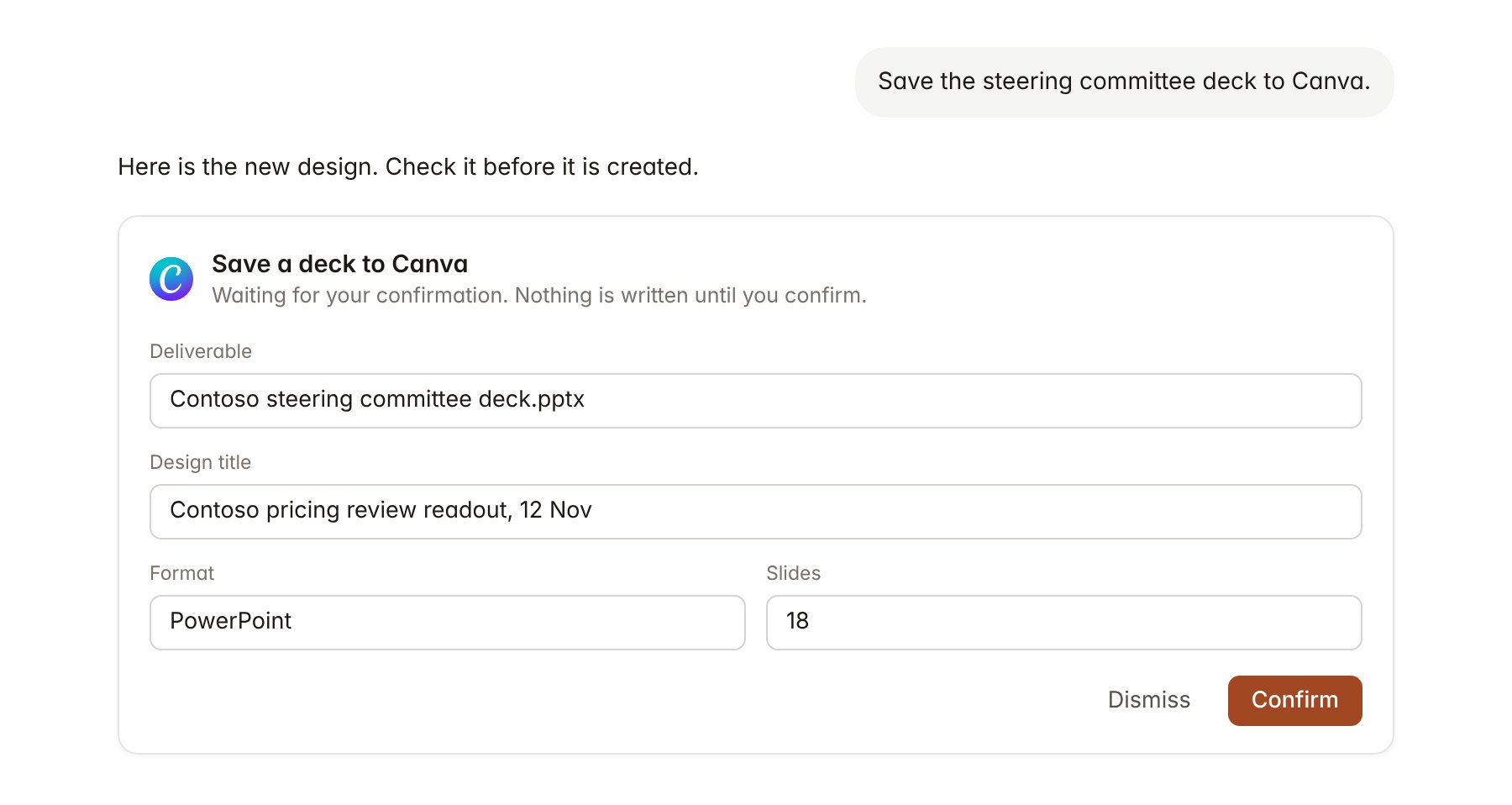
A Canva change pending confirmation. Nothing is written until you confirm.
Link a project to a folder
Linking marks which Canva folders belong to an engagement, so you can ask for “the client’s one-pager” without naming the folder.- Open the project and select Brain.
- Under Linked records, select Link record, then Canva.
- Search by folder name and select it. Repeat for each folder in the engagement.
Use Canva in chat
-
Attach: open the + menu, choose Sources → Canva, and pick a design, a folder or a brand template. Pick pages to attach part of a long design. Or type
/and choose Canva. -
Ask: name the design, folder or template in your request. For example:
Attach the Contoso workshop one-pager and check its figures against the interview summary.
Which brand template should we use for the Contoso readout, and what fields does it have?
Save the steering committee deck to Canva as Contoso pricing review readout, 12 Nov.
- Research runs show a Checking Canva step, with a chip for each design it read.
- Agents can read Canva on a schedule, for example a list of designs updated in a linked folder each week. Writes an agent proposes appear in agent approvals for review.