

At a glance
Before you start
You need:- A PandaDoc user in the workspace that contains your proposal templates. If you belong to more than one workspace, you choose one when you connect.
- A PandaDoc role that can create documents in that workspace, such as Member, Manager or Admin.
- An allowed integration. An owner or admin sets PandaDoc to Allow under Admin → Connectors → Catalogue.
PandaDoc shows the scopes together as
read+write on the authorisation screen.
Connect PandaDoc
1
Start the connection
Open Settings → Connections, find PandaDoc under Proposals and signatures and select Connect. You can also select Connect from the prompt in a chat.
2
Sign in to PandaDoc
Sign in, choose your workspace if you belong to more than one, and select Authorize.
3
Return to Hebno
The card shows Connected with your workspace name.
What Hebno reads
Reads are live. Hebno queries PandaDoc when a request needs it. Only what a reply used is stored with the conversation as its sources.
What Hebno writes
Every write appears first as a confirmation card. You can change any field before you select Confirm.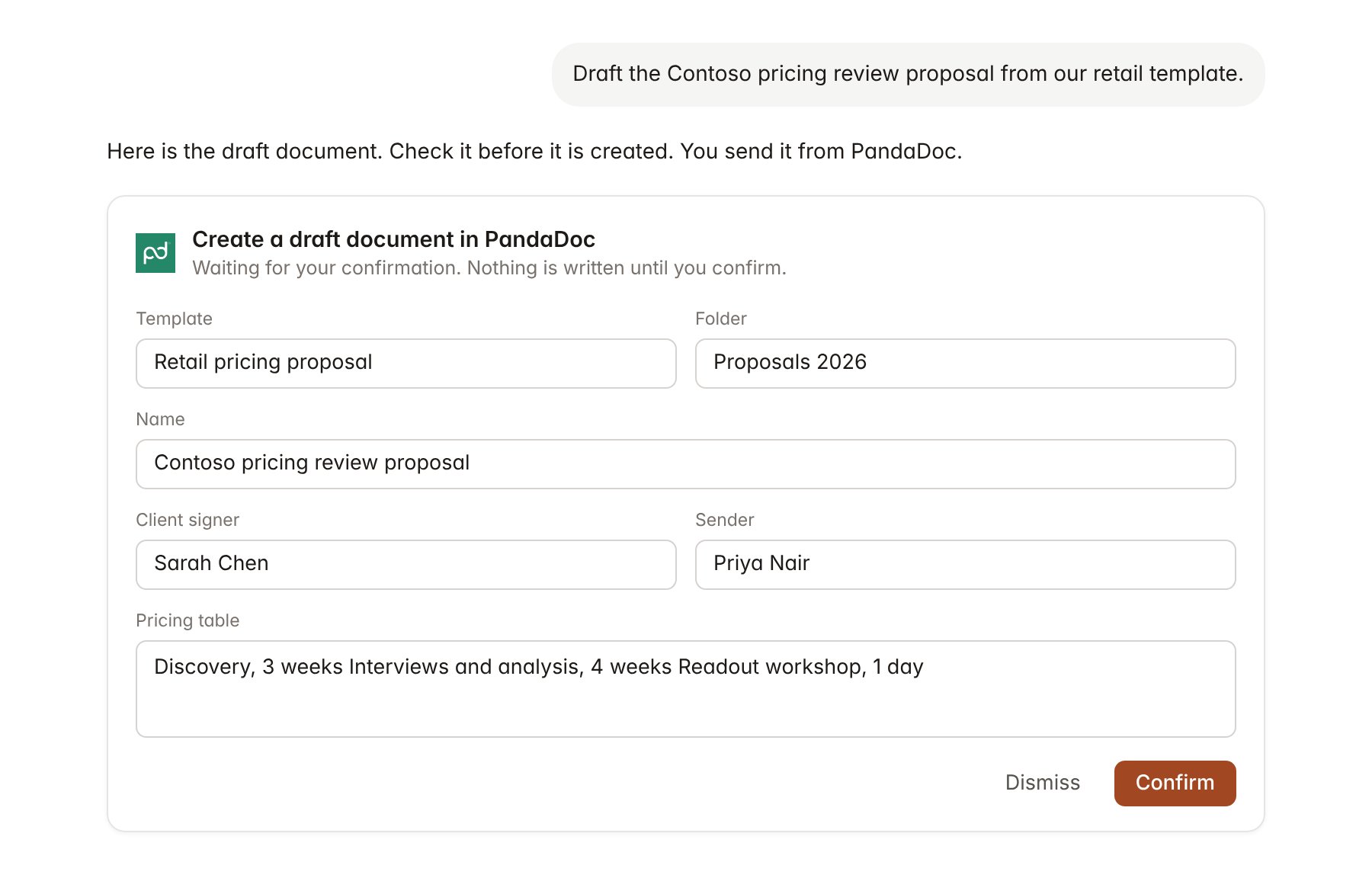
A PandaDoc change pending confirmation. Nothing is written until you confirm.
Link a project to a document
Linking marks which PandaDoc documents belong to an engagement, so you can ask “where is the proposal?” without naming it.- Open the project and select Brain.
- Under Linked records, select Link record, then PandaDoc.
- Search by document name or recipient and select the document. Repeat for each proposal, quote or contract in the engagement.
Use PandaDoc in chat
-
Attach: open the + menu, choose Sources → PandaDoc, and pick a document or a template. Or type
/and choose PandaDoc. -
Ask: name the client, document or template in your request. For example:
Which proposals sent in October are viewed but not signed?
Compare the fees in the Contoso pricing review proposal with the scope in our interview plan.
Create a draft from the retail pricing template for Contoso, with Sarah Chen as the client signer and three weeks of discovery.
- Research runs show a Checking PandaDoc step, with a chip for each document and template it read.
- Agents can read PandaDoc on a schedule, for example a Friday list of proposals viewed but not completed. Writes an agent proposes appear in agent approvals for review.