

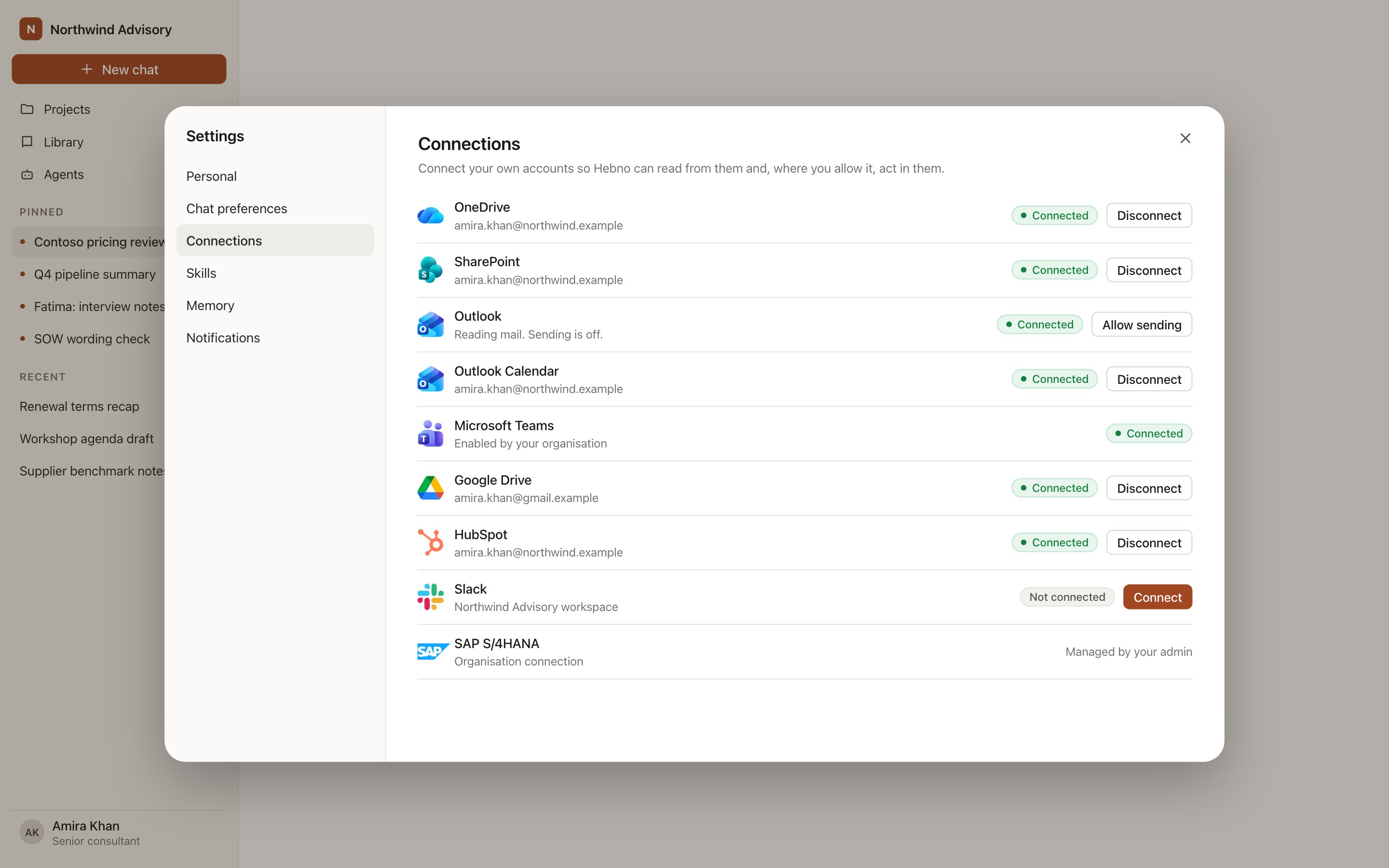
Settings → Connections lists each Microsoft integration with its status.
At a glance
One connection, incremental consent
Each member has a single Microsoft connection. Each integration requests its own permissions only when you first use it, so connecting OneDrive never requests Outlook, Teams or SharePoint access. When you approve another integration later, its permissions are added to the connection and the ones you already granted remain. Three practical effects:- A member who connects OneDrive sees the consent screen for OneDrive only. Selecting Connect or Grant access on SharePoint later requests only the SharePoint permissions.
- Disconnecting any Microsoft integration removes the whole Microsoft account from Hebno, including OneDrive, SharePoint, Outlook, Teams and Calendar. You can connect again at any time.
- Sending, inviting, posting and page creation are separate grants. Allow sending on Outlook adds
Mail.Send, Allow invitations on Outlook Calendar addsCalendars.ReadWrite, Allow posting on Teams addsChannelMessage.Send, and Allow page creation on OneNote addsNotes.Create. Each is your own choice.
What each integration does
OneDrive
Attach files, search a linked folder, save deliverables to it.
SharePoint
Search the sites you can open, link a client site, save into its libraries.
Outlook
Read client correspondence and send email from a confirmation card.
Outlook Calendar
Read events, find free slots with colleagues and send invitations with a Teams link.
Microsoft Teams
Read meetings, transcripts, Copilot notes, channel messages and chats, and post to a channel.
OneNote
Read your notebooks and create a page in a section you choose.
Dynamics 365 Sales
Read accounts, contacts, opportunities and activities, and add notes and tasks.
Dynamics 365 Business Central
Read customers, projects, time, invoices and the ledger, and prepare drafts.
Every Microsoft integration
Connect your Microsoft account
1
Start from chat or settings
Open Settings → Connections and select Connect on any Microsoft integration. Or use the integration in chat: a Connect prompt appears inline the first time.
2
Sign in and approve
Sign in to Microsoft and approve the permissions for that integration. If your organisation has enabled it, you see no consent screen.
3
Add more integrations when you need them
Select Grant access on another Microsoft row. Only that integration’s permissions are requested.
Enable Microsoft 365 for the organisation
Some permissions, such as Teams transcripts, need a Microsoft directory administrator to approve them. An owner or admin can approve them once so members never see a consent screen.1
Open the catalogue
Go to Admin → Connectors → Catalogue and find the integration under Files, Mail, Calendar, Communication or Knowledge.
2
Enable for the organisation
On the card, select Enable for the organisation. You are sent to Microsoft to approve that integration’s permissions as a directory administrator.
3
Tell members to grant it for their account
Members select Grant access on the row. Their rows show Enabled by your organisation.
Use Microsoft 365 from Word, PowerPoint, Excel and the desktop app
The Office add-ins and the desktop app use the same Microsoft connection and the same project context as the web app. Draft in Word, then save the result to a linked SharePoint folder from the same project. See Office add-ins and the desktop app.Use Microsoft 365 in chat
-
Attach: open the + menu, choose Sources, then pick OneDrive, SharePoint, Outlook, Outlook Calendar, Microsoft Teams or OneNote. Or type
/and the integration name. -
Ask: name the client or the source. For example:
What did Contoso say about the pricing review in email and in last week’s Teams meetings?
Find the latest Contoso Retail steering committee deck on SharePoint and summarise the open actions.
- Research runs show a step for each system, such as Reviewing Outlook, Reviewing recent Teams meetings and Searching SharePoint.
- Agents can read Microsoft 365 on a schedule. Writes an agent proposes appear in agent approvals.