

At a glance
Before you start
You need:- An owner or admin role in Hebno.
- A Personio admin who can create API credentials.
- Open Settings → Integrations → API credentials and select Generate new credential. Name it Hebno.
- Grant read access to persons, employments and absences. Do not grant write access.
- Under Readable employee attributes, select only the attributes Hebno reads: first name, last name, preferred name, email, position, department, team, office, supervisor, status and hire date. Leave salary, bank, tax, social security and other sensitive attributes unselected.
- Copy the client ID and client secret. The secret appears once.
Connect Personio
1
Allow the integration
Open Admin → Connectors → Catalogue, find Personio under People and HR, and set it to Allow.
2
Connect the organisation
Select Connect, enter the client ID and client secret, then select Test connection. Hebno checks that it can read employees and absences, and lists the attributes it can see.
3
Choose teams and data areas
Under Who can use it, choose All teams or pick teams. Under Data areas, choose what members can see. See Data areas.
Data areas
Data areas control what members of the allowed teams can see through the organisation connection. They apply on top of the readable attributes you chose in Personio.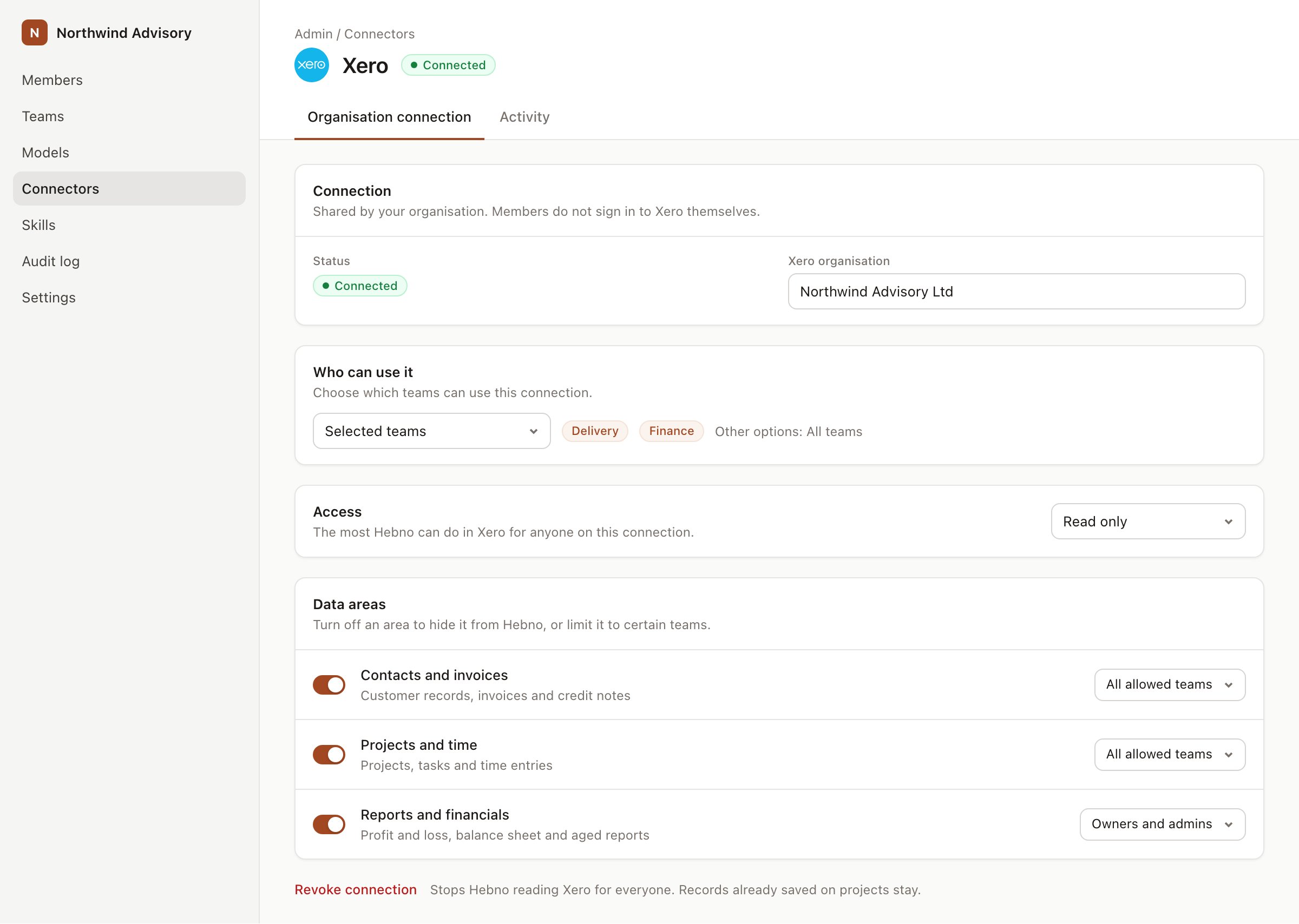
An organisation connection with team access and data areas. Financial figures default to owners and admins.
What Hebno reads
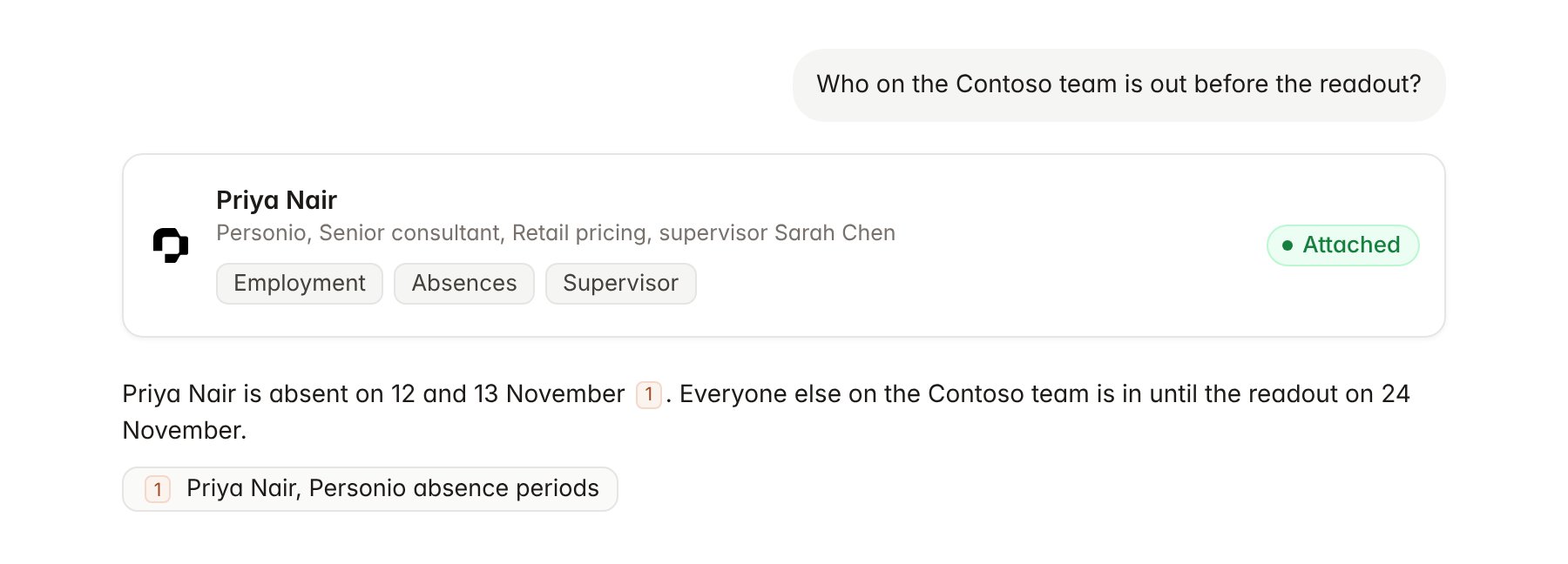
A Personio employee profile attached to a chat.
Hebno reads only
Hebno does not write to Personio. It does not create or approve absences, edit employee records, or change departments, teams or supervisors. To book a consultant once you know they are free, use a resourcing integration such as Float.Link a project to its team
Linking marks which Personio employees work on a project, so you can ask “who on the team is away?” without naming everyone.- Open the project and select Brain.
- Under Linked records, select Link record, then Personio.
- Search by name, department or team, and select each employee. You can link a whole team instead.
Use Personio in chat
-
Attach: open the + menu, choose Sources → Personio, and pick an employee, a department or an absence period. Or type
/and choose Personio. -
Ask: name the person, team or period in your request. For example:
Who in the pricing team is absent between 16 and 20 November?
List the Contoso project team with positions, offices and supervisors.
Which consultants in the Munich office joined since September?
- Research runs show a Checking Personio step, with a chip for each employee and absence period it read.
- Agents can read Personio on a schedule, for example a Monday list of who is absent on each active project this week.