

At a glance
Before you start
You need:- A Zoho CRM user in the organisation that contains your CRM data.
- A Zoho CRM profile with API access and permission to the modules you want to use. A Zoho CRM administrator manages this under Setup → Users and Control → Security Control → Profiles.
- An allowed integration. An owner or admin sets Zoho CRM to Allow under Admin → Connectors → Catalogue.
accounts.zoho.eu for an EU account or accounts.zoho.com for a US account. You do not need to choose it: Zoho returns the right one when you sign in.
Hebno requests these OAuth scopes:
Connect Zoho CRM
1
Start the connection
Open Settings → Connections, find Zoho CRM and select Connect. You can also select Connect from the prompt in a chat.
2
Sign in to Zoho
Sign in with your Zoho account. If you belong to more than one Zoho CRM organisation, choose the one that contains your client records, then select Accept.
3
Return to Hebno
The card shows Connected with your Zoho CRM organisation name.
What Hebno reads
Reads are live. Hebno queries Zoho CRM when a request needs it. Only what a reply used is stored with the conversation as its sources. Custom fields appear by their field label, so a request can name them as your team does in Zoho.
What Hebno writes
Every write appears first as a confirmation card. You can change any field before you select Confirm.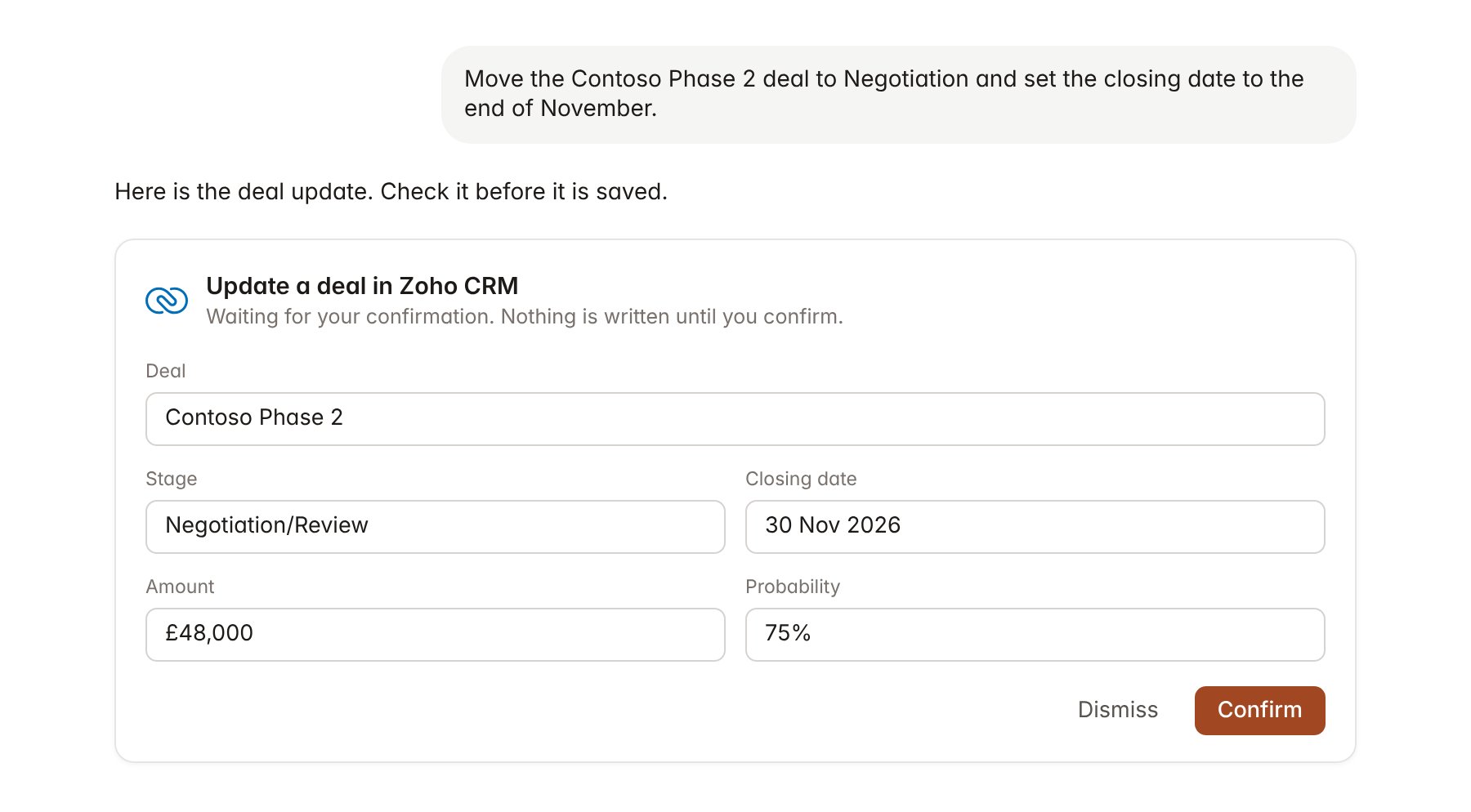
A Zoho CRM change pending confirmation. Nothing is written until you confirm.
Link a project to an account and a deal
Linking marks which Zoho CRM records belong to a project, so you can ask “where does the deal stand?” without naming it.- Open the project and select Brain.
- Under Linked records, select Link record, then Zoho CRM.
- Search for the account and select it. Repeat to add the deals that belong to the engagement.
Use Zoho CRM in chat
-
Attach: open the + menu, choose Sources → Zoho CRM, and pick an account, contact, lead or deal. Or type
/and choose Zoho CRM. -
Ask: name the client, contact or deal in your request. For example:
Prep me for Thursday’s meeting with Contoso Retail: open deals, the contacts we have met and the last three notes.
List every deal in the Proposal stage with a closing date in November 2026 and no activity in the last 14 days.
Log a 30 minute call with Priya Nair on the Contoso Phase 2 deal and add a note that she wants a fixed-fee option.
- Research runs show a Reviewing Zoho CRM step, with a chip for each account, deal and activity it read.
- Agents can read Zoho CRM on a schedule, for example a Monday brief on deals closing this month. Writes an agent proposes appear in agent approvals for review.