

At a glance
Before you start
You need:- A Zoom account that hosted or joined the meetings you want to use. Cloud recordings, audio transcripts and AI Companion summaries are available for meetings you hosted.
- Cloud recording and Create audio transcript turned on in the Zoom web portal under Settings → Recording, if you want transcripts.
- Meeting summary with AI Companion turned on under Settings → AI Companion, if you want summaries. The host starts the summary during the meeting, or turns on automatic summaries.
- An allowed integration. An owner or admin sets Zoom to Allow under Admin → Connectors → Catalogue.
- Approval from your Zoom account admin if they require pre-approval for apps from the Zoom App Marketplace.
Connect Zoom
1
Start the connection
Open Settings → Connections, find Zoom under Meetings and calls and select Connect. Or type
/ in the composer, choose Zoom and select Connect.2
Sign in to Zoom
Sign in with your Zoom account and select Allow to approve the scopes.
3
Return to Hebno
The card shows Connected with your Zoom email address.
What Hebno reads
When Hebno reads a meeting, it uses the AI Companion summary first (it is already a summary), then a transcript excerpt, then the meeting details, and the source label shows which it used. Attaching a meeting offers Meeting details, AI Companion summary, Transcript and Full meeting record as separate files. A meeting search returns up to three meetings.
Reads are live. Hebno queries Zoom when a request needs it, and only what a reply used is stored with the conversation as its sources.
What Hebno writes
Hebno shows a card titled Zoom meeting. Edit any field, then select Send. Dismiss discards it.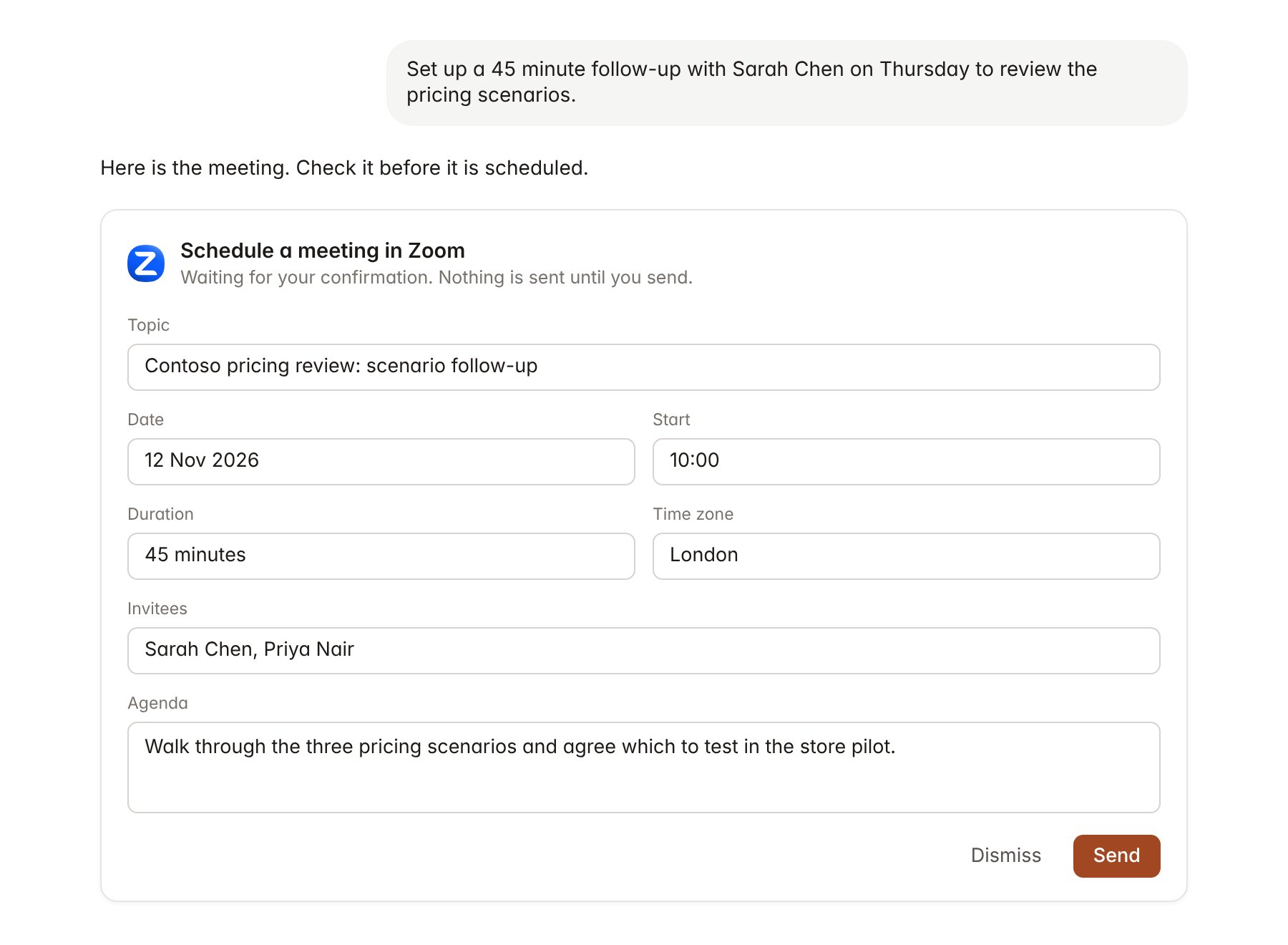
A Zoom change pending confirmation. Nothing is written until you confirm.
Link a project to a recurring meeting
Linking marks which recurring Zoom meeting belongs to an engagement, so you can ask “what did we agree last week?” without naming the call.- Open the project and select Brain.
- Under Linked records, select Link record, then Zoom.
- Search by meeting topic or meeting ID and select the recurring meeting, for example the weekly Contoso status call.
Use Zoom in chat
-
Attach: open the + menu, choose Sources → Zoom, pick a meeting, then pick the summary, transcript or full record. Or type
/and choose Zoom. -
Ask: name the client, person or date. For example:
Summarise the Contoso pricing workshop on 3 November and list every decision with who made it.
Pull the next steps from this week’s Contoso status call and draft the follow-up email to Sarah Chen.
Schedule a 30 minute Zoom with Priya Nair and Sarah Chen on 12 November at 10:00 to review the pricing scenarios.
- Research runs show a Reviewing Zoom step, with a chip for each meeting and the source used.
- Agents can read Zoom on a schedule, for example a Monday digest of last week’s client calls with next steps. Meetings an agent proposes appear in agent approvals for review.