

At a glance
Before you start
You need:- An owner or admin role in Hebno.
- Your Accelo deployment name, the first part of your Accelo address, for example
yourfirminhttps://yourfirm.accelo.com. - An Accelo administrator who can register API applications.
Choose Read only on the Accelo card in Hebno if you do not want writes. Hebno then requests
read(all) only.
Connect Accelo
1
Allow the integration
Open Admin → Connectors → Catalogue, find Accelo under PSA, time and resourcing, and set it to Allow.
2
Connect the organisation
Select Connect, enter the deployment name and the Service application’s client ID and secret, then select Test connection. Hebno checks that it can connect and lists the areas it can read and write.
3
Choose teams and data areas
Under Who can use it, choose All teams or pick teams. Under Data areas, choose what members can see. See Data areas.
4
Set access
Leave Access on Read and write to let members propose time entries, tasks and notes, or choose Read only.
Link your own account
Members can link their own Accelo account so writes are made in their name under their own Accelo permissions.- In Hebno, open Settings → Connections, find Accelo and select Link your account.
- Sign in to Accelo and select Allow.
Data areas
Data areas control what members of the allowed teams can see through the organisation connection. They apply on top of whatever the application can read in Accelo.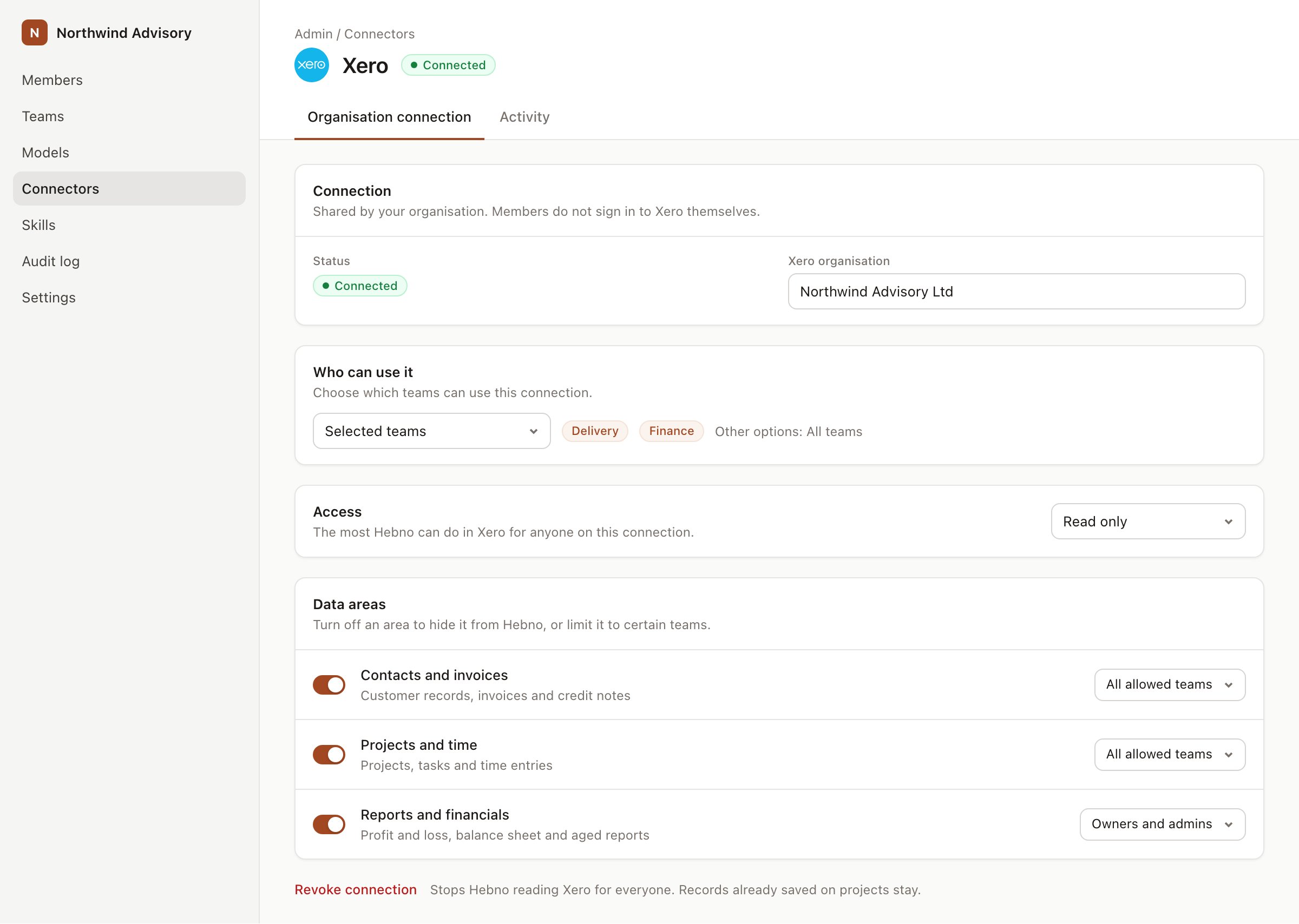
An organisation connection with team access and data areas. Financial figures default to owners and admins.
When a member has linked their own account, Hebno uses that member’s Accelo permissions instead of the organisation connection. Data areas still apply, so a member never sees more through Hebno than both Accelo and your Hebno settings allow.
What Hebno reads
Retainer usage comes from the current contract period in Accelo, as it is at the time of the request. Reads are live. Hebno queries Accelo when a request needs it. Only what a reply used is stored with the conversation as its sources.
What Hebno writes
Every write appears first as a confirmation card. You can change any field before you select Confirm.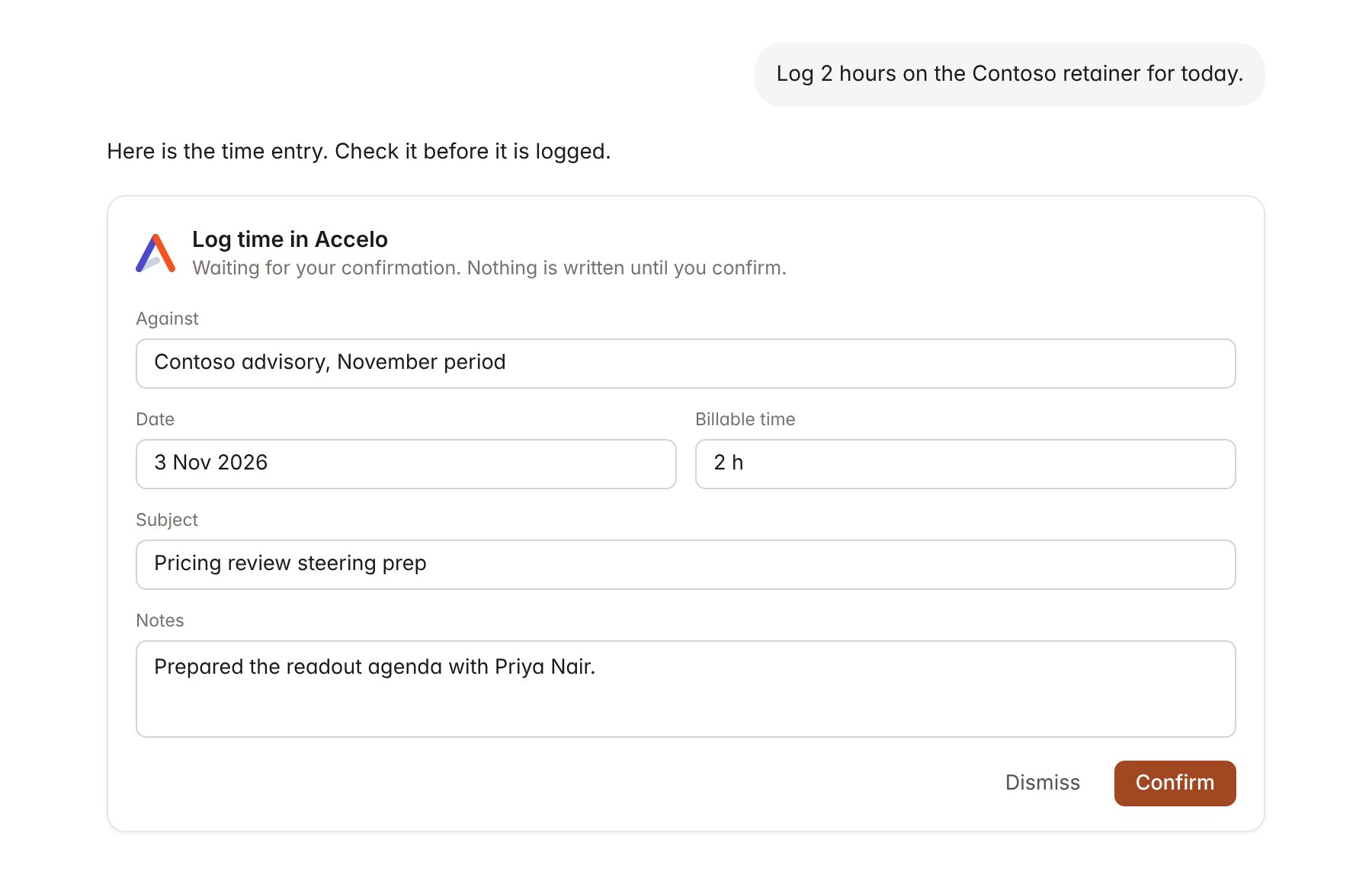
An Accelo change pending confirmation. Nothing is written until you confirm.
Link a project to Accelo
Linking marks which Accelo records belong to a Hebno project, so you can ask “how much retainer is left?” without naming it.- Open the project and select Brain.
- Under Linked records, select Link record, then Accelo.
- Search by company, project or retainer title, and select the record. Link the company and each project or retainer in the engagement.
Use Accelo in chat
-
Attach: open the + menu, choose Sources → Accelo, and pick a company, a project, a ticket, a retainer or your time. Or type
/and choose Accelo. -
Ask: name the client, project or retainer in your request. For example:
How much of the Contoso retainer is used this period, and who logged the most time?
List open Contoso tickets by priority and draft a short update for the account manager.
Add a note to the Contoso pricing review that Sarah Chen confirmed the readout for 24 November.
- Research runs show a Checking Accelo step, with a chip for each company, project and activity it read.
- Agents can read Accelo on a schedule, for example a weekly alert when a retainer period passes 80 per cent of its allowance. Writes an agent proposes appear in agent approvals for review.