

At a glance
Before you start
You need:- A Zendesk agent or admin account in the Zendesk Support instance you want to use, and its subdomain, for example
contoso.zendesk.com. End users cannot connect. - A role that can edit the tickets you want to update. A light agent can add internal notes, including draft replies, but cannot change ticket fields.
- An allowed integration. An owner or admin sets Zendesk to Allow under Admin → Connectors → Catalogue.
Hebno does not request
write on users, organisations or the help centre, or the impersonate scope.
Connect Zendesk
1
Start the connection
Open Settings → Connections, find Zendesk under Customer support and select Connect. You can also select Connect from the prompt in a chat.
2
Enter your subdomain
Enter your Zendesk subdomain and select Continue.
3
Sign in to Zendesk
Sign in with your agent account, review the access request and select Allow.
4
Return to Hebno
The card shows Connected with your Zendesk subdomain.
What Hebno reads
Reads are live. Hebno queries Zendesk when a request needs it. Only what a reply used is stored with the conversation as its sources.
What Hebno writes
Every write appears first as a confirmation card. You can change any field before you select Confirm.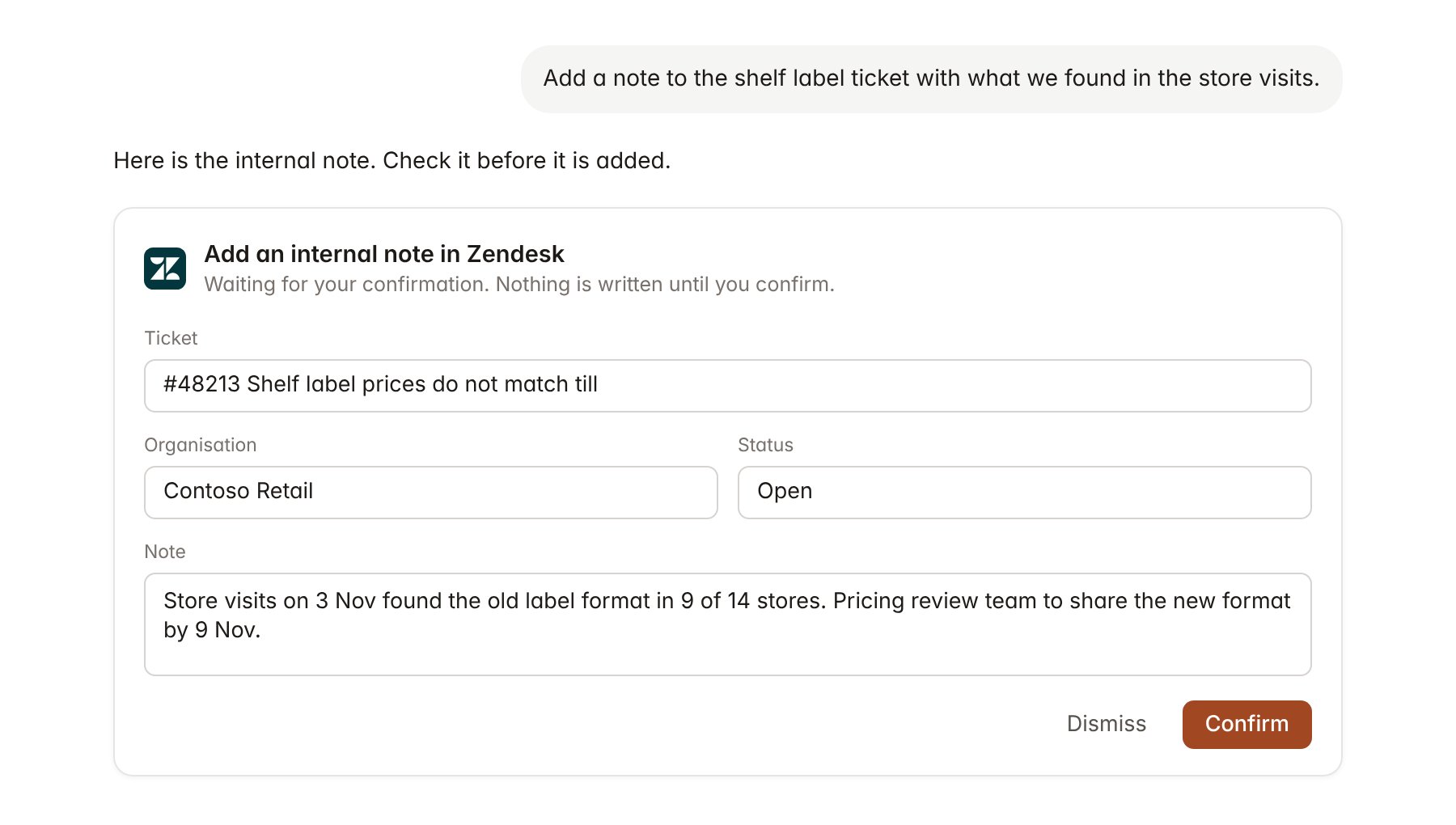
A Zendesk change pending confirmation. Nothing is written until you confirm.
Link a project to an organisation
Linking marks which Zendesk organisations belong to an engagement, so you can ask “what are store teams raising?” without naming the organisation.- Open the project and select Brain.
- Under Linked records, select Link record, then Zendesk.
- Search by organisation name or domain and select the organisation. Repeat for each organisation in the engagement.
Use Zendesk in chat
-
Attach: open the + menu, choose Sources → Zendesk, and pick a ticket, an organisation or a help centre article. Or type
/and choose Zendesk. -
Ask: name the client, ticket or topic in your request. For example:
Group the Contoso tickets from October by theme and count how many mention pricing.
Summarise ticket 48213 and draft a reply that explains the new label format.
Set the priority on the Contoso price match tickets to high and add the tag pricing-review.
- Research runs show a Checking Zendesk step, with a chip for each ticket and article it read.
- Agents can read Zendesk on a schedule, for example a Monday summary of new pricing tickets for Contoso. Writes an agent proposes appear in agent approvals for review.