

At a glance
Before you start
You need:- A Loom account in the workspace that contains the videos, signed in with your Atlassian account if your workspace uses one.
- An allowed integration. An owner or admin sets Loom to Allow under Admin → Connectors → Catalogue.
- Approval from your Loom workspace admin if they restrict which apps members can connect.
Connect Loom
1
Start the connection
Open Settings → Connections, find Loom under Meetings and calls and select Connect. Or type
/ in the composer, choose Loom and select Connect.2
Sign in to Loom
Sign in, choose the workspace if you belong to more than one, and select Accept.
3
Return to Hebno
The card shows Connected with your Loom workspace name.
What Hebno reads
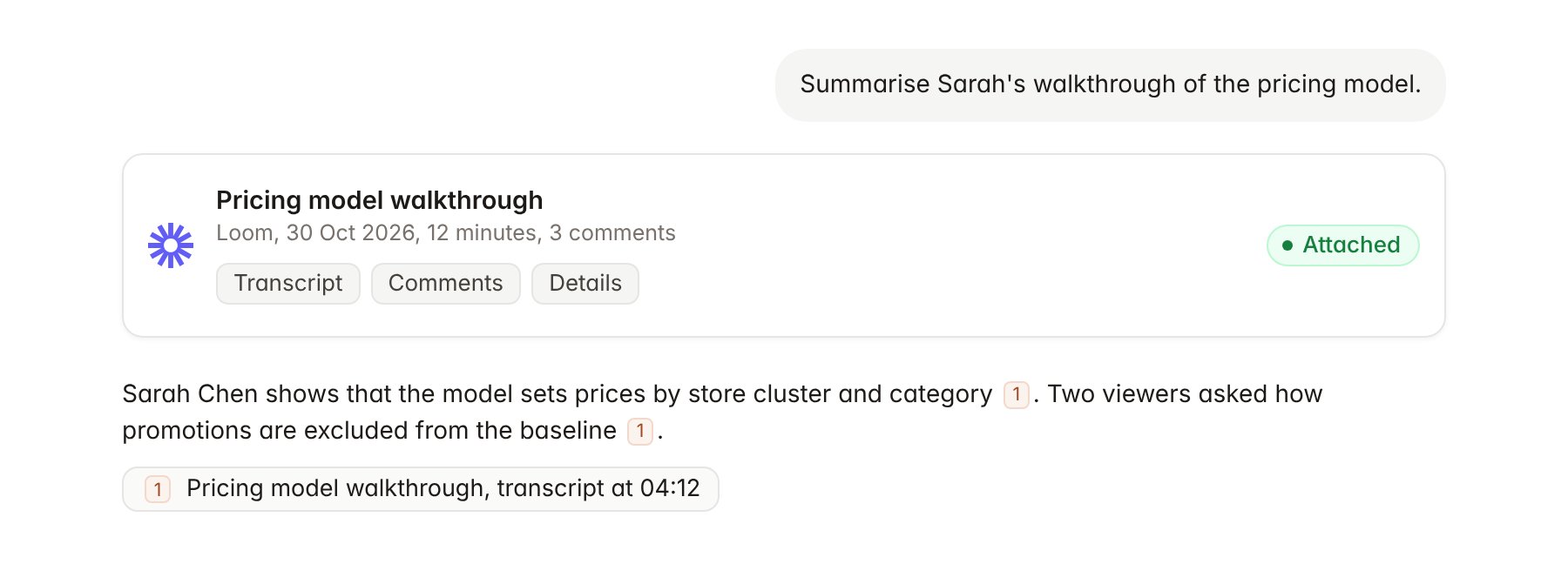
A Loom video attached to a chat.
Hebno reads only
Hebno does not write to Loom. It does not record, trim or edit videos, add comments or reactions, move videos between folders, or change sharing and privacy. To share a video with a client, send its link in an email drafted with Gmail or Outlook.Link a project to a Loom folder
Linking marks which Loom folder belongs to an engagement, so you can ask “what did the latest walkthrough cover?” without naming the video.- Open the project and select Brain.
- Under Linked records, select Link record, then Loom.
- Search by folder name and select it, for example the Contoso pricing review folder.
Use Loom in chat
-
Attach: open the + menu, choose Sources → Loom, pick a video, then pick the transcript, comments or full record. Or type
/and choose Loom. -
Ask: name the video, client, person or folder. For example:
Turn Sarah Chen’s walkthrough of the pricing model into a one-page summary with timestamps.
List the questions viewers left on the Contoso videos this week and who asked each one.
Draft a status note from Priya Nair’s 4 November update video.
- Research runs show a Reviewing Loom step, with a chip for each video it read.
- Agents can read Loom on a schedule, for example a weekly list of new videos and unanswered comments in a client folder. Loom has no write actions, so agents only read.