

At a glance
Before you start
You need:- A Notion workspace where you can open the pages you want to use.
- Permission to share those pages with an integration. In Notion, that means full access to the page or database.
- If your Notion workspace restricts connections, a workspace owner may need to approve the Hebno integration.
Hebno can read only the pages and databases you share during connection. A page nested under a shared page is included. To add more later, select Reconnect and tick the extra pages, or use Add connections from a page’s menu in Notion.
Connect Notion
1
Check the integration is allowed
An owner or admin controls this under Admin → Connectors → Catalogue. If Notion shows Blocked, ask an admin to set it to Allow.
2
Start the connection
Open Settings → Connections, find Notion under Knowledge and select Connect. You can also select Connect on the prompt that appears in chat the first time you use Notion.
3
Choose what to share
Sign in to Notion, pick the workspace, tick the pages and databases Hebno may use, and select Allow access. Hebno returns you to the app with a Notion connected message.
What Hebno reads
The workspaces your organisation selects are stored in the knowledge index and searched by meaning, with permissions inherited from Notion. Opening a specific page reads it as it is now, with your connection. Only the excerpts a reply used are stored with the conversation as its sources.
Search in Notion matches titles, not the text inside pages. Hebno searches titles first, then opens the matching pages and reads their bodies, so name the page, database or client in your request. To filter a database, Hebno queries it by property, for example status or owner.
What Hebno writes
Every write appears first as a confirmation card. You can change any field before you select Confirm.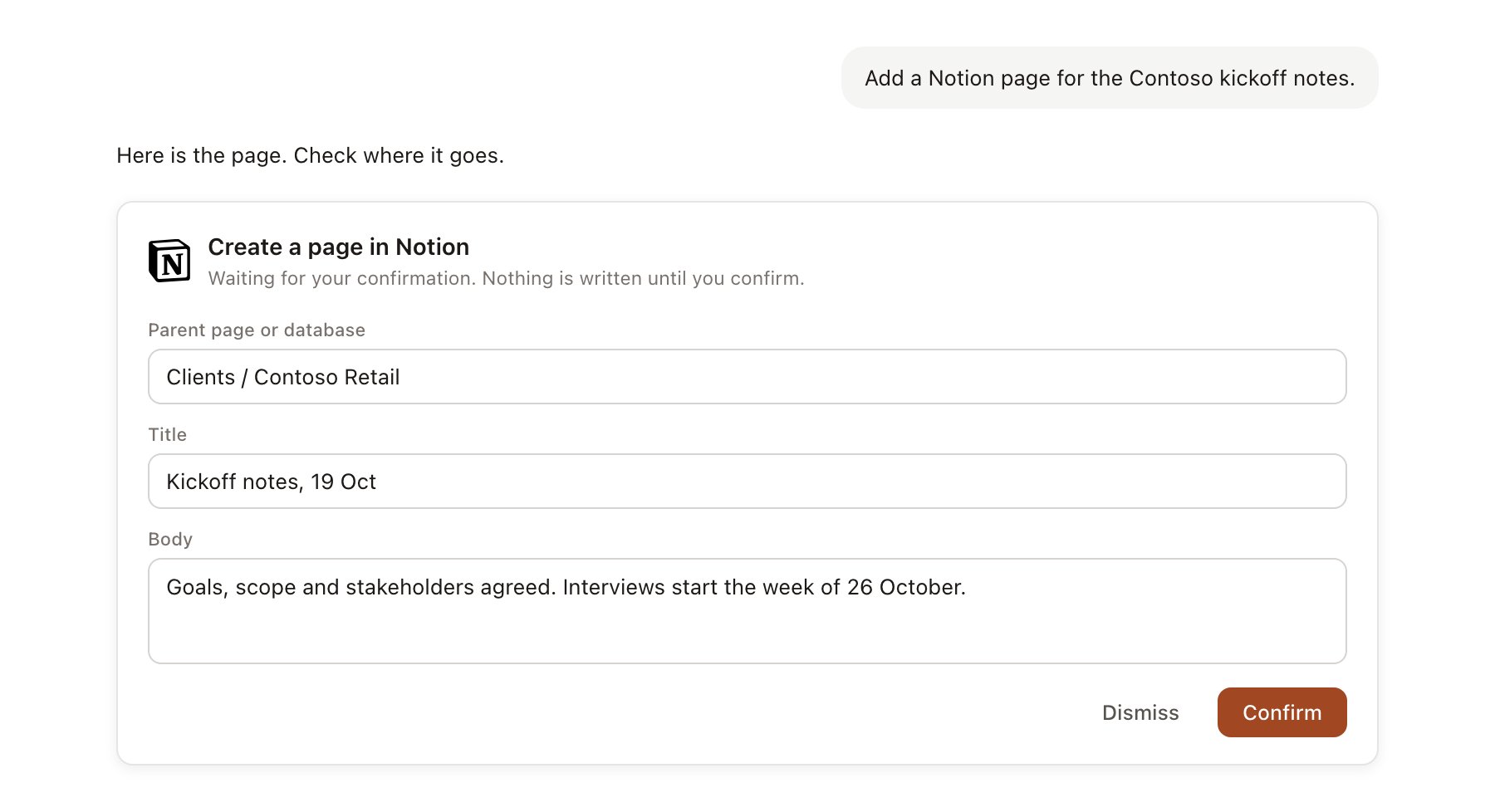
A Notion change pending confirmation. Nothing is written until you confirm.
Link a project to a page or database
Linking marks which Notion page or database belongs to a project, so you can ask about “the project wiki” or “the risk register” without naming it.- Open the project and select Brain.
- Under Linked records, select Link record, then Notion.
- Search by title and select the page or database.
Use Notion in chat
-
Attach: open the + menu, choose Sources → Notion, and pick a page or a database row. Or type
/and choose Notion. -
Ask: name the page, database or client in your request. For example:
Summarise the Contoso Retail kickoff notes in Notion and list the decisions and the open questions.
Which high-severity items are still open in the Contoso risk register? Draft a risk slide from them.
Add a page called Week 3 readout under the Contoso Retail project page with this summary.
- Research runs show a Reviewing Notion step, with a chip for each page or row Hebno read.
- Agents can read Notion on a schedule. Writes an agent proposes appear in agent approvals for review.