

At a glance
Before you start
You need:- A work or school Microsoft account with Loop turned on for your organisation.
- Membership of each Loop workspace you want to use, or access to the Loop components shared with you in Teams, Outlook or OneDrive.
- An allowed integration. An owner or admin sets Microsoft Loop to Allow under Admin → Connectors → Catalogue.
.loop files. Workspace pages are stored in SharePoint Embedded containers, and components shared in chats and email are stored in the sender’s OneDrive. Hebno reads them through Microsoft Graph with these delegated permissions. User.Read, email, openid and offline_access come with every Microsoft integration.
Connect Microsoft Loop
1
Open connections
Open Settings → Connections and find Microsoft Loop under Knowledge. You can also type
/ in chat and choose Microsoft Loop.2
Grant access
Select Grant access if your Microsoft account is connected, or Connect if it is not. Sign in to Microsoft and approve read access. The row shows Connected as with your email address.
3
Allow page creation (optional)
Select Allow page creation on the Microsoft Loop row to add
Files.ReadWrite.All. The same button appears on a page card if you try to create first.What Hebno reads
The Loop workspaces your organisation selects are stored in the knowledge index and searched by meaning, with Microsoft permissions checked at search and again at read. Opening a specific page reads it as it is now, with your account. Only the excerpts a reply used are stored with the conversation as its sources.
Images and embedded files inside a page appear as links. Hebno reads their names but not their contents, so open them in Loop when you need them.
What Hebno writes
Every new page appears first as a confirmation card. You can change any field before you select Confirm.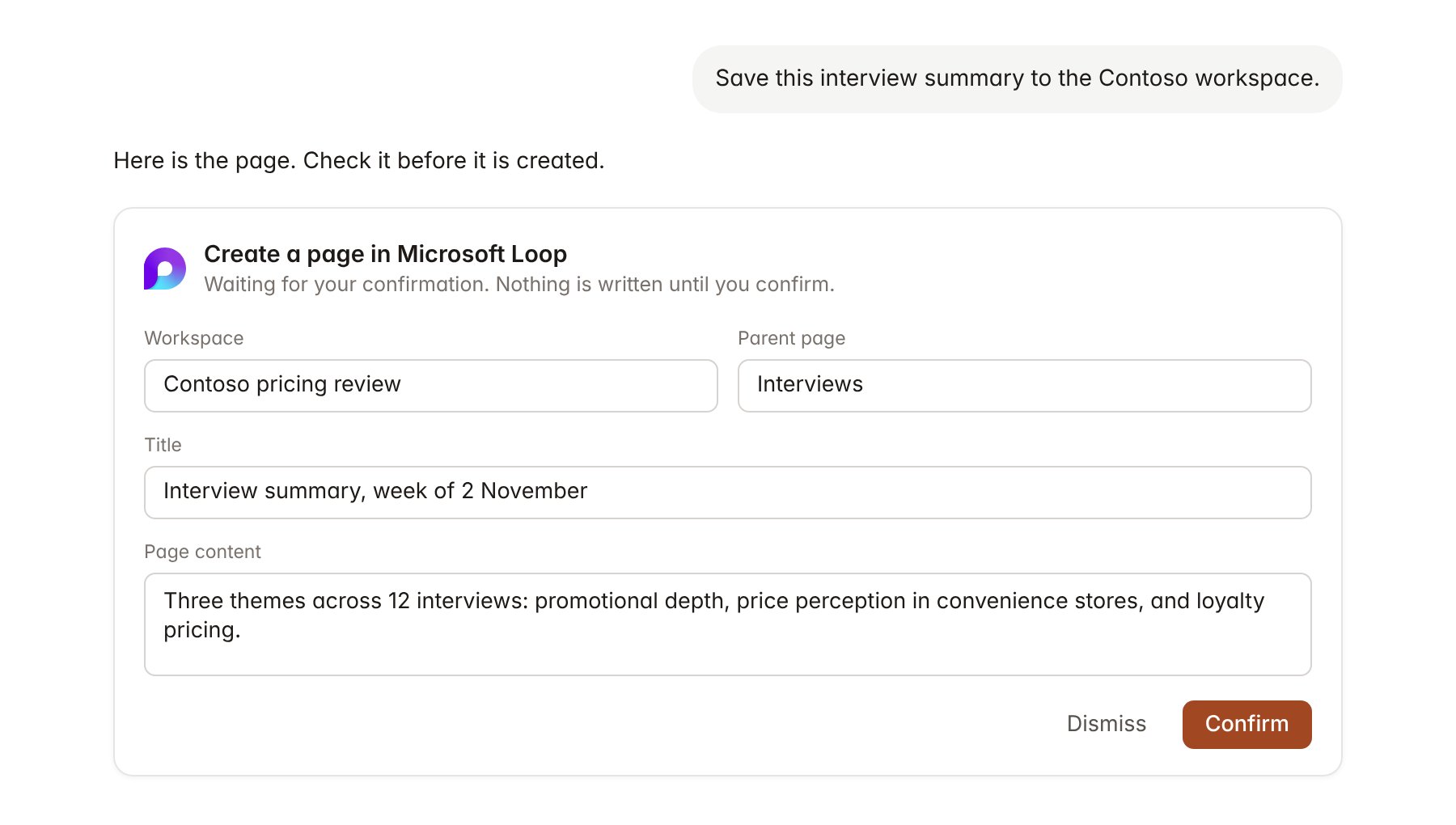
A Microsoft Loop change pending confirmation. Nothing is written until you confirm.
Link a project to a workspace
Linking marks which Loop workspaces belong to an engagement, so you can ask about “the team’s notes” without naming the workspace.- Open the project and select Brain.
- Under Linked sources, select Link source, then Microsoft Loop.
- Search by workspace name, or paste a Loop workspace link, and select Link.
Use Microsoft Loop in chat
-
Attach: open the + menu, choose Sources → Microsoft Loop, and browse workspace and page, or type to filter titles. Or type
/and choose Microsoft Loop. -
Ask: name the workspace, page or component in your request. For example:
Summarise the Contoso pricing review workspace and list every open question in its tables.
Which tasks on the workshop actions page are assigned to Priya Nair and still unticked?
Save this steering committee summary as a new page in the Contoso workspace.
- Research runs show a Reviewing Microsoft Loop step, with a chip for each page or component Hebno read.
- Agents can read linked Loop workspaces on a schedule. Pages an agent drafts appear in agent approvals for review.