

At a glance
Before you start
You need:- A GitLab account with access to the projects you want to use. In a private project, reading merge requests and repository files needs the Reporter role or higher. Creating issues and comments needs the Guest role or higher.
- An allowed integration. An owner or admin sets GitLab to Allow under Admin → Connectors → Catalogue.
- For GitLab Self-Managed or GitLab Dedicated, an instance-wide OAuth application. A GitLab administrator creates it under Admin area → Applications with the redirect URI shown on the GitLab card in Hebno and the scopes below. An owner or admin in Hebno then enters the instance URL, Application ID and Secret on the card under Admin → Connectors. Hebno must be able to reach the instance over HTTPS.
GitLab checks your own role on every request, so you see only the groups and projects you can open in GitLab, including confidential issues where your role allows them.
Connect GitLab
1
Start the connection
Open Settings → Connections, find GitLab under Engineering and select Connect. You can also select Connect from the prompt in a chat.
2
Choose your instance
Choose GitLab.com, or your organisation’s instance if an admin has added one.
3
Authorise Hebno
Sign in to GitLab, review the scopes and select Authorize.
4
Return to Hebno
The card shows Connected with your GitLab username and instance.
What Hebno reads
Reads are live. Hebno queries the GitLab REST API when a request needs it, and reads wiki pages and files as they are at that moment. Hebno does not read source code files, commits or diffs line by line. Only what a reply used is stored with the conversation as its sources.
What Hebno writes
Every write appears first as a confirmation card. You can change any field before you select Confirm.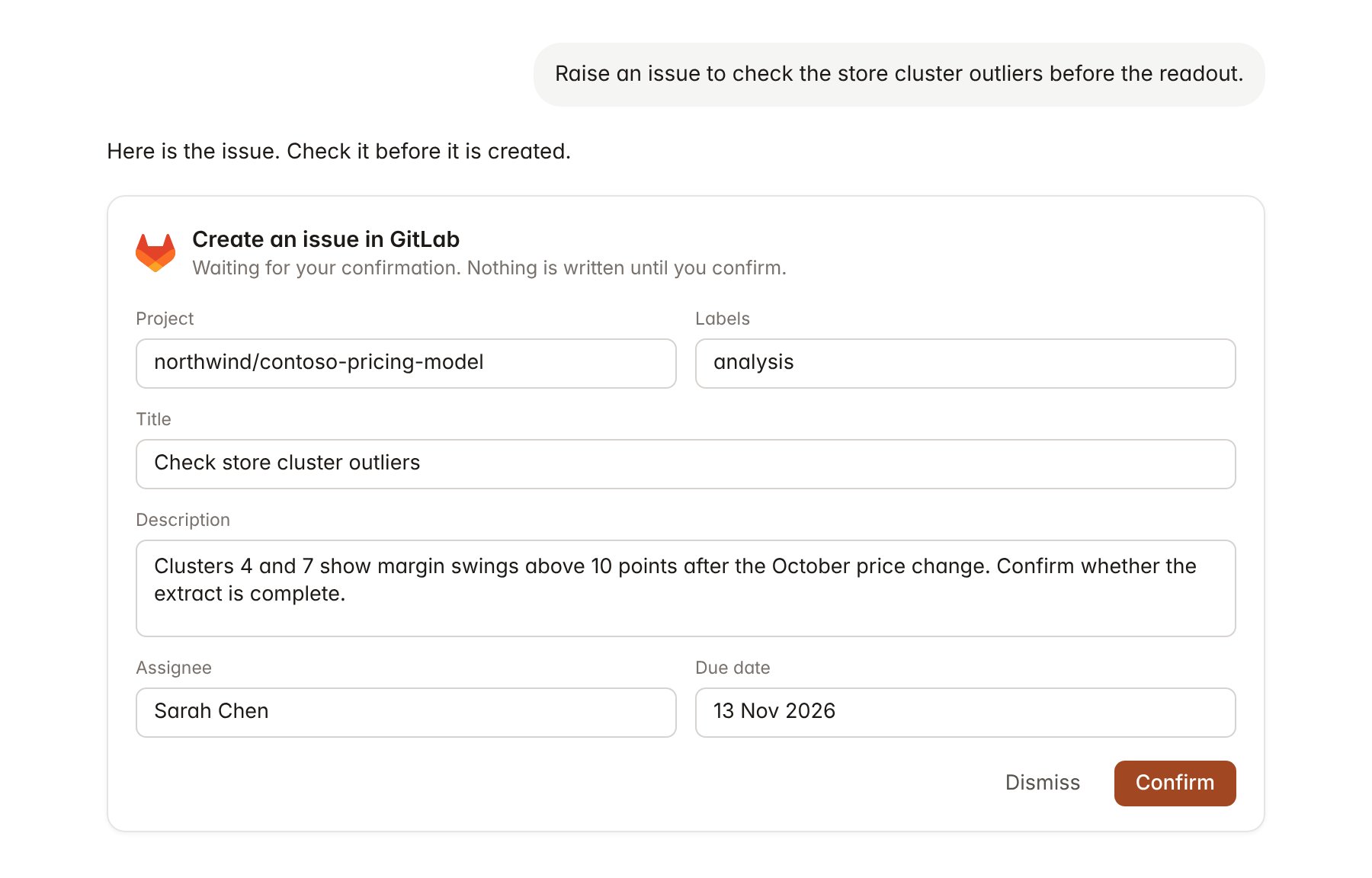
A GitLab change pending confirmation. Nothing is written until you confirm.
Link a project to a GitLab project
Linking marks which GitLab projects belong to an engagement, so you can ask “what is still open?” without naming the GitLab project.- Open the project and select Brain.
- Under Linked records, select Link record, then GitLab.
- Search by group or project path and select it. Repeat for each GitLab project in the engagement.
Use GitLab in chat
-
Attach: open the + menu, choose Sources → GitLab, and pick a project, an issue, a merge request, a wiki page or a Markdown file. Or type
/and choose GitLab. -
Ask: name the project, issue number or person in your request. For example:
List the open issues on the Contoso pricing model due before 20 November, with owners.
Summarise what the merge requests merged this week changed, using the wiki for context.
Comment on merge request 27 that Priya Nair checked the outputs against the client extract.
- Research runs show a Checking GitLab step, with a chip for each project, issue, merge request and page it read.
- Agents can read GitLab on a schedule, for example a Friday summary of merge requests waiting for approval. Writes an agent proposes appear in agent approvals for review.