

At a glance
Before you start
You need:- A Fathom account that recorded the calls, or that is on a Fathom team the calls were shared with.
- A Fathom API key. In Fathom, open Settings → API Access, select Generate API Key, name it Hebno and copy it.
- An allowed integration. An owner or admin sets Fathom to Allow under Admin → Connectors → Catalogue.
X-Api-Key header and uses these Fathom API endpoints:
The key gives the same access you have in Fathom: calls you recorded, and calls shared with teams you are on.
Connect Fathom
1
Create an API key
In Fathom, open Settings → API Access, select Generate API Key and copy the key.
2
Add the key in Hebno
Open Settings → Connections, find Fathom under Meetings and calls and select Connect. Paste the key and select Connect.
3
Check the connection
The card shows Connected with your Fathom email address.
What Hebno reads
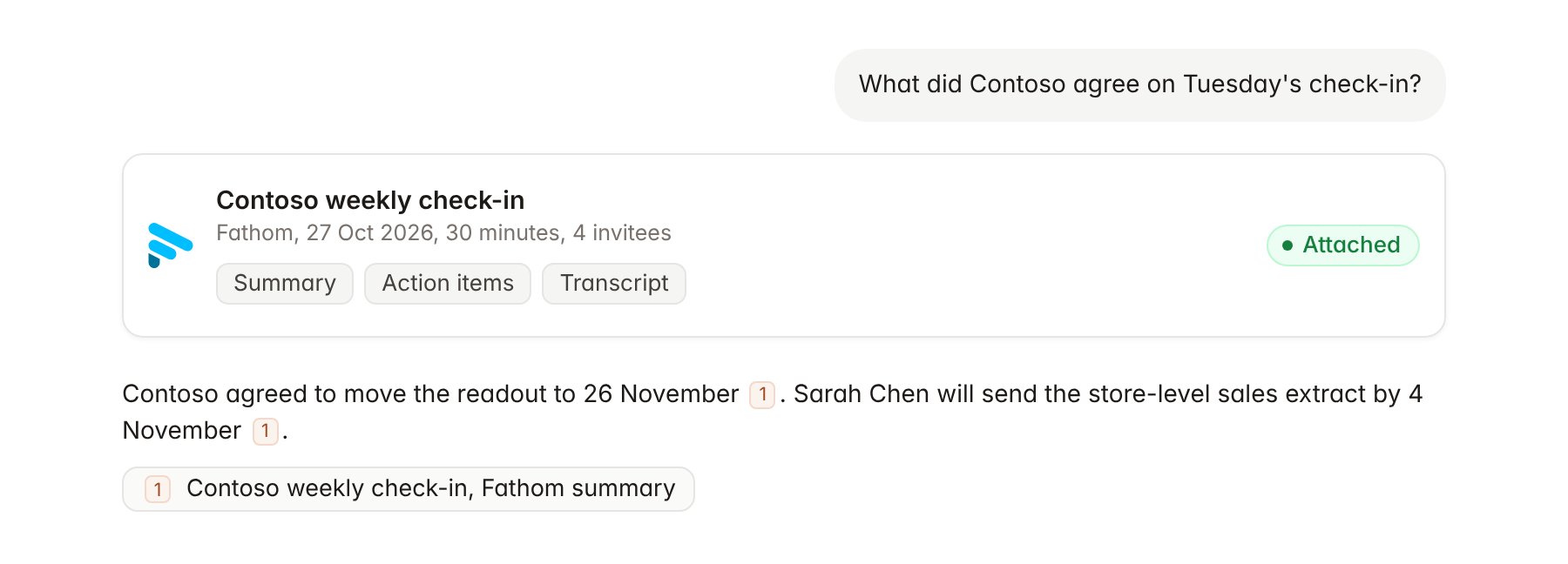
A Fathom recorded call attached to a chat.
Hebno reads only
Hebno does not write to Fathom. It does not record or join calls, edit summaries, complete action items, create clips or change sharing. To schedule a follow-up, use Google Calendar or Outlook Calendar.Link a project to a client domain
Each Fathom call lists the email domains of its calendar invitees. Linking a domain marks which calls belong to an engagement, so you can ask “what did we agree last week?” without naming the call.- Open the project and select Brain.
- Under Linked records, select Link record, then Fathom.
- Enter the client’s email domain, for example
contoso.com, and select Link.
Use Fathom in chat
-
Attach: open the + menu, choose Sources → Fathom, pick a call, then pick the summary, action items, transcript or full record. Or type
/and choose Fathom. -
Ask: name the client, domain, person or date. For example:
Collect the open action items from our last three Contoso calls and group them by owner.
What did Sarah Chen say about the readout date on the 28 October call? Quote the transcript.
Draft a recap email for Contoso from today’s Fathom summary.
- Research runs show a Reviewing Fathom step, with a chip for each call and the source used.
- Agents can read Fathom on a schedule, for example a Monday digest of last week’s client calls with open action items. Fathom has no write actions, so agents only read.