

At a glance
Before you start
You need:- A work or school Microsoft account with access to Planner.
- Membership of the Microsoft 365 group that owns each plan you want to use. Planner shares a plan with every member of its group, and Hebno sees the same plans you see.
- An allowed integration. An owner or admin sets Microsoft Planner to Allow under Admin → Connectors → Catalogue.
User.Read, email, openid and offline_access come with every Microsoft integration.
Members can approve these permissions themselves unless your tenant blocks user consent. A directory administrator can approve them once for everyone. See the Microsoft Entra admin guide.
Connect Microsoft Planner
1
Open connections
Open Settings → Connections and find Microsoft Planner under Projects. You can also type
/ in chat and choose Microsoft Planner.2
Grant access
Select Grant access if your Microsoft account is connected, or Connect if it is not. Sign in to Microsoft and approve read access. The row shows Connected as with your email address.
3
Allow task changes (optional)
Select Allow task changes on the Microsoft Planner row to add
Tasks.ReadWrite. The same button appears on a task card if you try to write first.What Hebno reads
Reads are live. Hebno queries Planner through Microsoft Graph when a request needs it. Only what a reply used is stored with the conversation as its sources.
What Hebno writes
Every write appears first as a confirmation card. You can change any field before you select Confirm.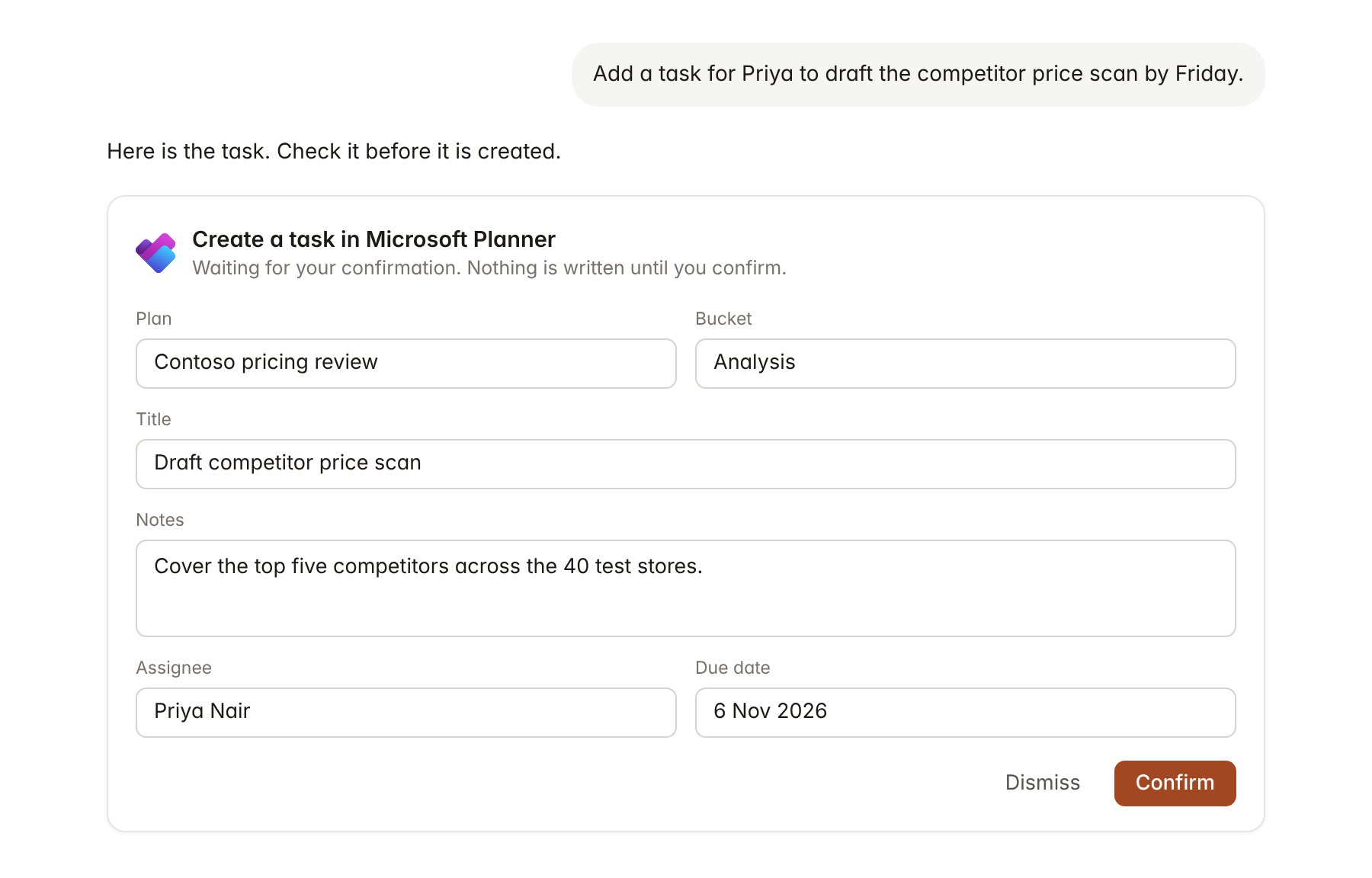
A Microsoft Planner change pending confirmation. Nothing is written until you confirm.
Link a project to a plan
Linking marks which Planner plans belong to an engagement, so you can ask “what is overdue?” without naming the plan.- Open the project and select Brain.
- Under Linked records, select Link record, then Microsoft Planner.
- Search by plan name and select the plan. Repeat for each plan in the engagement.
Use Microsoft Planner in chat
-
Attach: open the + menu, choose Sources → Microsoft Planner, and pick a plan, a bucket or a task. Or type
/and choose Microsoft Planner. -
Ask: name the plan, bucket, task or person in your request. For example:
List everything overdue or due this week in the Contoso pricing review plan, grouped by assignee.
Draft a status update for Contoso from the Planner plan, with what moved to completed since Monday.
Mark the store visits task complete and tick the last two checklist items.
- Research runs show a Checking Microsoft Planner step, with a chip for each plan and task it read.
- Agents can read Planner on a schedule, for example a Monday list of overdue tasks across linked plans. Writes an agent proposes appear in agent approvals for review.