

At a glance
Before you start
You need:- An Affinity user in your firm’s instance.
- Permission to generate an API key. Affinity admins control this per role, so ask an admin if the option is missing.
- An allowed integration. An owner or admin sets Affinity to Allow under Admin → Connectors → Catalogue.
Connect Affinity
1
Create an API key in Affinity
In Affinity, open Settings → Manage Apps and select Generate an API key. Copy the key. Affinity shows it once.
2
Add the key in Hebno
Open Settings → Connections, find Affinity and select Connect. Paste the key and select Connect. You can also start from the prompt in a chat.
3
Check the connection
The card shows Connected with your Affinity instance and your name.
What Hebno reads
Reads are live. Hebno queries Affinity when a request needs it. Only what a reply used is stored with the conversation as its sources. Relationship strength appears as Affinity scores it, and Hebno names the colleague and the interactions behind it.
What Hebno writes
Every write appears first as a confirmation card. You can change any field before you select Confirm.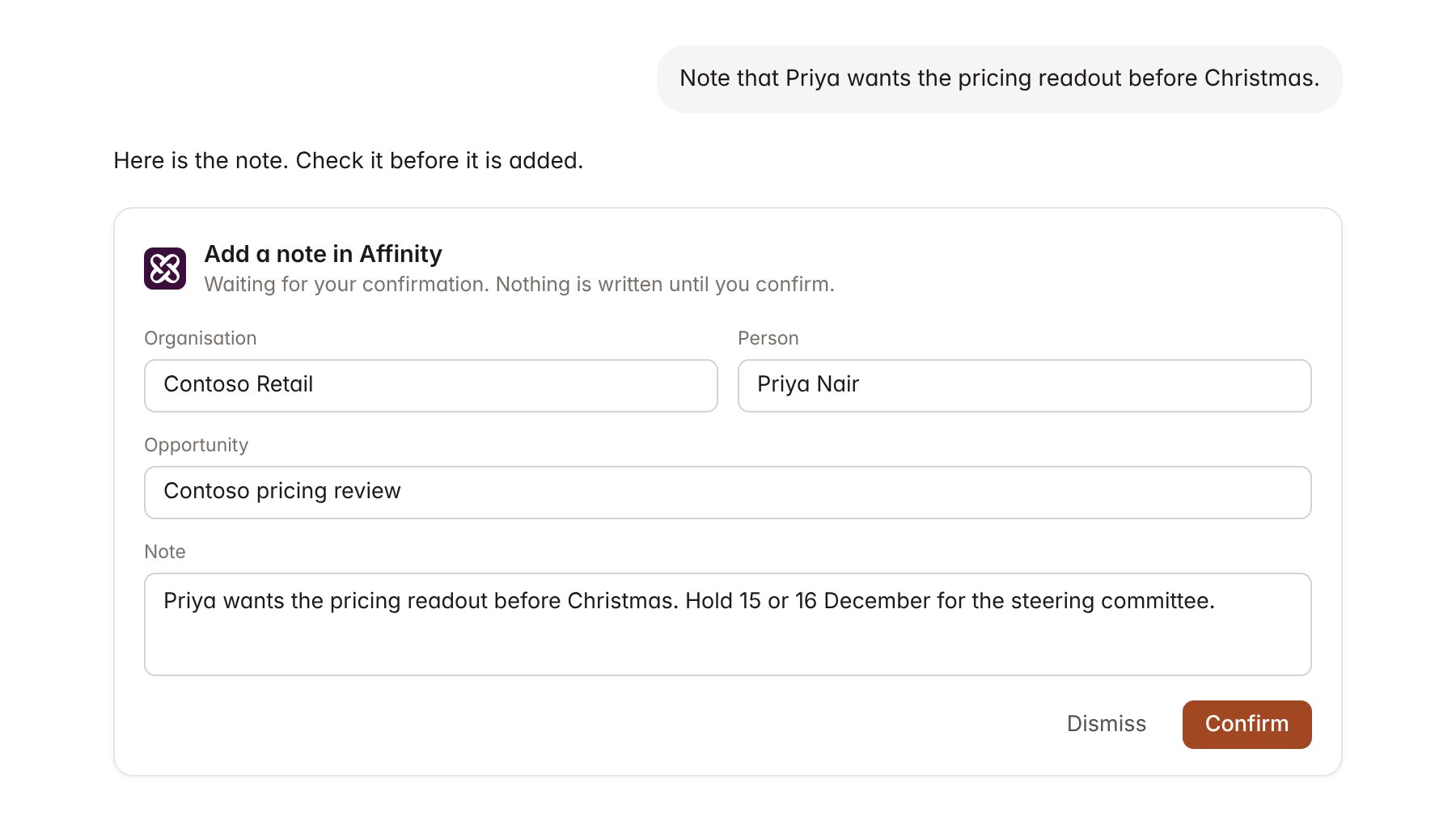
An Affinity change pending confirmation. Nothing is written until you confirm.
Link a project to an organisation and an opportunity
Linking marks which Affinity records belong to a project, so you can ask “who knows the client?” without naming the organisation.- Open the project and select Brain.
- Under Linked records, select Link record, then Affinity.
- Search for the organisation and select it. Repeat to add the opportunities that belong to the engagement.
Use Affinity in chat
-
Attach: open the + menu, choose Sources → Affinity, and pick an organisation, person, opportunity or list. Or type
/and choose Affinity. -
Ask: name the client, person or list in your request. For example:
Who at the firm has the strongest relationship with Contoso Retail’s leadership, and when did each of them last meet?
List the entries on the 2027 pursuits list with no email or meeting since 1 October 2026.
Add Contoso Retail to the 2027 pursuits list, set the owner to Sarah Chen and add a note about the pricing review.
- Research runs show a Reviewing Affinity step, with a chip for each record, list and note it read.
- Agents can read Affinity on a schedule, for example a Friday list of key relationships with no contact in 60 days. Writes an agent proposes appear in agent approvals for review.