

At a glance
Before you start
You need:- A SurveyMonkey account that owns the surveys, or a team account where the surveys are shared with you.
- An allowed integration. An owner or admin sets SurveyMonkey to Allow under Admin → Connectors → Catalogue.
- Approval from your SurveyMonkey primary admin if your team restricts which apps members can connect.
Accounts stored in the SurveyMonkey EU or Canada data centres connect in the same way. Hebno reads from the data centre your account belongs to.
Connect SurveyMonkey
1
Start the connection
Open Settings → Connections, find SurveyMonkey under Surveys and research and select Connect. You can also select Connect from the prompt in a chat.
2
Sign in to SurveyMonkey
Sign in, review the permissions on the SurveyMonkey authorisation screen and select Authorize.
3
Return to Hebno
The card shows Connected with your SurveyMonkey username.
What Hebno reads
Reads are live. Hebno queries SurveyMonkey when a request needs it. Rollups come from SurveyMonkey as they are at the time of the request, so totals match the Analyze Results page without filters. For filtered or cross-tabulated answers, Hebno reads the responses and says how many it counted. Only what a reply used is stored with the conversation as its sources.
What Hebno writes
Every write appears first as a confirmation card. You can change any field before you select Confirm.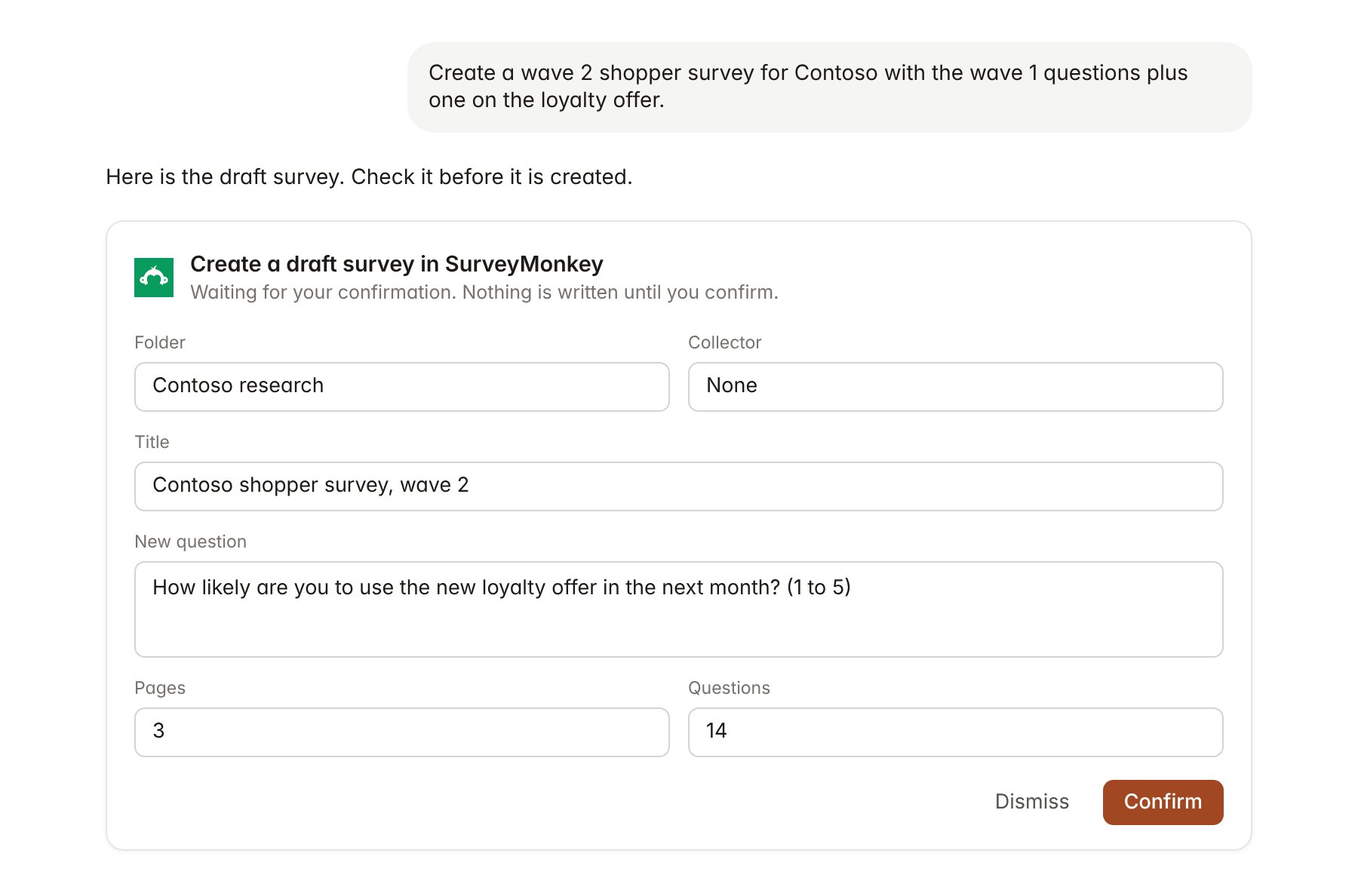
A SurveyMonkey change pending confirmation. Nothing is written until you confirm.
Link a project to a survey
Linking marks which SurveyMonkey surveys belong to an engagement, so you can ask “what did shoppers say?” without naming the survey.- Open the project and select Brain.
- Under Linked records, select Link record, then SurveyMonkey.
- Search by survey title and select it. Repeat for each survey in the engagement.
Use SurveyMonkey in chat
-
Attach: open the + menu, choose Sources → SurveyMonkey, and pick a survey, its responses or a question’s rollup. Or type
/and choose SurveyMonkey. -
Ask: name the survey, client or question in your request. For example:
Summarise the Contoso shopper survey: the rollup for price fairness, the top three reasons for switching stores, and quotes that support each.
Compare answers to the own-brand question between respondents who shop weekly and those who shop monthly.
Create a draft wave 2 survey with the same questions as wave 1, plus one about the new loyalty offer.
- Research runs show a Checking SurveyMonkey step, with a chip for each survey and rollup it read.
- Agents can read SurveyMonkey on a schedule, for example a daily response count while a collector is open. Writes an agent proposes appear in agent approvals for review.