

At a glance
Before you start
You need:- An owner or admin role in Hebno.
- Your SAP S/4HANA Cloud API address, for example
https://my123456-api.s4hana.cloud.sap. - A communication user, a communication system and a communication arrangement for each scenario below, created by an SAP administrator in the Communication Management apps. The communication user is technical: it cannot sign in to the SAP interface, so the integration’s access is separate from any person’s.
- The user name and password of the communication user, or an OAuth 2.0 client ID and secret if your arrangement uses client credentials.
Communication scenarios
Create one arrangement per scenario Hebno should read. Skip any scenario you do not want members to use.Connect SAP S/4HANA
1
Allow the integration
Open Admin → Connectors → Catalogue, find SAP S/4HANA under ERP, and set it to Allow.
2
Connect the organisation
Select Connect, enter the API address and the communication user’s credentials, then select Test connection. Hebno checks which scenarios respond and lists them.
3
Choose teams and data areas
Under Who can use it, choose All teams or pick teams. Under Data areas, choose what members can see. See Data areas.
4
Set access
Access is Read only by default. Choose Read and write to let members propose time entry drafts and project notes.
SAP S/4HANA uses an organisation connection only. Every read and write goes through the communication user, so Hebno records the member who confirmed each write in Admin → Logs → Integrations and includes their name in the note or description.
Data areas
Data areas control what members of the allowed teams can see through the organisation connection. They apply on top of what the communication user can read in SAP.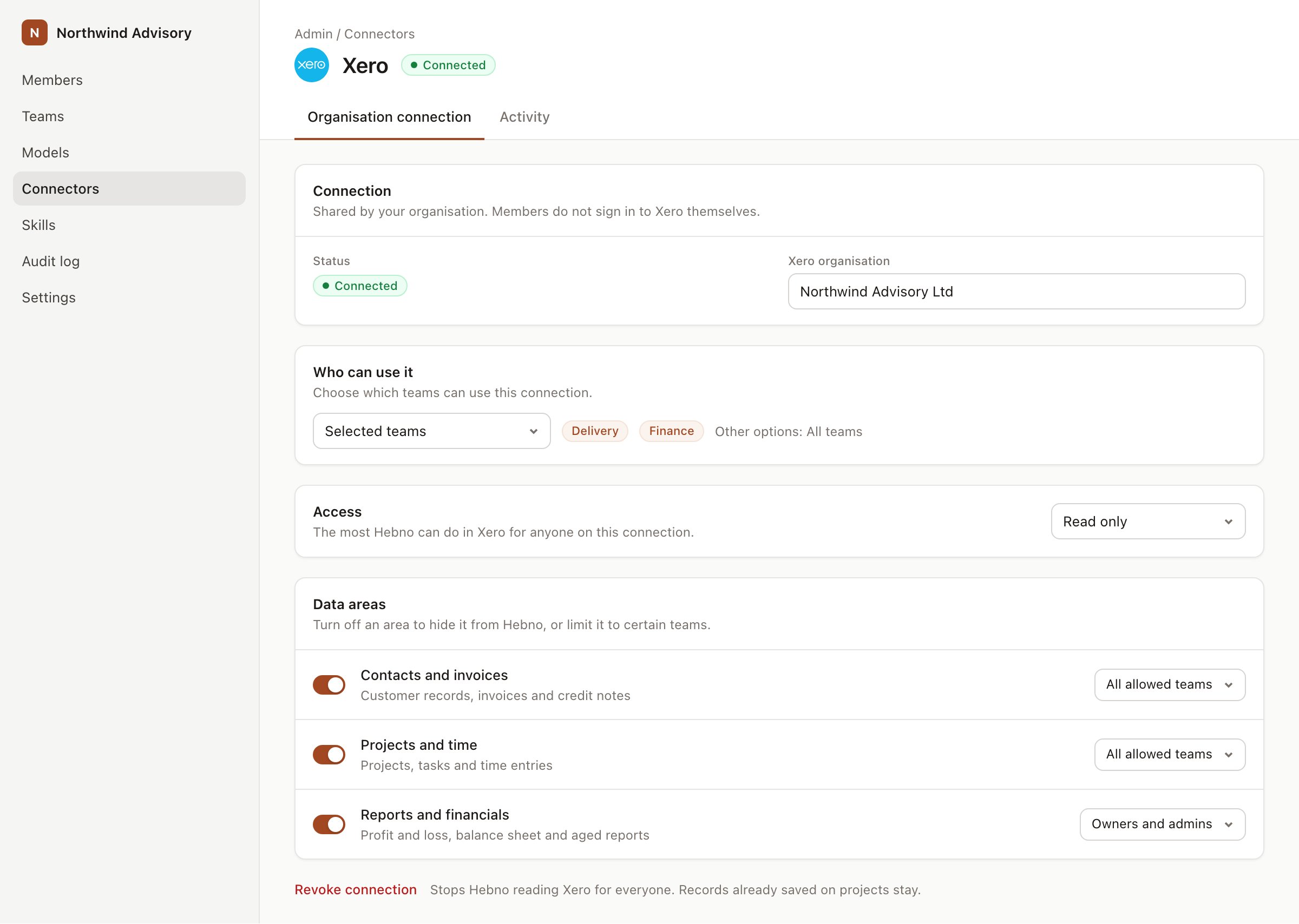
An organisation connection with team access and data areas. Financial figures default to owners and admins.
What Hebno reads
Plan versus actual figures come from the project elements and journal entry items the communication user can read, in the currency SAP stores them in. Reads are live. Hebno queries SAP when a request needs it. Only what a reply used is stored with the conversation as its sources.
What Hebno writes
Every write appears first as a confirmation card. You can change any field before you select Confirm. Hebno writes drafts only.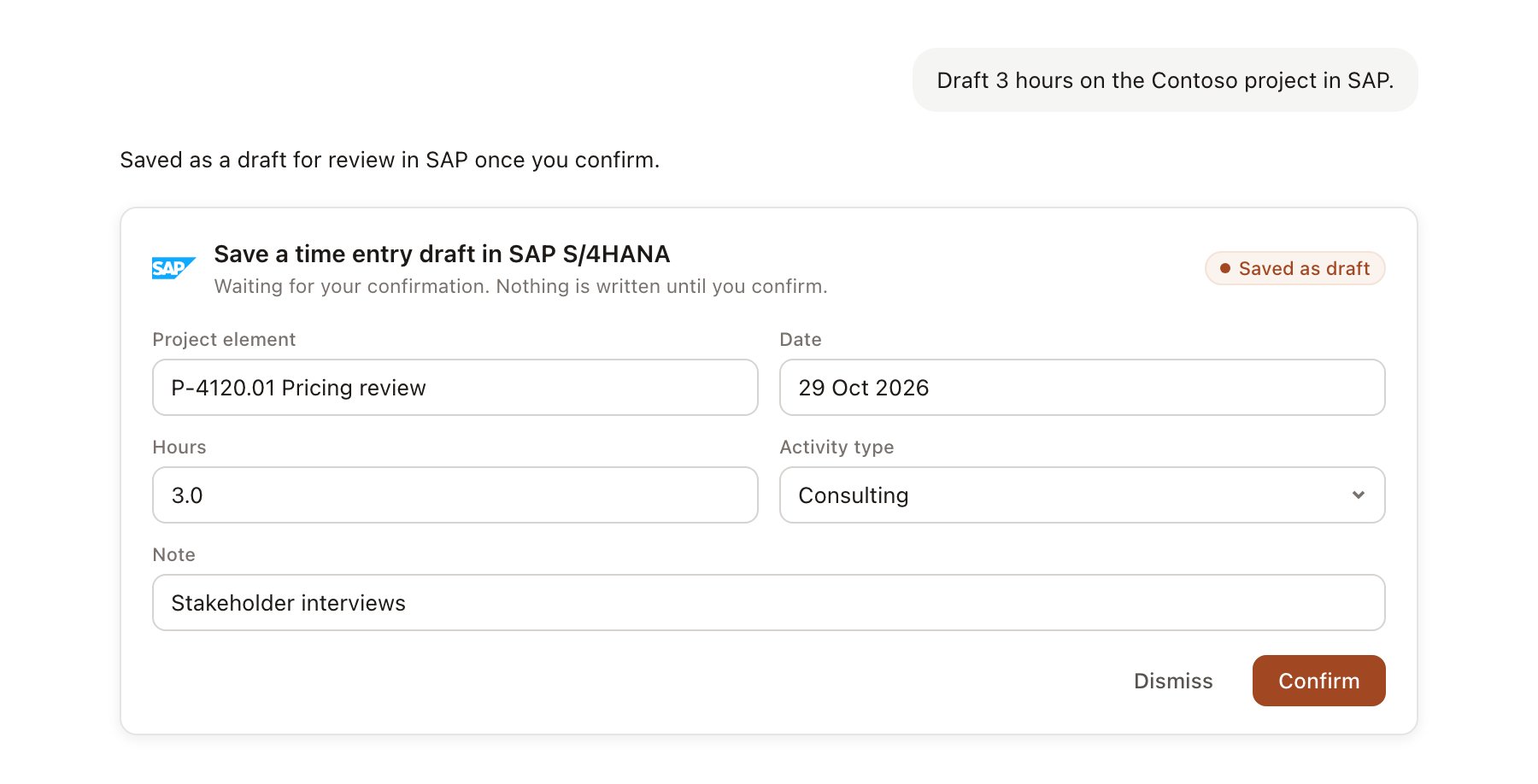
A SAP S/4HANA change pending confirmation. Nothing is written until you confirm.
Link a project to SAP records
Linking marks which SAP records belong to a project, so you can ask “where are we against plan?” without naming the project ID.- Open the project and select Brain.
- Under Linked records, select Link record, then SAP S/4HANA.
- Search by customer name, partner number or enterprise project ID, and select the record. Repeat for each record in the engagement.
Use SAP in chat
-
Attach: open the + menu, choose Sources → SAP S/4HANA, and pick a customer, an enterprise project, a sales order or a billing document. Or type
/and choose SAP S/4HANA. -
Ask: name the customer, project or order in your request. For example:
Compare planned and actual cost by WBS element on the Contoso rollout and flag anything more than 10 percent over.
What has Contoso been invoiced this year, and which invoices are overdue?
Draft a time entry for 4 hours on the Contoso rollout design phase for yesterday.
- Research runs show a Checking SAP S/4HANA step, with a chip for each project, order or document it read.
- Agents can read SAP on a schedule, for example a Friday receivables summary for account managers. Writes an agent proposes appear in agent approvals for review.