

At a glance
Before you start
You need:- A Confluence Cloud site, for example
https://northwind.atlassian.net/wiki. - Permission in Confluence to view the spaces you want to use. To publish, you also need permission to add pages in that space. Confluence enforces your permissions on every request.
- If your Atlassian organisation restricts third-party apps, an Atlassian organisation admin may need to approve the Hebno app first.
Connect Confluence
1
Check the integration is allowed
An owner or admin controls this under Admin → Connectors → Catalogue. If Confluence shows Blocked, ask an admin to set it to Allow.
2
Start the connection
Open Settings → Connections, find Confluence under Knowledge and select Connect. You can also select Connect on the prompt that appears in chat the first time you use Confluence.
3
Approve access in Atlassian
Sign in to Atlassian, choose the site Hebno should use and select Accept. Hebno returns you to the app with a Confluence connected message.
What Hebno reads
The spaces your organisation selects are stored in the knowledge index and searched by meaning, with permissions inherited from Confluence. Opening a specific page reads it as it is now, with your account. Only the excerpts a reply used are stored with the conversation as its sources.
Hebno builds the CQL query from your request, for example text matches limited to a space or label. You can also type CQL in your message, such as
space = "DELIV" AND label = "playbook", and Hebno runs it as written.
What Hebno writes
Every write appears first as a confirmation card. You can change any field before you select Confirm.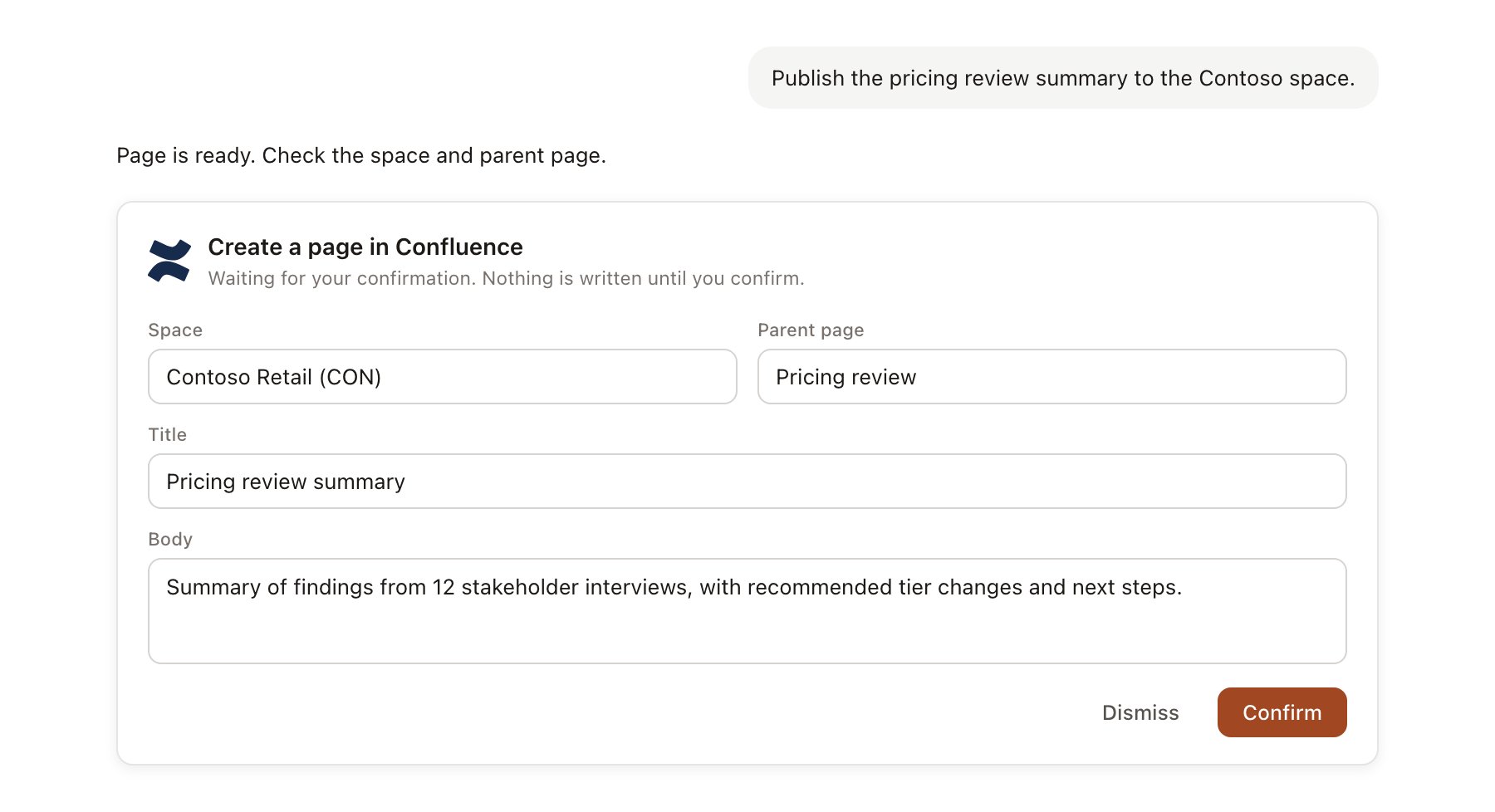
A Confluence change pending confirmation. Nothing is written until you confirm.
Link a project to a space
Linking marks which Confluence space contains a project’s documentation, so you can ask “what do we have on this?” without naming the space.- Open the project and select Brain.
- Under Linked records, select Link record, then Confluence.
- Search by space name or key, and select the space.
Use Confluence in chat
-
Attach: open the + menu, choose Sources → Confluence, and pick a space, a page or an attachment. Or type
/and choose Confluence. -
Ask: name the topic, page or space in your request. For example:
What does our delivery playbook say about running a steering committee? Cite the pages.
Pull the discovery interview guide from Confluence and adapt it for the Contoso Retail store managers.
Publish this findings document as a page under Contoso Retail in the Delivery space.
- Research runs show a Reviewing Confluence step, with a chip for each page Hebno read.
- Agents can read Confluence on a schedule. Writes an agent proposes appear in agent approvals for review.