

At a glance
Before you start
You need a Microsoft work or school account with access to the SharePoint sites you want to use. Hebno can read only what that account can open. SharePoint shares one Microsoft connection with the other Microsoft integrations.
SharePoint permissions are requested only when you first use SharePoint, so members who only use OneDrive never see them. An admin can approve them once for everyone (see below).
Connect SharePoint
1
Allow the integration
An owner or admin opens Admin → Connectors → Catalogue, finds SharePoint under Files, and confirms it is set to Allow.
2
Connect your account
Open Settings → Connections, find SharePoint and select Connect (or Grant access if your Microsoft account is already connected for OneDrive). You can also type
/ in chat and choose SharePoint.3
Approve in Microsoft
Sign in and approve the permissions. Hebno shows OneDrive and SharePoint connected.
Enable for the organisation
SharePoint permissions can be approved once by a Microsoft directory administrator, so members never see a consent screen.- In Admin → Connectors → Catalogue, open the SharePoint card.
- Select Enable for the organisation and approve in Microsoft as a directory administrator.
- Members select Grant access on their SharePoint row. It shows Enabled by your organisation.
What Hebno reads
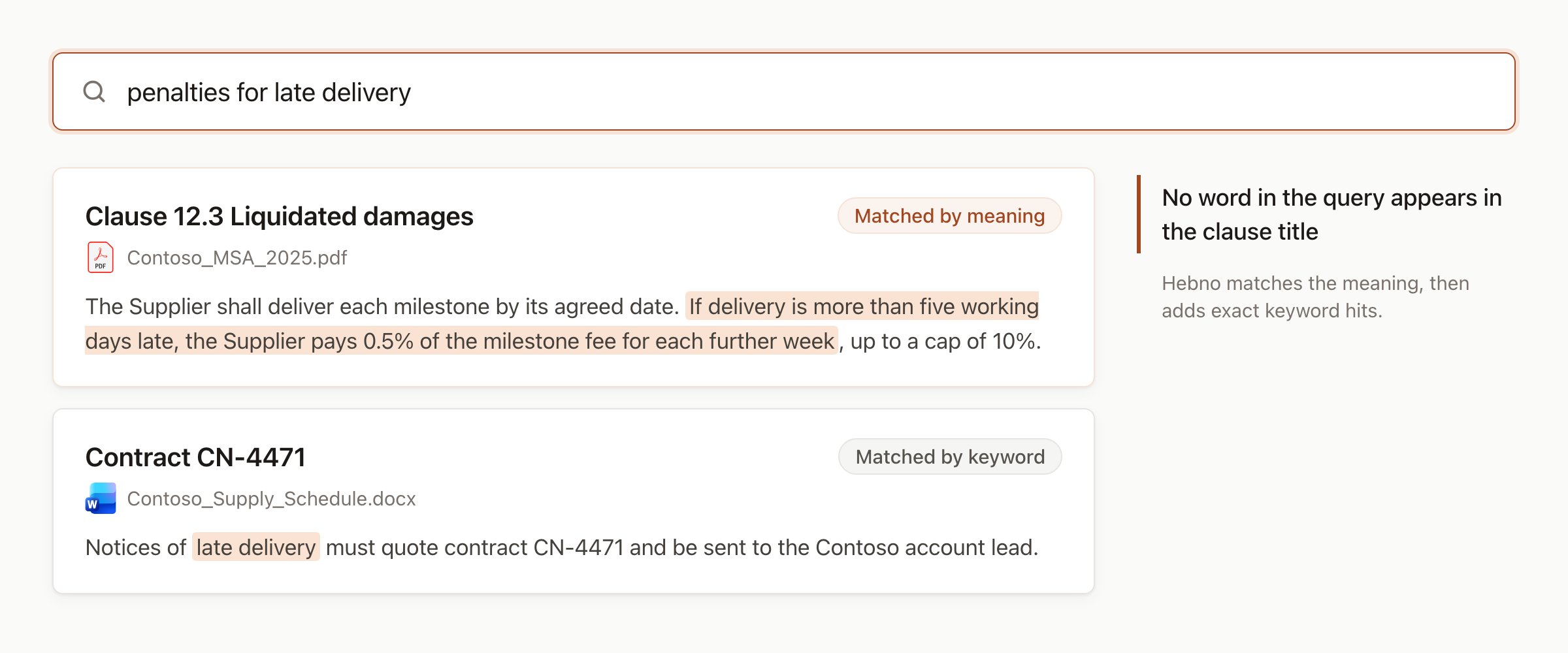
Selected sites and folders are searched by meaning as well as by keyword.
- Linked sites: topic words are searched within the project’s linked sites. If none are linked, Hebno searches for a site or folder named after the client.
- Every site you can open: the same words are searched across all your sites.
- Client and project names: used when the topic words found nothing.
- Newest files: the most recently changed files in the linked sites, when no search matched.
What Hebno writes
Every save appears first as a confirmation dialog titled Save to the destination.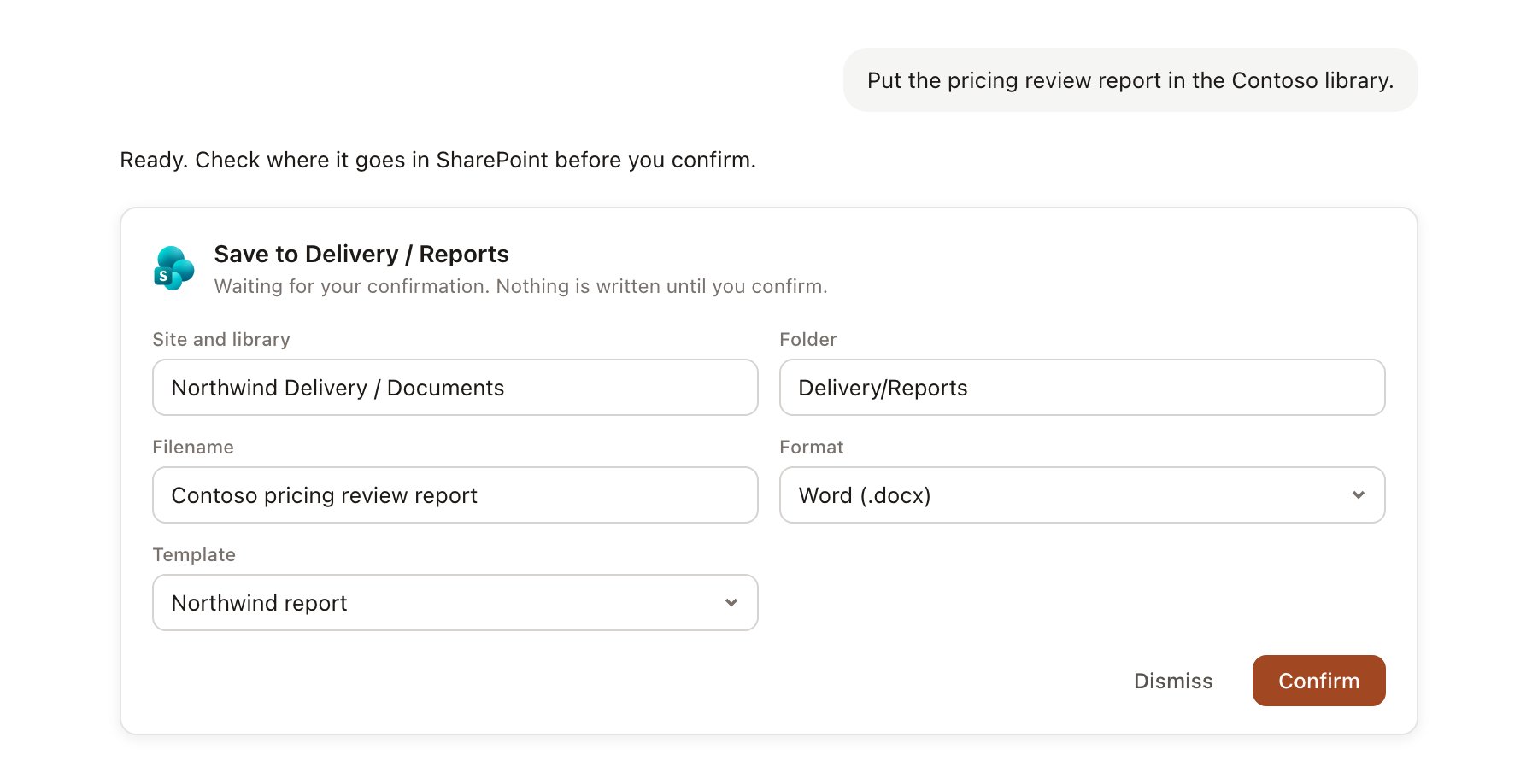
A SharePoint change pending confirmation. Nothing is written until you confirm.
Delivery/Reports. If the same deliverable was saved to the same place before, Hebno updates that file in place and the dialog says This will replace the existing file. Documents, decks and spreadsheets all save the same way.
Hebno never deletes files, edits other files in the library, changes permissions or shares links.
Link a project to a site
Linking marks which SharePoint sites and libraries belong to a project, so searches start there.- Open the project and select Brain.
- Under Linked sources, select Link source, then SharePoint.
- Paste the site or library link, for example
https://contoso.sharepoint.com/sites/client, or choose Browse. Select Link.
*.sharepoint.com address, with a path that starts /sites/ or /teams/. Personal -my.sharepoint.com addresses link as OneDrive folders instead. Link as many sites as the engagement uses. An owner or admin can also link a site to the organisation library for knowledge the whole firm uses.
Use SharePoint in chat
-
Attach: open the + menu, choose Sources → SharePoint, pick a site (or paste its link with Open this SharePoint site), browse its libraries and select a file. Or type
/and choose SharePoint. -
Ask: name the client, the site or the document. For example:
Find our previous retail pricing work on SharePoint and list the assumptions we reused.
What is in the Contoso delivery library that we have not used in the readout?
Save this deck to the Contoso delivery folder.
- Research runs show a Searching SharePoint step, and the trace group Checking context in SharePoint. Chips marked Searched first came from a linked site.
- Agents can read linked sites on a schedule. Saves an agent proposes appear in agent approvals.