

At a glance
Before you start
You need a Microsoft account with OneDrive. Work, school and personal accounts all work. OneDrive needs one permission grant:
Hebno does not offer a read-only OneDrive grant. The write permission is what lets a confirmed save reach your folder. Hebno writes only the file you chose and never deletes or edits other files.
Connect OneDrive
1
Open connections
Open Settings → Connections, find OneDrive under Files, and select Connect. You can also type
/ in chat and choose OneDrive.2
Sign in to Microsoft
Sign in and approve OneDrive access. You return to the app and see OneDrive connected.
What Hebno reads
Files up to 25 MB can be attached and read. Hebno reads Word, PowerPoint, Excel, PDF, text, CSV and Markdown files as text. Images attach as images. The drives and folders your organisation selects are stored in the knowledge index and searched by meaning, with OneDrive permissions applied. Attaching a specific file reads it as it is now, and only what a reply used is stored with the conversation as its sources.
What Hebno writes
Every save appears first as a confirmation dialog titled Save to the folder name. You can change the filename and format before you confirm.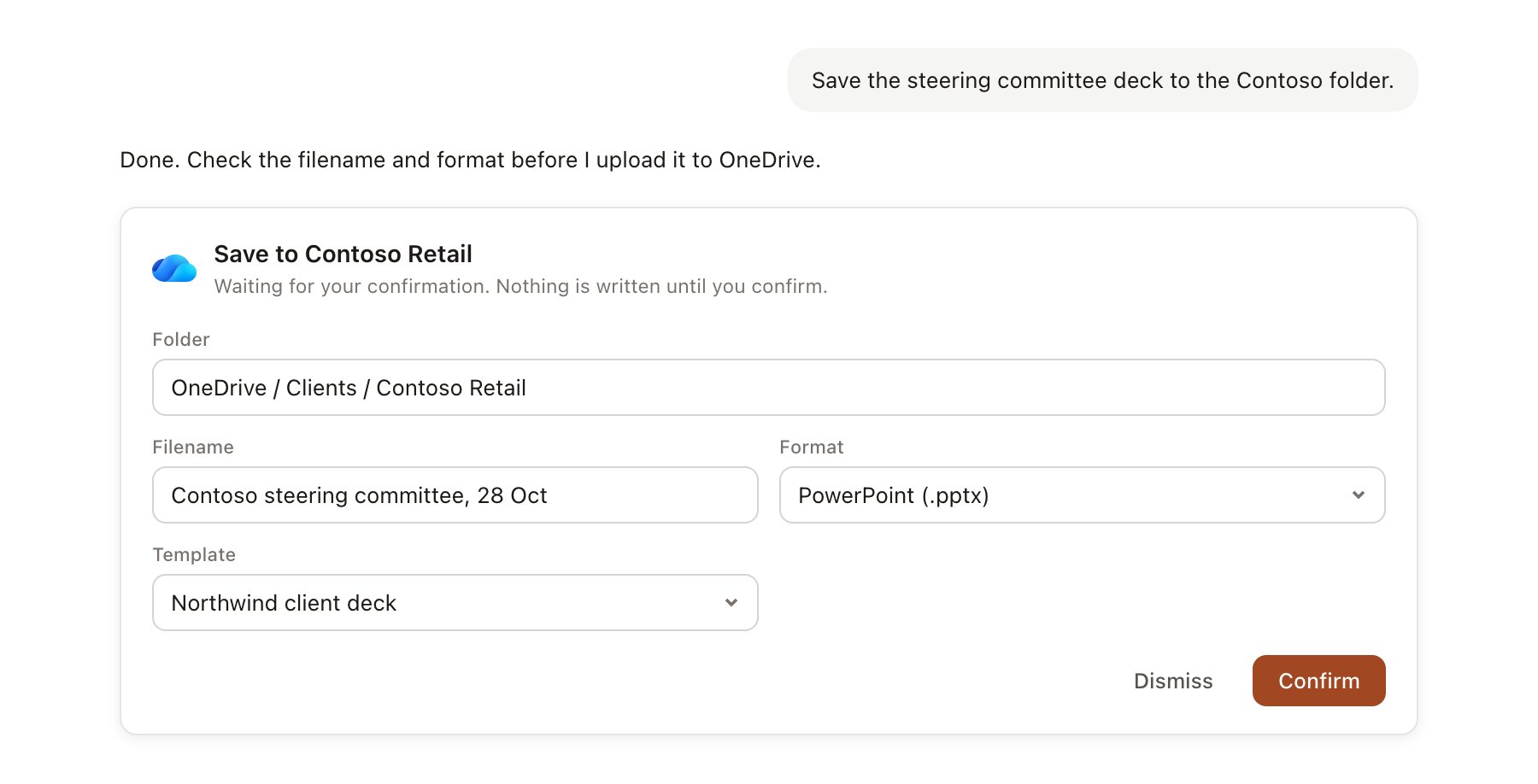
An OneDrive change pending confirmation. Nothing is written until you confirm.
Link a project to a folder
Linking marks which OneDrive folders belong to a project, so you can say “check the client folder” without naming it.- Open the project and select Brain.
- Under Linked sources, select Link source, then OneDrive.
- Paste a link to the folder, or choose Browse and pick it. Select Link.
onedrive.live.com, 1drv.ms) or work and school folder links on -my.sharepoint.com. The link must be https. The source is visible on the project, and each person still opens files with their own access. See Linked records.
Use OneDrive in chat
-
Attach: open the + menu, choose Sources → OneDrive, and pick a file or a folder. Or type
/and choose OneDrive. -
Ask: name the client or the folder. For example:
Read the Contoso Retail folder and list the documents we sent in October.
Compare the pricing assumptions in the latest proposal with the ones in the board paper.
Save the finished readout to the Contoso Retail folder.
- Research runs show a Reading a linked folder step, with a chip for each file used.
- Agents can read linked OneDrive folders on a schedule. Saves an agent proposes appear in agent approvals.