

At a glance
Before you start
You need:- A Google account with the Viewer role or higher on the GA4 property, granted in Analytics under Admin → Property access management or at account level.
- An allowed integration. An owner or admin sets Google Analytics to Allow under Admin → Connectors → Catalogue.
- If your Google Workspace restricts third-party access to Google services, a super admin must mark Hebno as trusted first. See Google Workspace admin.
Permissions
Google checks your property role on every request. Where your role restricts cost or revenue metrics, Google returns those metrics empty, and Hebno says so.
Connect Google Analytics
1
Open Connections
Go to Settings → Connections and find Google Analytics under Data and analytics. Or type
/ in the composer, choose Google Analytics and select Connect.2
Approve access
Select Connect (or Grant access if you already connected another Google product), sign in to Google and approve read access to your Analytics data.
3
Return to Hebno
The card shows Connected with your Google account and the number of properties you can read.
What Hebno reads
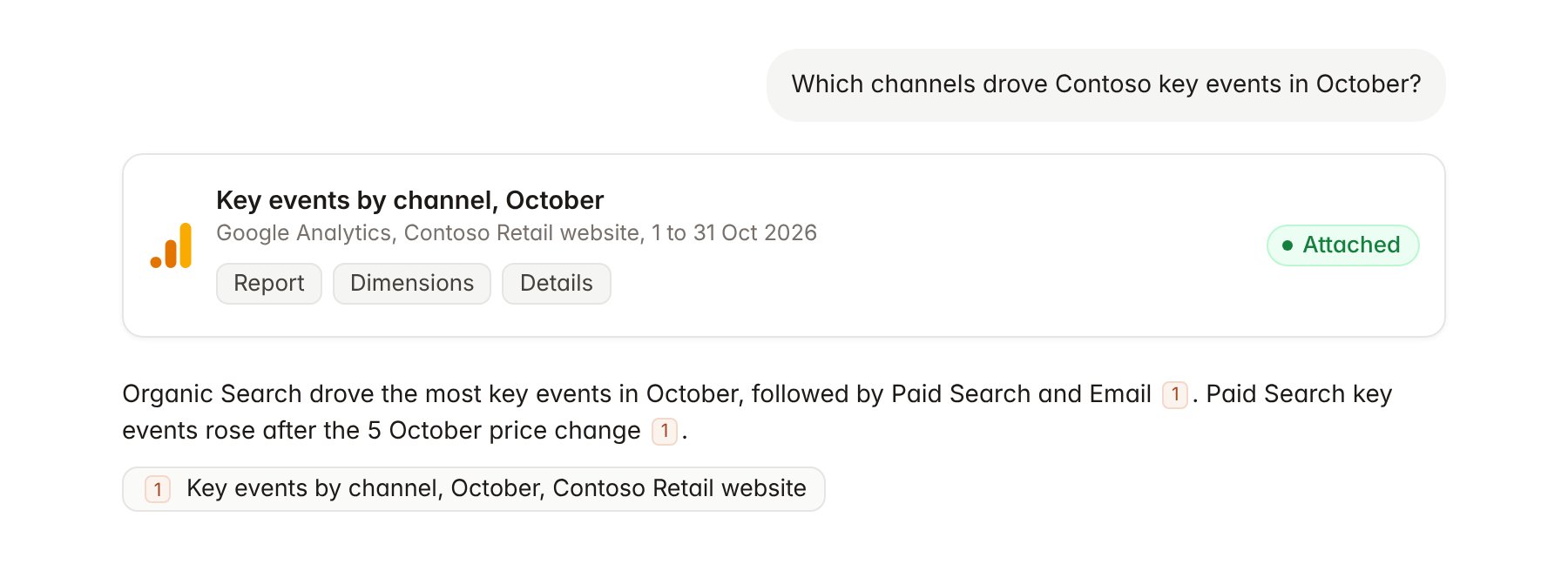
A Google Analytics report attached to a chat.
Google processes most GA4 data within 24 to 48 hours. Figures for today and yesterday can change after a reply.
Hebno reads only
Hebno does not write to Google Analytics. It does not create properties, change key events, audiences or data streams, or edit user access.Link a project to a property
Linking marks which GA4 properties belong to an engagement, so you can ask “how is traffic moving?” without naming the property.- Open the project and select Brain.
- Under Linked records, select Link record, then Google Analytics.
- Search by property name or ID and select it. Repeat for each property in the engagement.
Use Google Analytics in chat
-
Attach: open the + menu, choose Sources → Google Analytics, and pick a property. Or type
/and choose Google Analytics. -
Ask: name the property, metric or period in your request. For example:
Compare Contoso website sessions and purchases for the four weeks before and after the 5 October price change.
Which landing pages had the highest engagement rate on mobile in October?
Draft a short traffic section for the Contoso readout with channel mix and key events by month since July.
- Research runs show a Checking Google Analytics step, with a chip for each property and report it ran.
- Agents can read Analytics on a schedule, for example a Monday summary of last week’s sessions and key events for Contoso. Writes an agent proposes elsewhere appear in agent approvals for review.