

At a glance
Before you start
You need a Microsoft account with OneNote notebooks. Hebno reads your own notebooks only.
OneNote connects with
Notes.Read first. Notes.Create is a second grant, so creating pages is your own choice.
Connect OneNote
1
Open connections
Open Settings → Connections, find OneNote under Knowledge, and select Connect. You can also type
/ in chat and choose OneNote.2
Approve reading
Sign in to Microsoft and approve read access. Hebno shows OneNote connected.
3
Allow page creation (optional)
Select Allow page creation on the OneNote row to add
Notes.Create. The same button appears on a page card if you try to create first.What Hebno reads
Search matches notebook, section and page titles, using your whole phrase or every word of three or more letters. Hebno searches up to eight sections, matching ones first and then your default notebook, scores pages by title, preview text and section, and returns up to three pages with the most relevant excerpts. Name the notebook, section or page when you want a specific note. Browsing from the picker lists up to 50 notebooks and 40 pages per section.
Attaching a page adds a file named after the page title, with the notebook and section, the link and the page text. Reads are live, and only the excerpts a reply used are stored with the conversation as its sources.
What Hebno writes
Every new page appears first as a confirmation card. You can change any field before you select Confirm.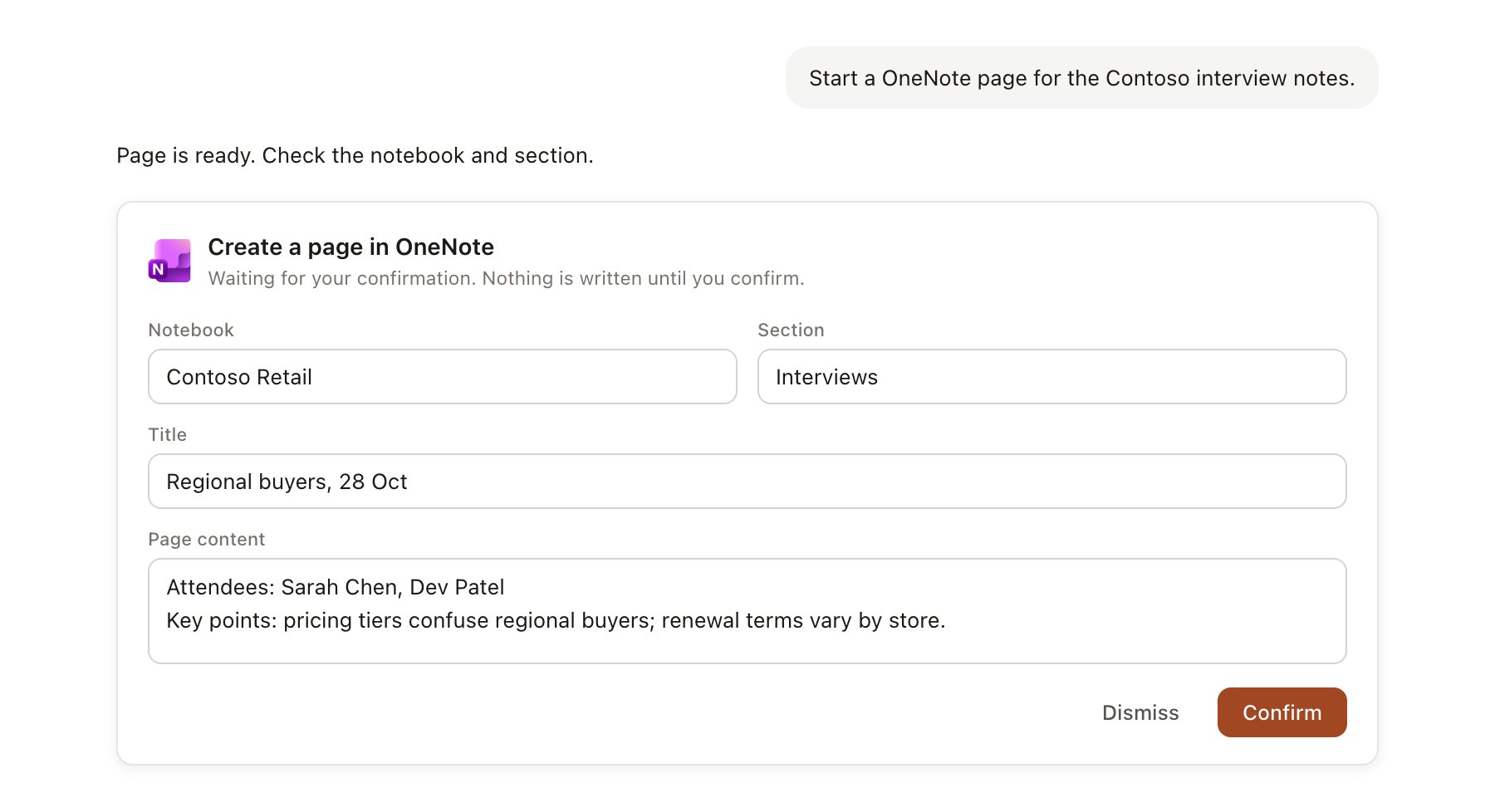
An OneNote change pending confirmation. Nothing is written until you confirm.
Use OneNote in chat
-
Attach: open the + menu, choose Sources → OneNote, browse notebook, section and page, or type to filter titles. Or type
/and choose OneNote. -
Ask: name the notebook, section or page. For example:
Pull my notes from the Contoso kickoff page and turn the open questions into a discovery agenda.
What did I write in the Contoso interviews section about procurement?
Save this interview summary as a page in my Contoso interviews section.
- Research runs show a Reviewing OneNote step, with a chip for each page, formatted as OneNote: notebook / section.
- Agents can read OneNote on a schedule. Pages an agent drafts appear in agent approvals.