

At a glance
Before you start
You need:- A Slack workspace where you have an account.
- Approval of the Hebno app for the workspace. In many workspaces only an owner or admin can approve new apps, and members see a Request approval screen. Ask your Slack admin to approve Hebno first.
- On Slack Enterprise Grid, an org owner or admin approves the app for the organisation and for each workspace where members use it. Members then connect one workspace at a time.
Hebno reads only conversations your Slack account can already open. It never joins a channel on your behalf.
Connect Slack
1
Check the integration is allowed
An owner or admin controls this under Admin → Connectors → Catalogue. If Slack shows Blocked, ask an admin to set it to Allow.
2
Start the connection
Open Settings → Connections, find Slack under Communication and select Connect. You can also select Connect on the prompt that appears in chat the first time you use Slack.
3
Approve access in Slack
Choose the workspace, review the permissions and select Allow. Hebno returns you to the app with a Slack connected message.
What Hebno reads
Hebno reads Slack live, with your account. Only the messages a reply used are stored with the conversation as its sources.
Each message in a source links back to the message in Slack.
What Hebno writes
Every write appears first as a confirmation card. You can change any field before you select Confirm.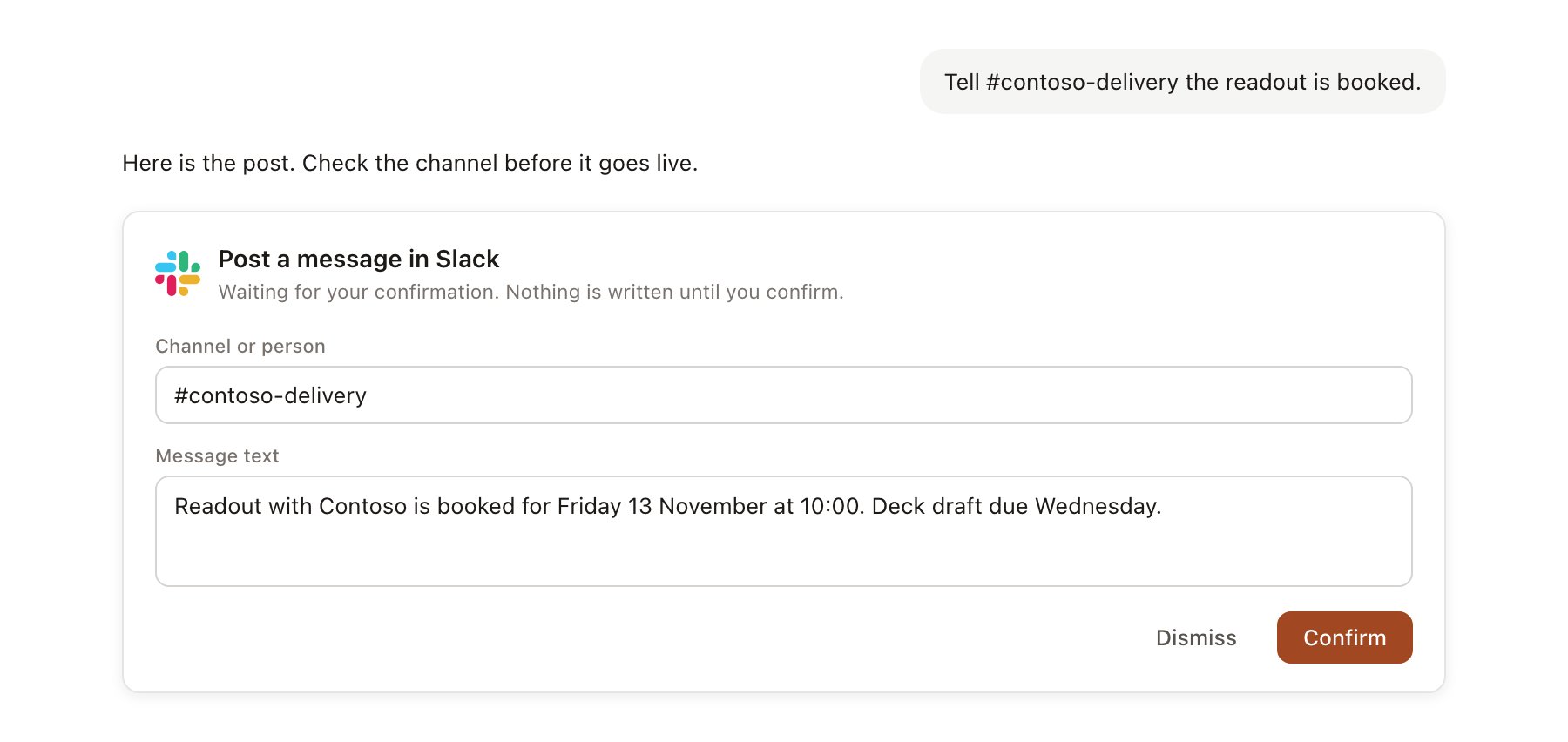
A Slack change pending confirmation. Nothing is written until you confirm.
Link a project to a channel
Linking marks which Slack channel belongs to a project, so you can ask “what has the team said?” without naming the channel.- Open the project and select Brain.
- Under Linked records, select Link record, then Slack.
- Search by channel name and select the channel. Private channels appear only if you belong to them.
Use Slack in chat
-
Attach: open the + menu, choose Sources → Slack, and pick a channel, a conversation or a thread. Or type
/and choose Slack. -
Ask: name the channel, person or topic in your request. For example:
Find where the Contoso team agreed to move the readout to 20 November and quote the messages.
Summarise what the Contoso Retail project channel discussed this week and list any open questions.
Post a short status update to the Contoso channel with the three decisions from this chat.
- Research runs show a Reviewing Slack step, with a chip for each message or thread Hebno read.
- Agents can read Slack on a schedule, for example a Friday summary of a project channel. Posts an agent proposes appear in agent approvals for review.