

At a glance
Before you start
You need a Google account, either a personal account or a Google Workspace account. If your Workspace restricts third-party access to Drive, a super admin must mark Hebno as trusted first. See Google Workspace admin.Permissions
Hebno writes only the file you choose to save. It never deletes, moves or edits other files in a folder.
Connect Google Drive
1
Open Connections
Go to Settings → Connections and find Google Drive under Files. Or type
/ in the composer, choose Google Drive and select Connect.2
Approve access
Select Connect, sign in to Google and approve the Drive permission.
3
Start using it
You return to the chat and see a Google Drive connected message. You connect once. The connection remains available in later chats and in the Office add-ins.
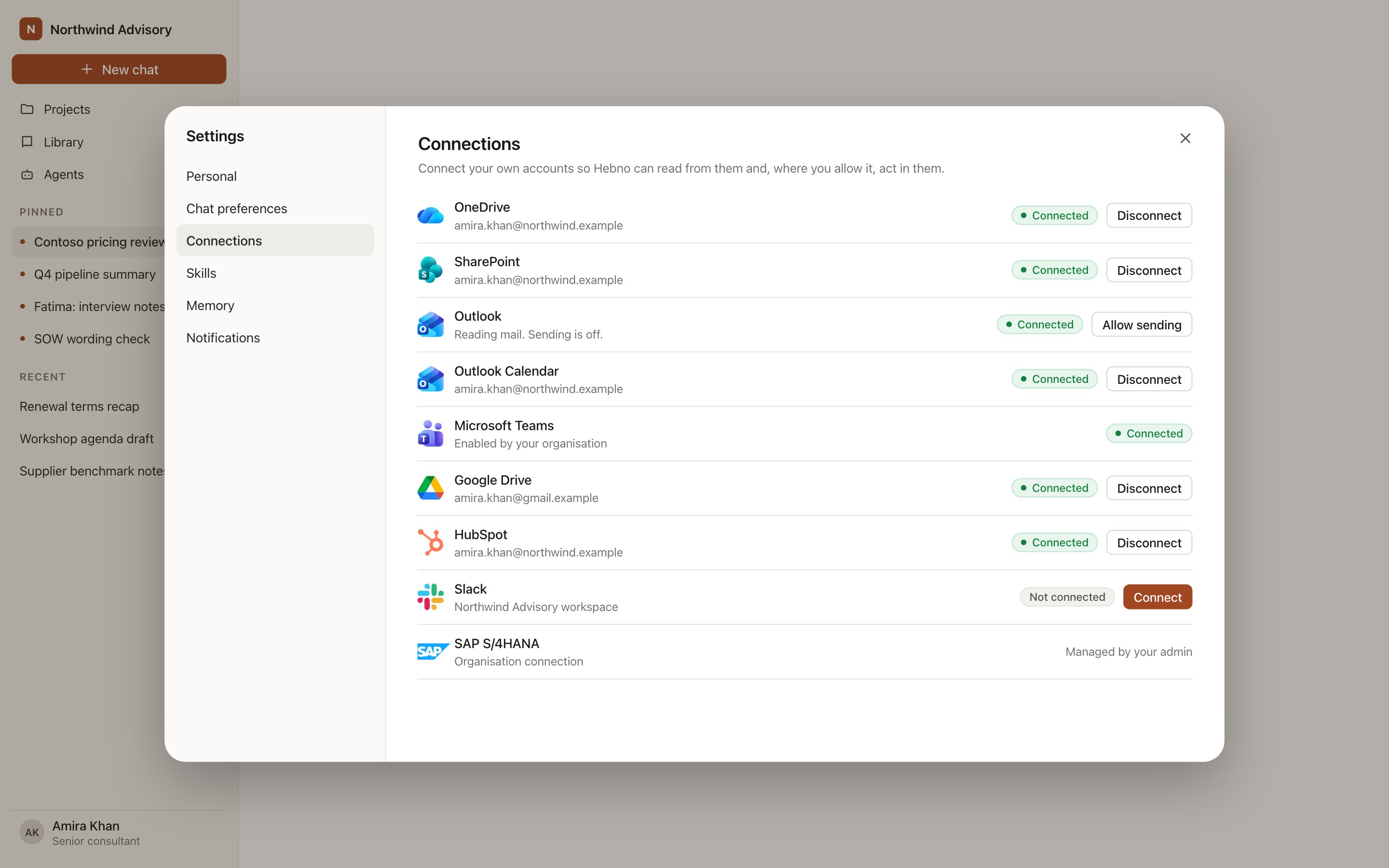
Google Drive on the Connections page, with status and the connected account.
Enable for the organisation
An owner or admin can select Enable for the organisation on the Google Drive card under Admin → Connectors → Catalogue. A Workspace super admin approves the Drive permission once for the domain, and members connect without a Google consent screen. See Google Workspace admin.What Hebno reads
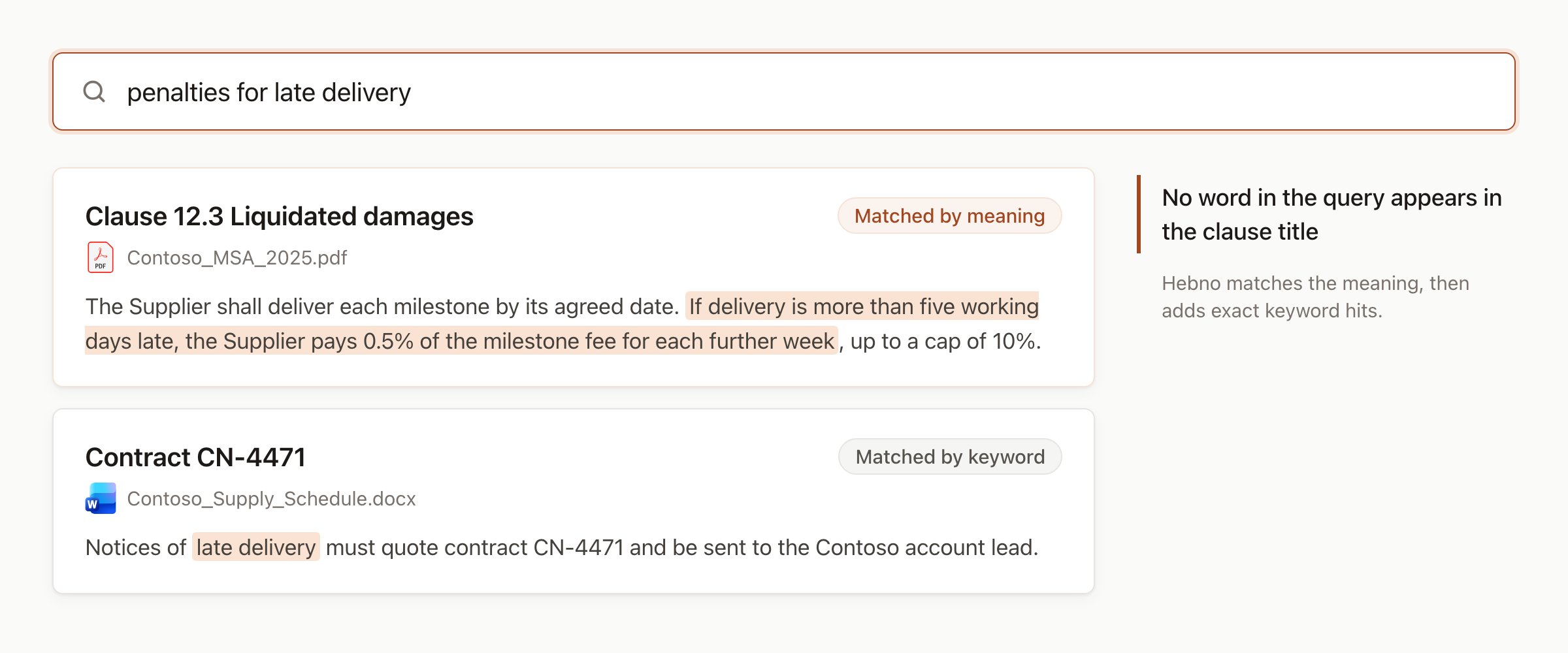
Selected sites and folders are searched by meaning as well as by keyword.
Conversion
Native Google files convert when you attach them:
Google Forms and Drawings are not converted. You see a message when a file type cannot be opened.
Search
In a linked folder, Hebno searches file names and contents, including subfolders, and returns matches by relevance. The picker in chat searches names across My Drive and shared drives. The shared drives and folders your organisation selects are stored in the knowledge index and searched by meaning, with Drive permissions applied. Attaching a specific file reads it as it is now, and only what a reply used is stored with the conversation as its sources.What Hebno writes
When you save a deliverable, Hebno shows a Save to dialog with the folder, filename and format. Nothing is written until you select Save to folder.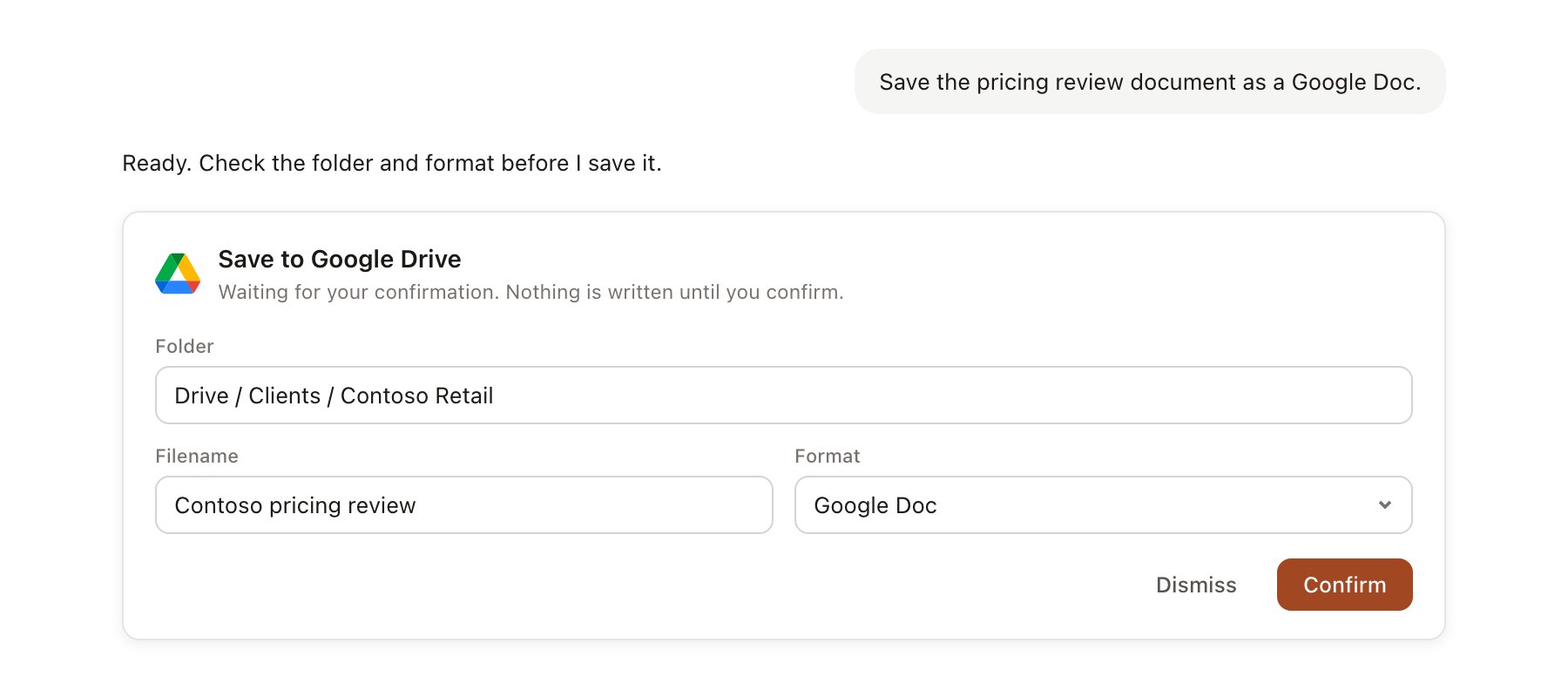
A Google Drive change pending confirmation. Nothing is written until you confirm.
Link a project to a folder
Linking marks which Drive folders belong to a project, so a search starts in the right place.- Open the project and select Brain.
- Under Linked sources, select Add source, then Google Drive.
- Browse My Drive or a shared drive, or paste a folder link, and select the folder.
Use Google Drive in chat
-
Attach: open the + menu, choose Sources → Google Drive, then browse or search. Or type
/, choose Google Drive and type to search. The file appears as a chip in the composer. -
Ask: name the client, folder or document. For example:
Read the Contoso statement of work in Drive and list every deliverable with its due date.
Compare the assumptions in the Contoso cost model with our last pricing deck, and flag differences.
Draft the readout deck from the discovery notes in the Contoso folder.
- Save: select Save in the deliverable toolbar, choose a linked Drive folder, and pick a format.
- Research runs show a Reviewing Google Drive step, with a chip for each file it read.
- Agents can read linked folders on a schedule. Saves an agent proposes appear in agent approvals.