

At a glance
Before you start
You need:- A teammate seat in the Intercom workspace you want to use. If you belong to more than one workspace, you choose one when you connect.
- The Intercom permission Can install, configure and delete apps, or a workspace admin who installs Hebno for the workspace first. After the app is installed, other teammates connect with their own account.
- An allowed integration. An owner or admin sets Intercom to Allow under Admin → Connectors → Catalogue.
Hebno does not request Write users and companies, Delete conversations and metrics or Update admins.
Connect Intercom
1
Start the connection
Open Settings → Connections, find Intercom under Customer support and select Connect. You can also select Connect from the prompt in a chat.
2
Sign in to Intercom
Sign in, choose your workspace if you belong to more than one, and select Authorize access.
3
Return to Hebno
The card shows Connected with your workspace name.
What Hebno reads
Reads are live. Hebno queries Intercom when a request needs it. Only what a reply used is stored with the conversation as its sources.
What Hebno writes
Every write appears first as a confirmation card. You can change any field before you select Confirm.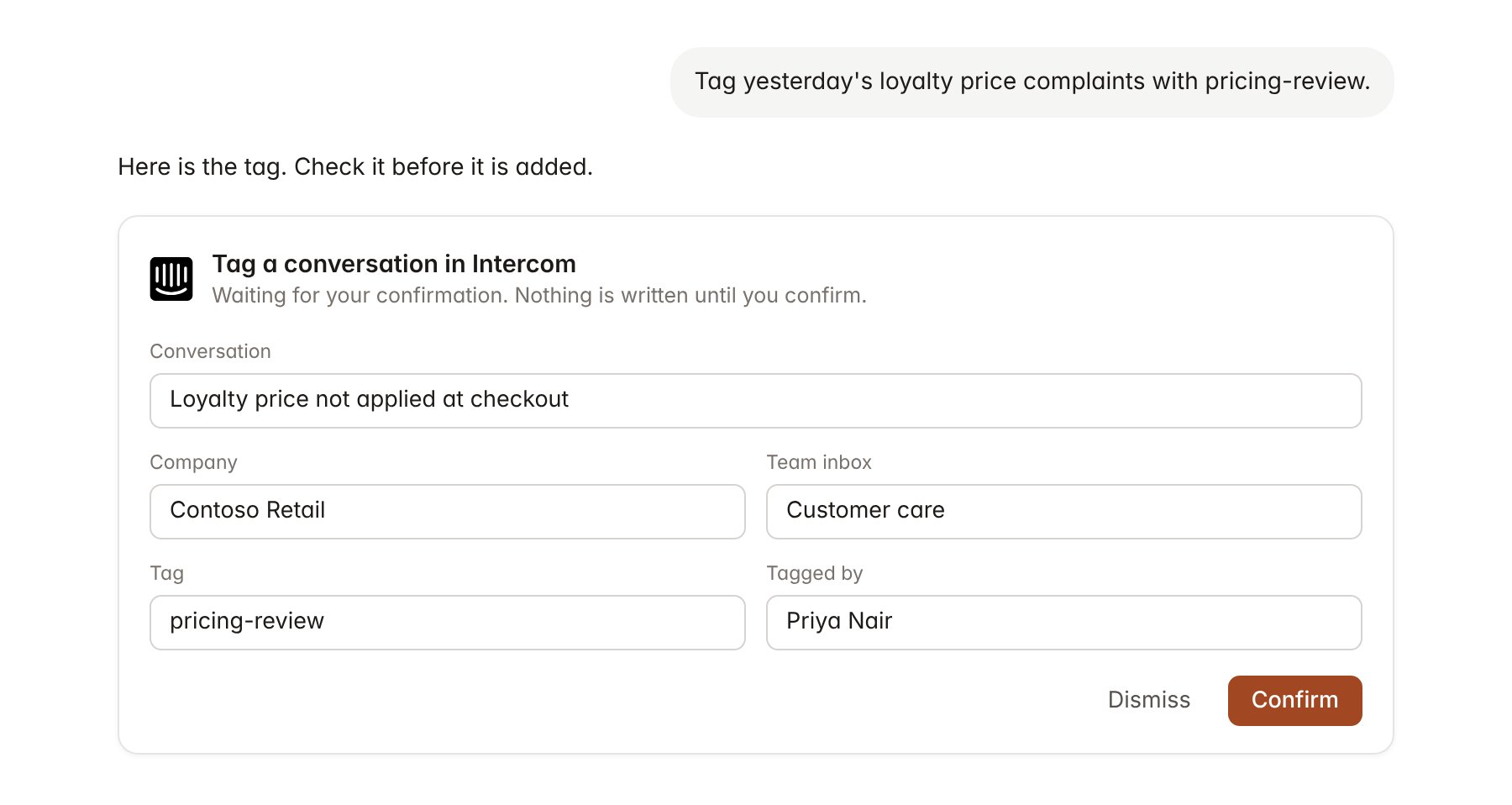
An Intercom change pending confirmation. Nothing is written until you confirm.
Link a project to a company
Linking marks which Intercom companies belong to an engagement, so you can ask “what are customers saying?” without naming the company.- Open the project and select Brain.
- Under Linked records, select Link record, then Intercom.
- Search by company name or company ID and select the company. Repeat for each company in the engagement.
Use Intercom in chat
-
Attach: open the + menu, choose Sources → Intercom, and pick a conversation, a company or a help centre article. Or type
/and choose Intercom. -
Ask: name the client, tag or topic in your request. For example:
Summarise the conversations tagged pricing from the last two weeks and quote three representative customers.
Compare what the help centre says about price matching with what teammates tell customers in conversations.
Tag the five loyalty price complaints from yesterday with pricing-review.
- Research runs show a Checking Intercom step, with a chip for each conversation and article it read.
- Agents can read Intercom on a schedule, for example a weekly theme summary of conversations tagged pricing. Writes an agent proposes appear in agent approvals for review.