

At a glance
Before you start
You need a Microsoft account with an Outlook mailbox. Hebno reads only the mailbox of the account you connect.
Outlook connects with
Mail.Read first. Mail.Send is a separate grant, so sending is always your own choice.
Connect Outlook
1
Open connections
Open Settings → Connections, find Outlook under Mail, and select Connect. You can also type
/ in chat and choose Outlook.2
Approve reading
Sign in to Microsoft and approve read access. Hebno shows Outlook connected.
3
Allow sending (optional)
On the Outlook row, select Allow sending and approve
Mail.Send. The same button appears on an email card if you try to send before granting it.What Hebno reads
Hebno returns one result per thread, using the latest message, which quotes earlier ones. Each result shows the subject, sender, date, a link and an excerpt: the first 400 characters plus the most relevant passages. A chat reads up to 5 threads and a research run up to 6. Attaching an email adds it to the message as a Markdown file named after the subject. Attachments on the email are not included.
Hebno never deletes, moves or edits mail. Reads are live, and only the excerpts a reply used are stored with the conversation as its sources.
What Hebno writes
Every email appears first as a card titled Email. You can change any field before you select Send.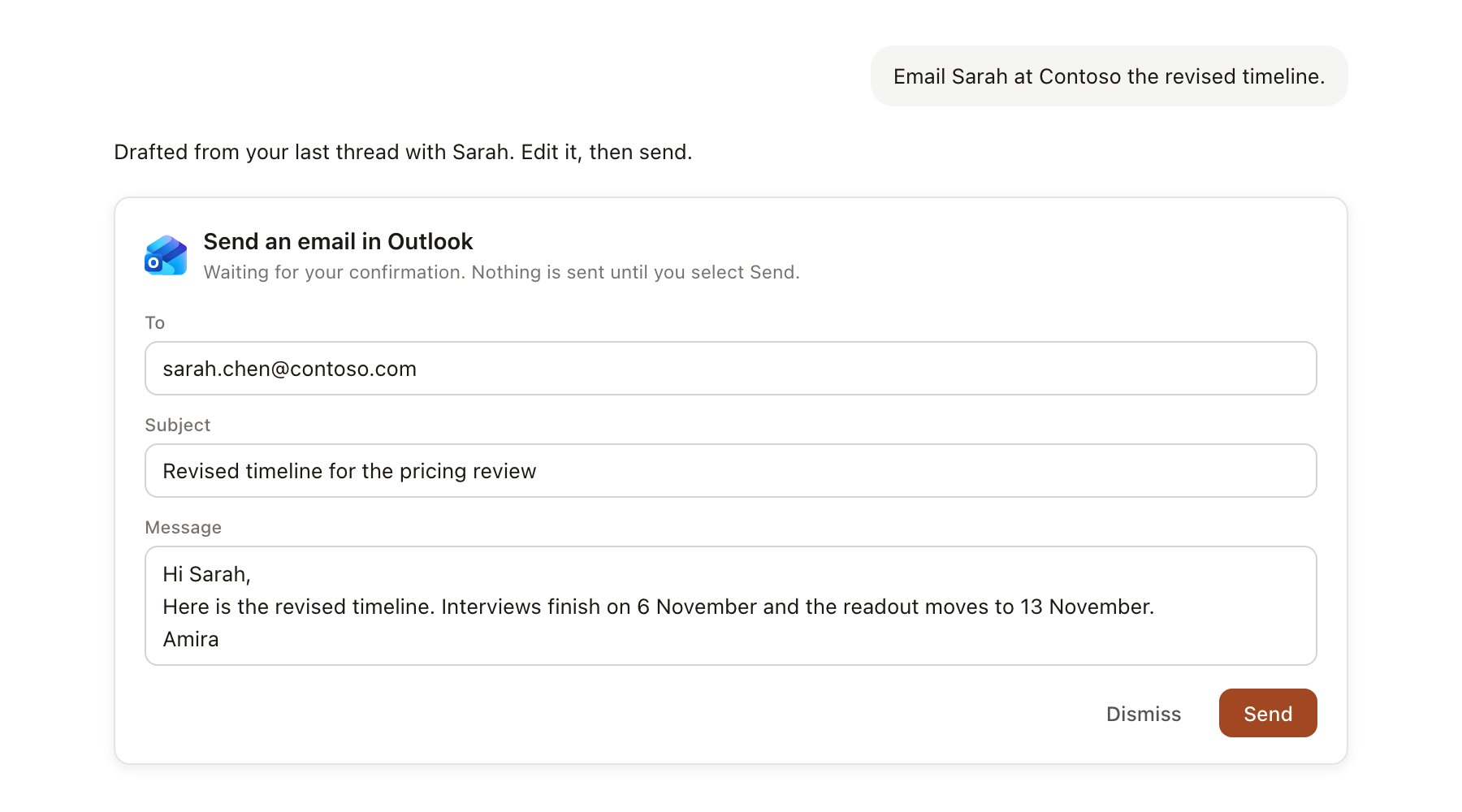
An Outlook change pending confirmation. Nothing is written until you confirm.
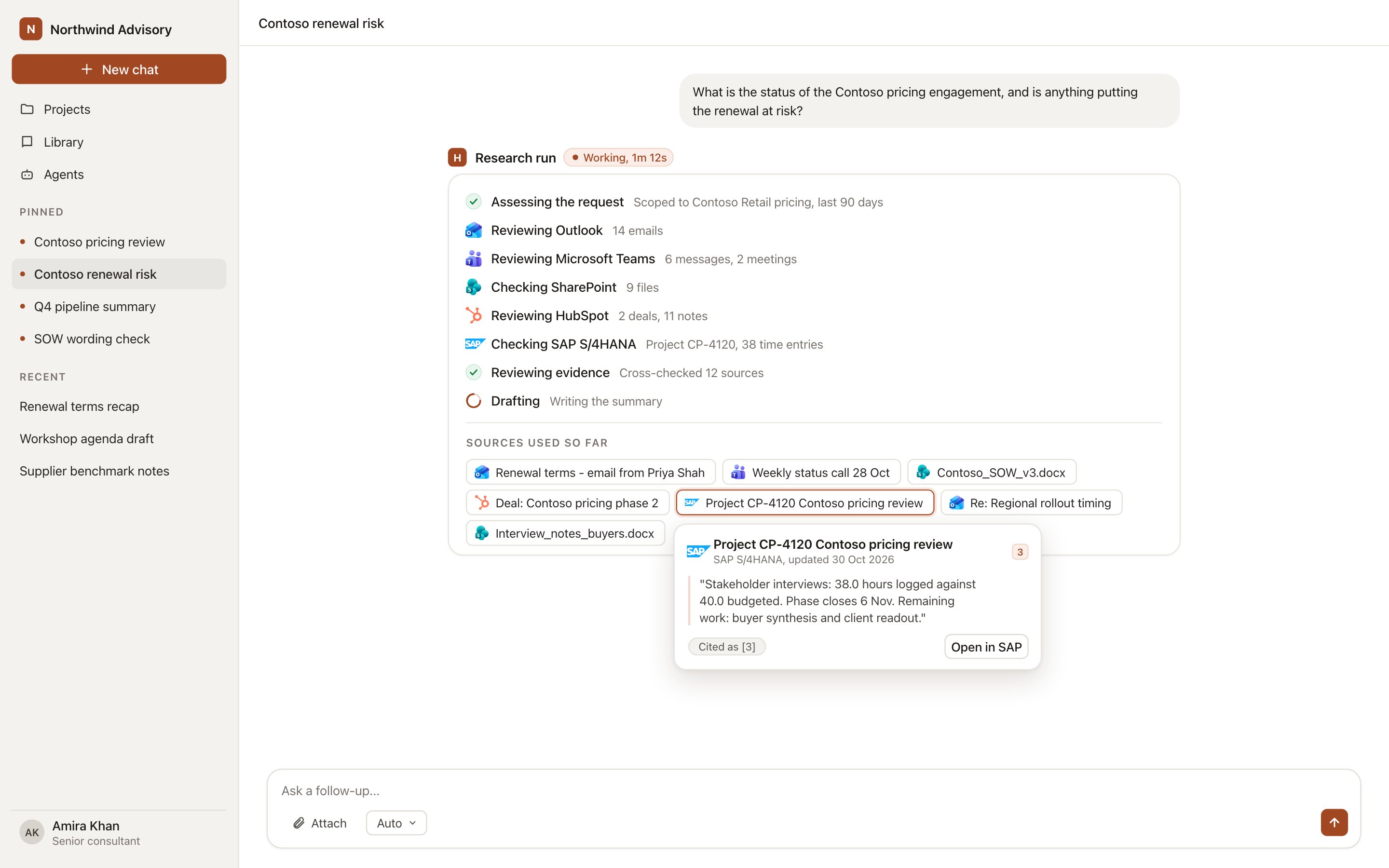
A research run showing Outlook threads as chips in the work trace.
Use Outlook in chat
-
Attach: open the + menu, choose Sources → Outlook, and pick a recent message or search for one. Or type
/and choose Outlook. -
Ask: name the client, the person or the topic. For example:
Summarise the last two weeks of email with Contoso about the pricing review and list what they asked us to change.
Draft an email to Priya at Contoso confirming the readout date and attaching our agenda as text.
Which Contoso thread mentions the revised budget?
- Research runs show a Reviewing email correspondence step, with a chip for each thread, formatted as Outlook: sender, date.
- Agents can read mail on a schedule, for example a Friday summary of client threads. Emails an agent drafts appear in agent approvals.