

At a glance
Before you start
You need:- An owner or admin role in Hebno.
- Your Snowflake account identifier, for example
northwind-analytics, in theorgname-accountnameform shown under Admin → Accounts in Snowsight. - A Snowflake administrator with the
SECURITYADMINandSYSADMINroles, or equivalent, to create the user, role and grants below.
USAGE and SELECT. Hebno runs statements through the Snowflake SQL API and accepts only SELECT, SHOW and DESCRIBE, and the role has no rights to change data.
Connect Snowflake
1
Allow the integration
Open Admin → Connectors → Catalogue, find Snowflake under Data and analytics, and set it to Allow.
2
Connect the organisation
Select Connect, enter the account identifier, user, role and warehouse, and copy the public key Hebno generates into
RSA_PUBLIC_KEY for the service user. Select Test connection. Hebno connects and lists the databases and schemas the role can read.3
Choose teams and data areas
Under Who can use it, choose All teams or pick teams. Under Data areas, choose the databases and schemas each team can query. See Data areas.
4
Confirm access
Access is Read only. Snowflake has no write actions in Hebno.
Link your own account
Members can link their own Snowflake account so queries run with their own default role, grants and row access policies.- In Hebno, open Settings → Connections, find Snowflake and select Link your account.
- Sign in to Snowflake and select Allow.
TYPE = OAUTH and OAUTH_CLIENT = CUSTOM, using the redirect URI shown on the Snowflake card in Admin → Connectors. Roles such as ACCOUNTADMIN and SECURITYADMIN are blocked from OAuth sessions by default.
Data areas
Data areas control what members of the allowed teams can query through the organisation connection. They apply on top of the grants onHEBNO_READER.
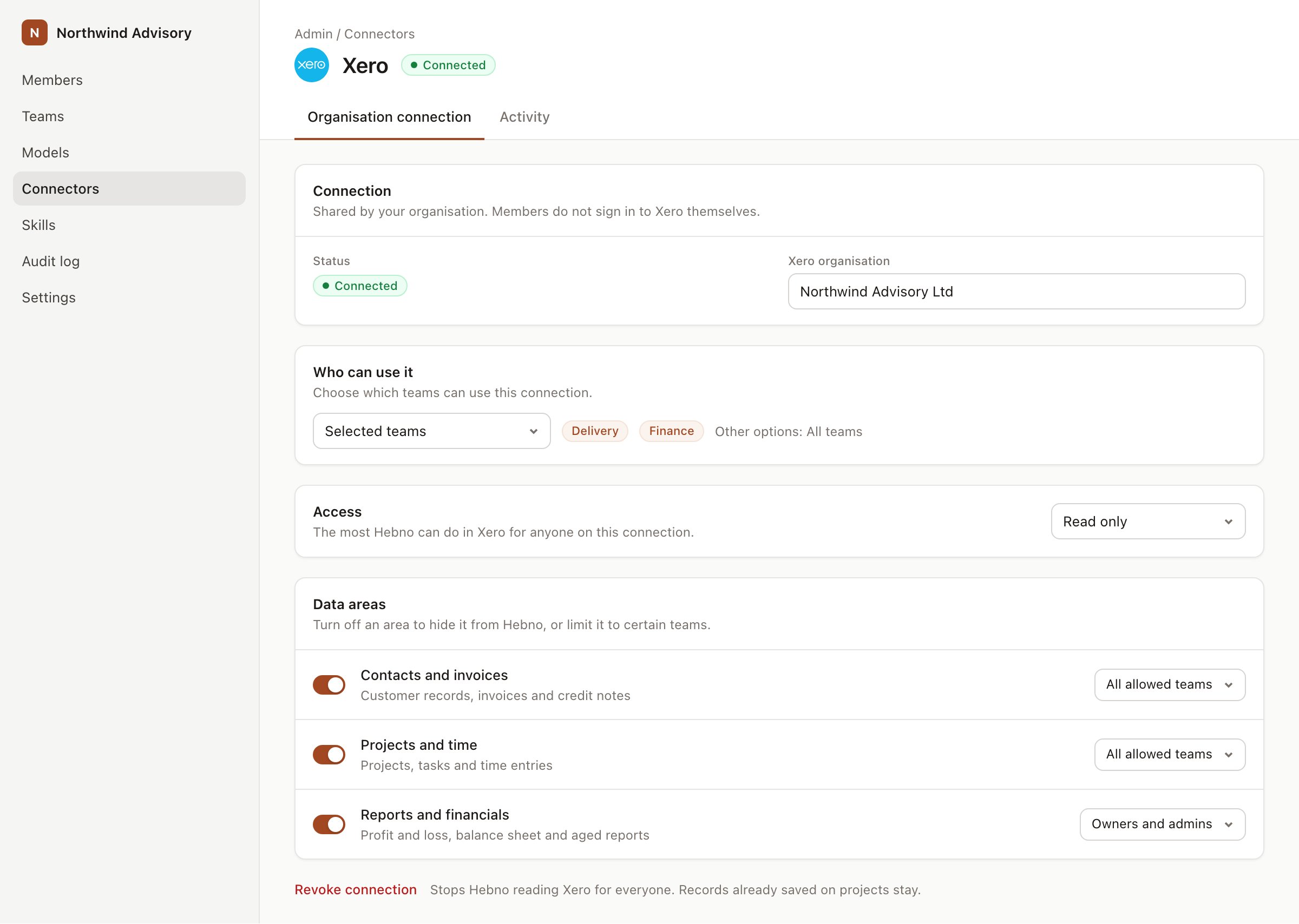
An organisation connection with team access and data areas. Financial figures default to owners and admins.
RETAIL.CONTOSO to that team only.
When a member has linked their own account, Hebno uses that member’s Snowflake role instead of the organisation connection. Data areas still apply, so a member never sees more through Hebno than both Snowflake and your Hebno settings allow.
What Hebno reads
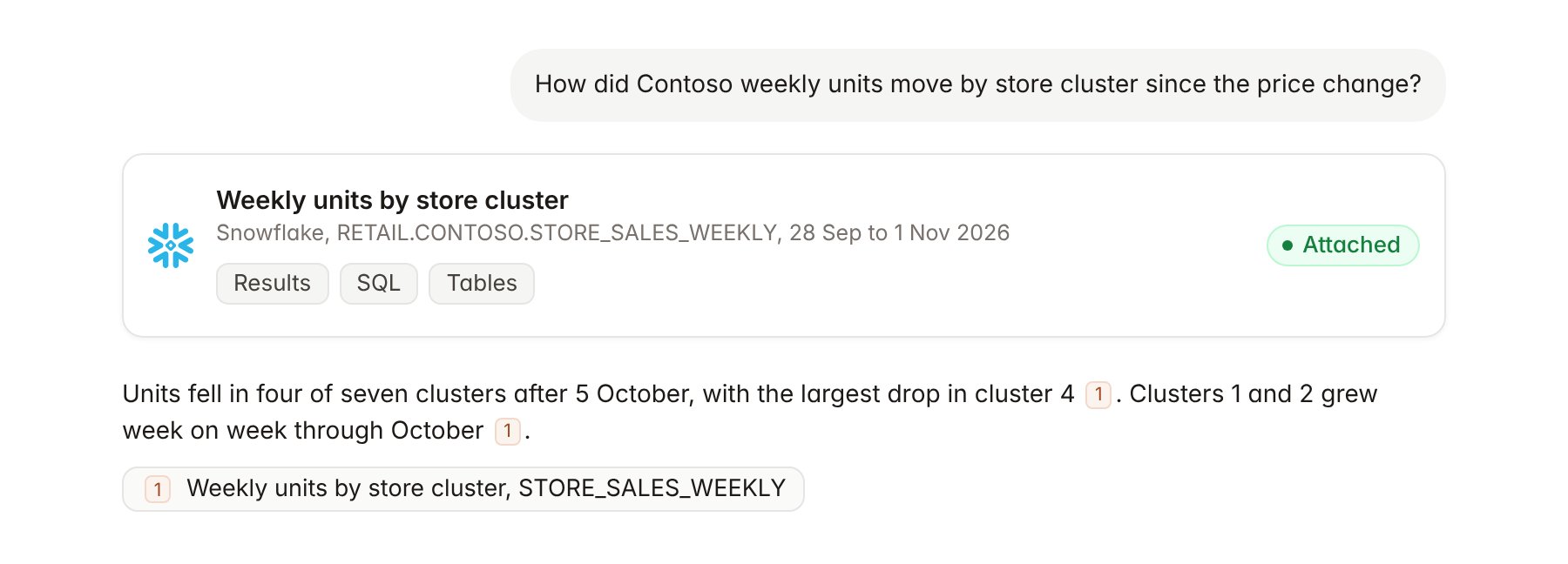
A Snowflake query result attached to a chat.
INFORMATION_SCHEMA to write the query, runs it, and shows the SQL with the reply so you can rerun it in Snowsight. Results are capped at a row limit set on the card, and the reply says when a result was cut off. Hebno sets the query tag hebno on each query, so a Snowflake admin can find it in QUERY_HISTORY.
Reads are live. Hebno runs each query in Snowflake when a request needs it and does not copy tables. Only what a reply used is stored with the conversation as its sources.
Hebno reads only
Hebno does not write to Snowflake. It does not runINSERT, UPDATE, DELETE, MERGE, CREATE or GRANT statements, load or unload data, or change warehouses.
Link a project to a schema
Linking marks which schemas, tables or views belong to an engagement, so you can ask “how did units move last week?” without naming the table.- Open the project and select Brain.
- Under Linked records, select Link record, then Snowflake.
- Search by database, schema or table name and select it. Repeat for each one the engagement uses.
Use Snowflake in chat
-
Attach: open the + menu, choose Sources → Snowflake, and pick a schema, a table or a view. Or type
/and choose Snowflake. -
Ask: name the metric, table or period in your request. For example:
Show weekly Contoso units and average selling price by store cluster since 1 September, from RETAIL.CONTOSO.
Check the 4.2% margin figure in the draft readout against the store sales tables and show the query.
Profile STORE_SALES_WEEKLY: row count, date range, null rates and distinct stores.
- Research runs show a Querying Snowflake step, with the SQL and a chip for each table it read.
- Agents can query Snowflake on a schedule, for example a Monday table of last week’s units by cluster. Writes an agent proposes elsewhere appear in agent approvals for review.