

At a glance
Before you start
You need:- A LinkedIn account with a role on the ad accounts you want to read. Any role works, and Viewer is enough. An account manager adds you in Campaign Manager under Manage access in the ad account’s settings.
- An allowed integration. An owner or admin sets LinkedIn Ads to Allow under Admin → Connectors → Catalogue.
Hebno never requests
rw_ads, so it cannot create or change anything in your ad accounts.
Connect LinkedIn Ads
1
Start the connection
Open Settings → Connections, find LinkedIn Ads under Marketing and advertising and select Connect. You can also select Connect from the prompt in a chat.
2
Sign in to LinkedIn
Sign in, review the access on the LinkedIn consent screen and select Allow.
3
Return to Hebno
The card shows Connected with your name and the number of ad accounts you have a role on.
What Hebno reads
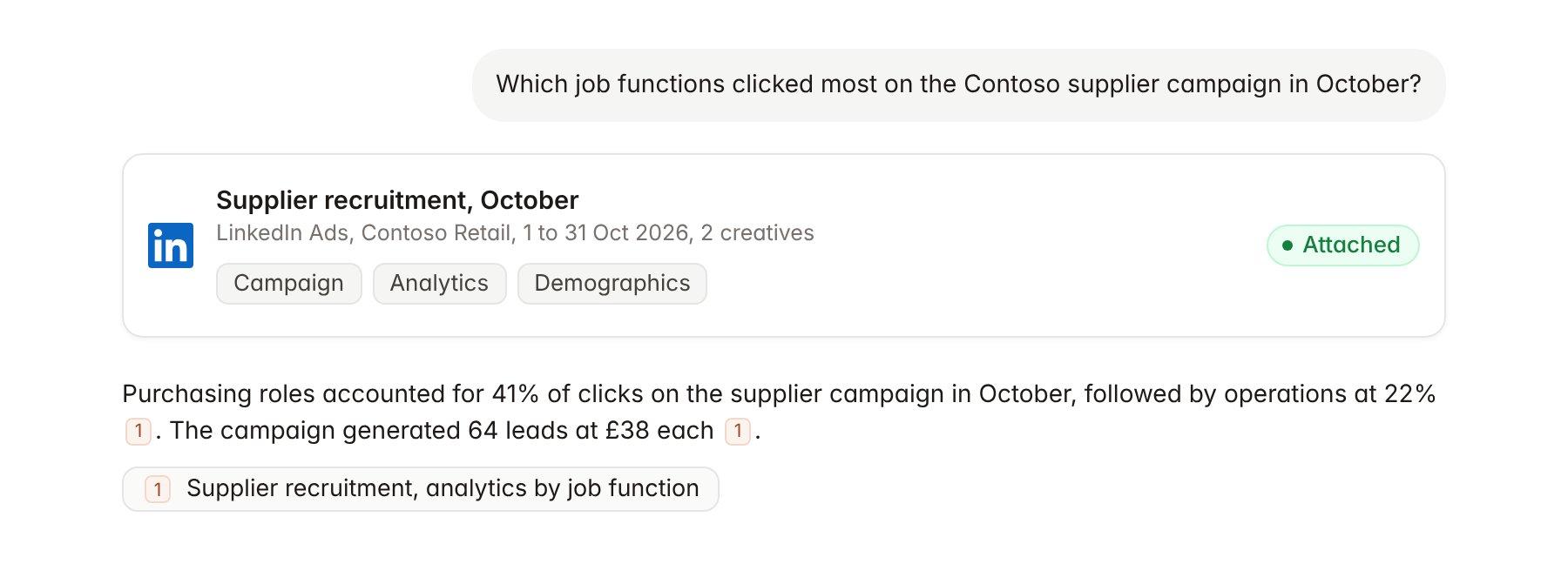
A LinkedIn Ads campaign report attached to a chat.
Hebno reads only
Hebno does not write to LinkedIn Ads. It never creates, edits, pauses or archives campaign groups, campaigns or creatives, changes budgets, bids or targeting, downloads lead form responses, or changes account roles and billing. To act on what Hebno finds, make the change in Campaign Manager.Link a project to an ad account
Linking marks which LinkedIn ad account belongs to a client engagement, so you can ask “how are the LinkedIn campaigns doing?” without naming the account.- Open the project and select Brain.
- Under Linked records, select Link record, then LinkedIn Ads.
- Search by ad account name or ID and select the account. To narrow the link, select the campaign groups that belong to the engagement.
Use LinkedIn Ads in chat
-
Attach: open the + menu, choose Sources → LinkedIn Ads, and pick an ad account, a campaign group or a campaign. Or type
/and choose LinkedIn Ads. -
Ask: name the client, campaign and period in your request. For example:
Summarise the Contoso supplier recruitment campaigns for October: spend, leads and cost per lead by campaign.
Which seniority levels and industries engaged most with the Contoso campaigns this quarter?
Compare CTR and cost per click for the two creatives in the supplier campaign, with the headline of each.
- Research runs show a Checking LinkedIn Ads step, with a chip for each ad account and campaign it read.
- Agents can read LinkedIn Ads on a schedule, for example a Monday summary of last week’s spend and leads for each linked client account.