

At a glance
Before you start
You need:- An iManage Work user with access to the libraries and workspaces you want to use.
- Hebno registered as an application in your iManage environment. On iManage Cloud, an iManage administrator adds it under Control Center → Applications and enables it for your libraries. For an on-premises server, the administrator registers it in the same place on your own server and shares the server address.
- An owner or admin in Hebno who enters your iManage address once, for example
https://cloudimanage.comorhttps://dms.yourfirm.com, under Admin → Connectors → Catalogue → iManage Work, and sets the integration to Allow.
Connect iManage Work
1
Register Hebno in iManage
An iManage administrator registers Hebno in Control Center → Applications with the redirect address shown on the iManage Work card in Admin → Connectors → Catalogue, and copies the client ID back to that card.
2
Allow the integration
An owner or admin enters the iManage address, pastes the client ID and sets iManage Work to Allow. Hebno checks that it can reach the server.
3
Connect your account
Each member opens Settings → Connections, finds iManage Work under Files and selects Connect. Sign in to iManage with your firm credentials and approve access. The row shows Connected with your iManage user ID.
What Hebno reads
The libraries and workspaces your organisation selects are stored in the knowledge index and searched by meaning. iManage security, including ethical walls, is checked at search and again at read, so a document that becomes restricted to you disappears from results straight away. Attaching a specific document reads it as it is now, with your account. Only the excerpts a reply used are stored with the conversation as its sources.
Documents larger than 25 MB, images and audio appear in lists with their profile but cannot be read as text, so you are prompted to open them in iManage.
What Hebno writes
Every write appears first as a confirmation card. You can change any field before you select Confirm.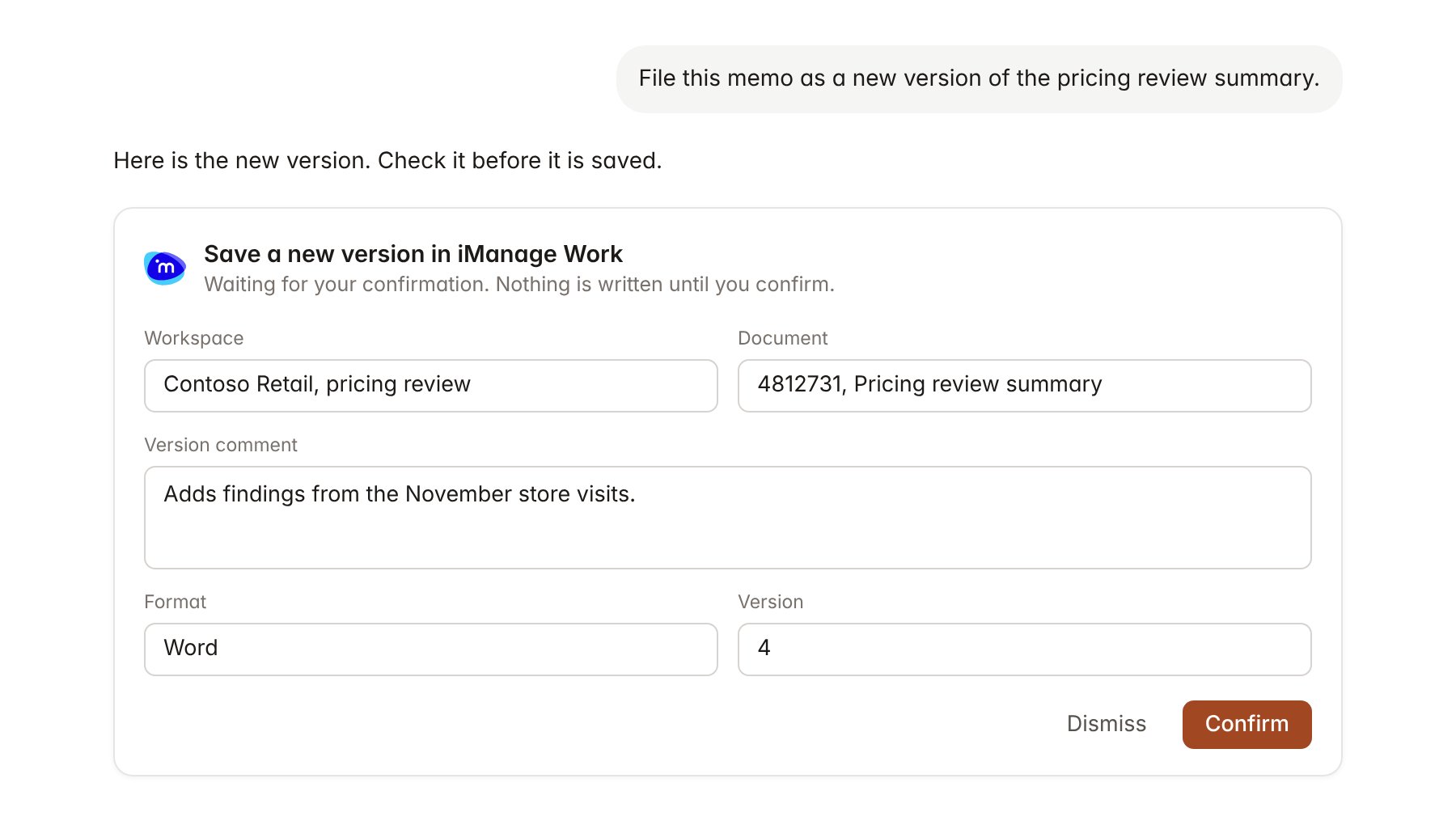
An iManage Work change pending confirmation. Nothing is written until you confirm.
Link a project to a workspace
Linking marks which iManage workspaces belong to an engagement, so you can ask about “the matter documents” without naming the workspace.- Open the project and select Brain.
- Under Linked sources, select Link source, then iManage Work.
- Search by workspace name, client or matter number, and select Link.
Use iManage Work in chat
-
Attach: open the + menu, choose Sources → iManage Work, and pick a document or a version. Or type
/and choose iManage Work. -
Ask: name the client, matter, document number or author in your request. For example:
Search the Contoso Retail workspace for anything on minimum advertised price and summarise each document with its number.
Compare version 3 and version 4 of the Contoso engagement letter and list every change to scope and fees.
Save the steering committee pack to the Deliverables folder of the Contoso workspace as a new document.
- Research runs show a Searching iManage Work step, with a chip for each document and version Hebno read.
- Agents can read linked workspaces on a schedule. A save an agent proposes appears in agent approvals for review.