

At a glance
Before you start
You need:- A Typeform account with access to the workspaces that contain your forms. Forms in a shared workspace are available when you are a member of that workspace.
- An allowed integration. An owner or admin sets Typeform to Allow under Admin → Connectors → Catalogue.
Accounts stored in the Typeform EU data centre connect in the same way. Hebno detects the region when you connect and reads from the matching Typeform API.
Connect Typeform
1
Start the connection
Open Settings → Connections, find Typeform under Surveys and research and select Connect. You can also select Connect from the prompt in a chat.
2
Sign in to Typeform
Sign in, review the scopes on the Typeform consent screen and select Accept.
3
Return to Hebno
The card shows Connected with your Typeform account email.
What Hebno reads
Reads are live. Hebno queries Typeform when a request needs it, and reads responses in pages for forms with many submissions. Hebno counts and groups answers from the responses it reads, and says how many responses an answer is based on. Only what a reply used is stored with the conversation as its sources.
What Hebno writes
Every write appears first as a confirmation card. You can change any field before you select Confirm.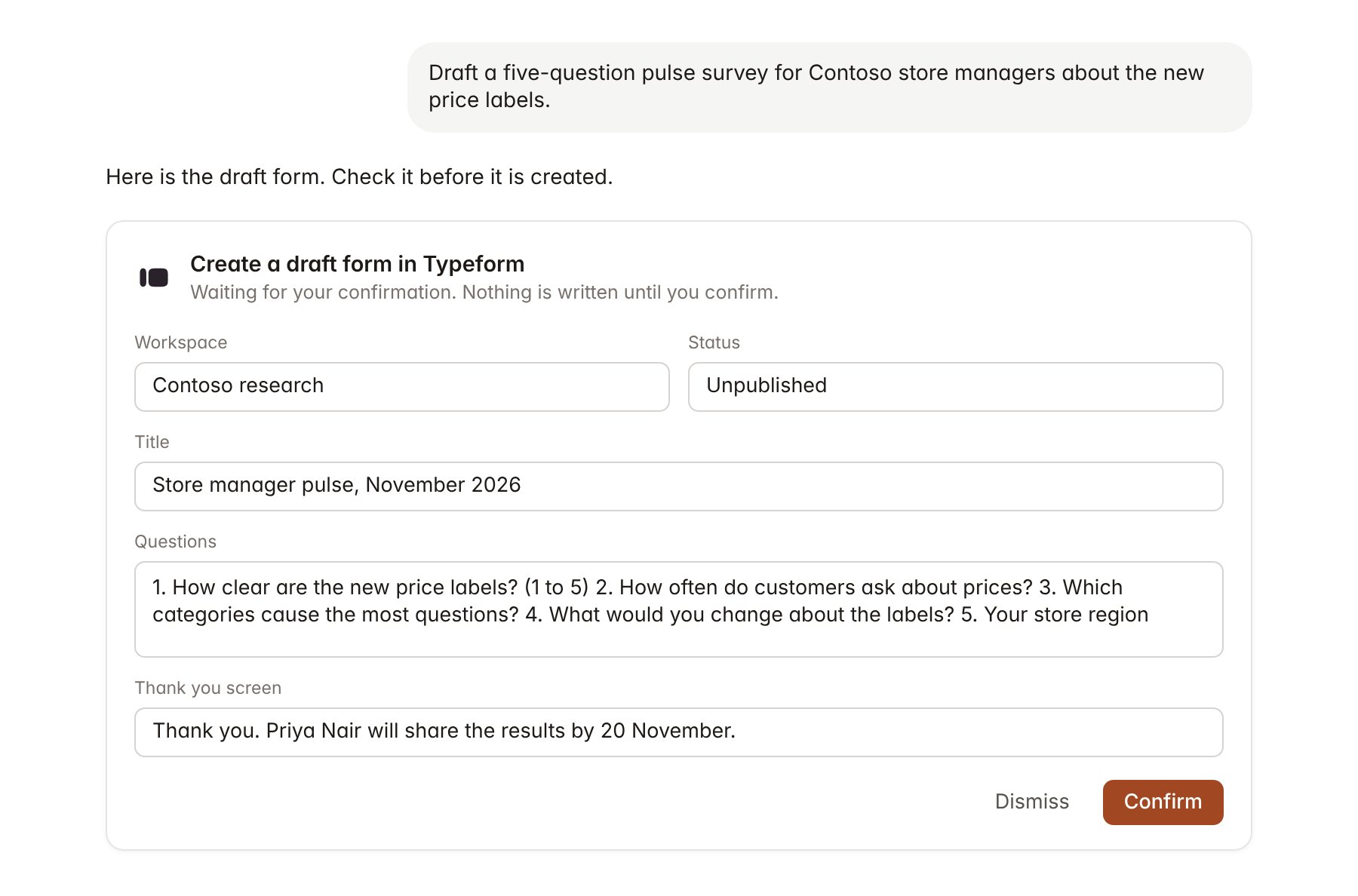
A Typeform change pending confirmation. Nothing is written until you confirm.
settings.is_public set to false), so the form accepts no responses until a person reviews it and publishes it in Typeform. Hebno never publishes or shares a form, edits an existing form, deletes forms or responses, or changes webhooks and workspace settings.
The form is created in your Typeform account, so Typeform shows you as its owner.
Link a project to a form
Linking marks which Typeform forms belong to an engagement, so you can ask “what did the survey say?” without naming the form.- Open the project and select Brain.
- Under Linked records, select Link record, then Typeform.
- Search by form title and select it. Repeat for each form in the engagement.
Use Typeform in chat
-
Attach: open the + menu, choose Sources → Typeform, and pick a form, its responses or its Insights summary. Or type
/and choose Typeform. -
Ask: name the form, client or question in your request. For example:
Summarise the Contoso store manager survey: average rating for the new price labels, split by region, with three quotes from the open-text answers.
Which question in the Contoso pulse survey has the highest drop-off, and how does the completion rate compare with the first wave?
Draft a short follow-up form for the stores that rated the labels 2 or lower, asking what they would change.
- Research runs show a Checking Typeform step, with a chip for each form and response set it read.
- Agents can read Typeform on a schedule, for example a Friday count of new responses with emerging themes. Writes an agent proposes appear in agent approvals for review.