

At a glance
Before you start
You need:- A Dropbox account (personal, or a Dropbox Business account that belongs to your firm’s team).
- Permission in Dropbox to open the folders you want to use. Access is limited to what your account can already open.
- If your firm uses Dropbox Business, a team admin may need to allow the Hebno app in the Dropbox admin console before members can connect.
Connect Dropbox
1
Check the integration is allowed
An owner or admin controls this under Admin → Connectors → Catalogue. If Dropbox shows Blocked, ask an admin to set it to Allow.
2
Start the connection
Open Settings → Connections, find Dropbox under Files and select Connect. You can also select Connect on the prompt that appears in chat the first time you use Dropbox.
3
Approve access in Dropbox
Sign in to Dropbox, review the permissions and select Allow. Hebno returns you to the app with a Dropbox connected message.
What Hebno reads
The folders your organisation selects are stored in the knowledge index and searched by meaning, with permissions inherited from Dropbox. Attaching a specific file reads it as it is now, with your account. Only the excerpts a reply used are stored with the conversation as its sources.
Attached files must be 25 MB or smaller. Images and files of other types appear in lists but cannot be read as text, so you are prompted to open them in Dropbox.
What Hebno writes
Every write appears first as a confirmation card. You can change any field before you select Confirm.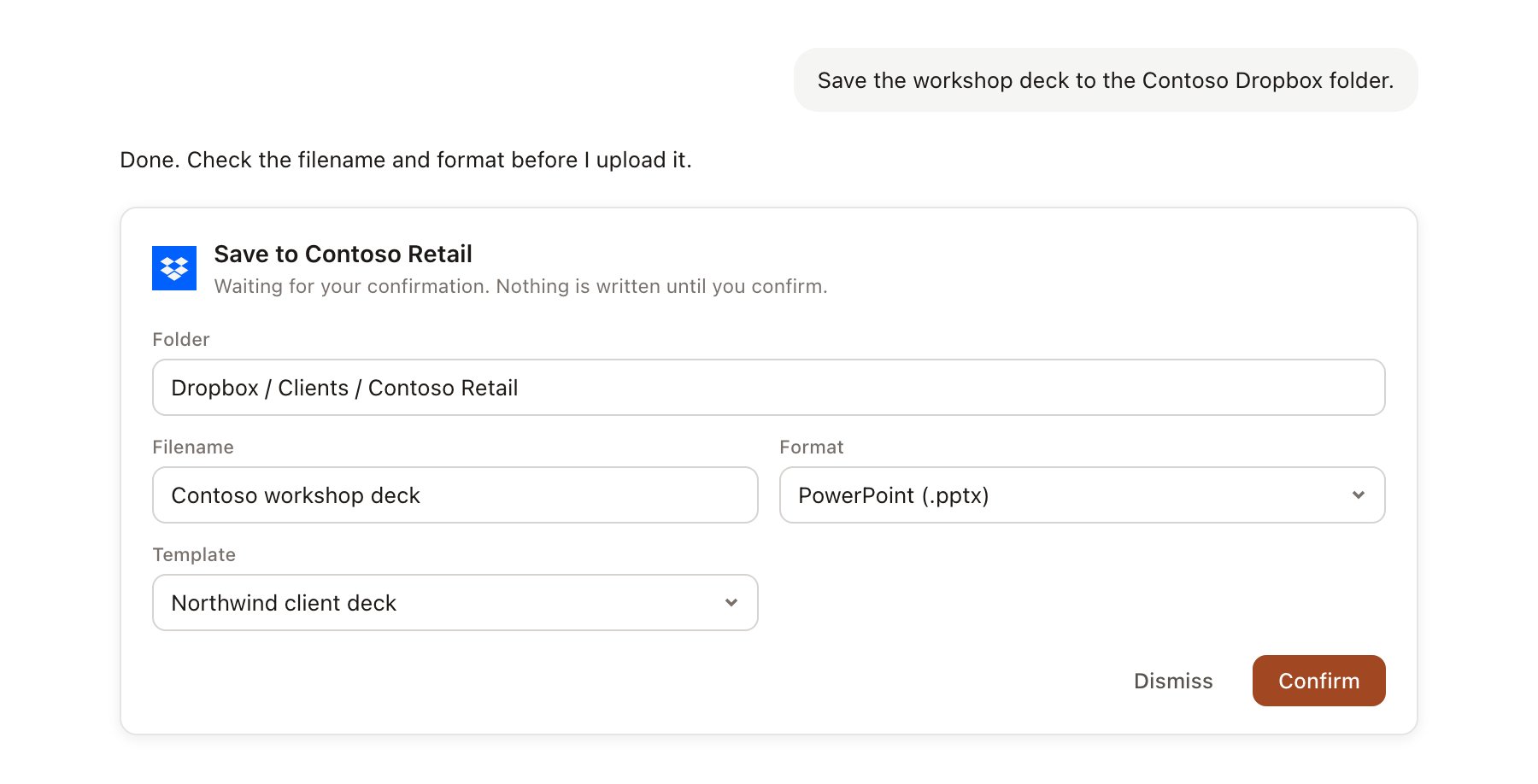
A Dropbox change pending confirmation. Nothing is written until you confirm.
Link a project to a folder
Linking marks which Dropbox folders belong to a project, so you can ask about “the client’s files” without naming the folder.- Open the project and select Brain.
- Under Linked sources, select Link source, then Dropbox.
- Browse to the folder, or paste a Dropbox folder link, and select Link.
Use Dropbox in chat
-
Attach: open the + menu, choose Sources → Dropbox, and pick a file or a folder. Or type
/and choose Dropbox. -
Ask: name the client, folder or document in your request. For example:
Read the Contoso Retail statement of work in Dropbox and list the deliverables and their due dates.
Compare the assumptions in the two pricing models in the Contoso folder and draft a note on what changed.
Save this readout deck to the Contoso Retail folder in Dropbox.
- Research runs show a Reading a linked folder step for Dropbox, with a chip for each file Hebno read.
- Agents can read linked Dropbox folders on a schedule. A save an agent proposes appears in agent approvals for review.