

At a glance
Before you start
You need:- An Asana account in the workspace you want to use.
- An allowed integration. An owner or admin sets Asana to Allow under Admin → Connectors → Catalogue.
- Approval from your Asana workspace admin if they restrict third-party apps.
Connect Asana
1
Start the connection
Open Settings → Connections, find Asana and select Connect. You can also select Connect from the prompt in a chat.
2
Sign in to Asana
Sign in, choose your workspace if you belong to more than one, and select Allow.
3
Return to Hebno
The card shows Connected with your workspace name.
What Hebno reads
Reads are live. Hebno queries Asana when a request needs it. Only what a reply used is stored with the conversation as its sources.
What Hebno writes
Every write appears first as a confirmation card. You can change any field before you select Confirm.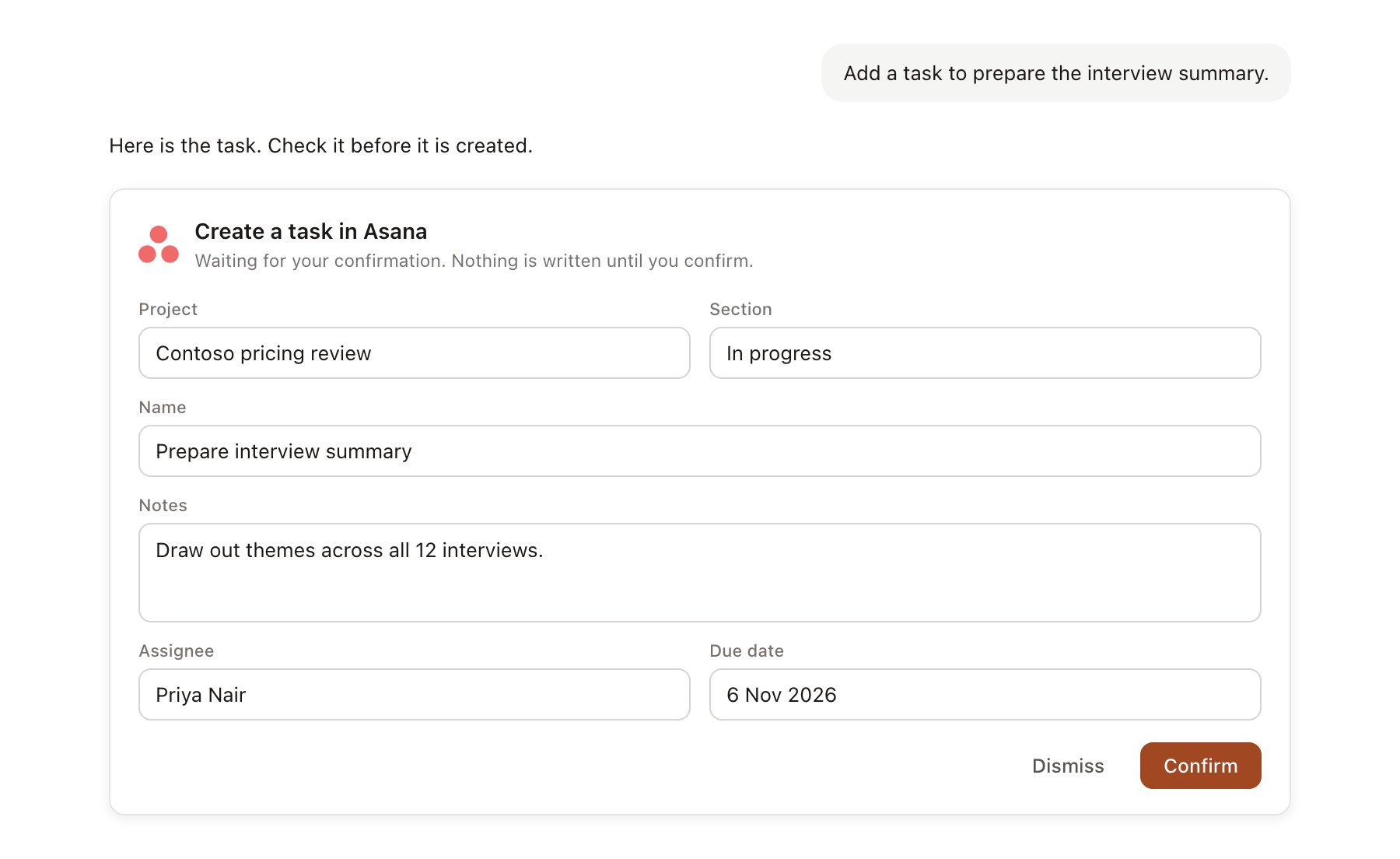
An Asana change pending confirmation. Nothing is written until you confirm.
Link a project to an Asana project
Linking marks which Asana projects belong to an engagement, so you can ask “what is overdue?” without naming the project.- Open the project and select Brain.
- Under Linked records, select Link record, then Asana.
- Search by project name and select it. Repeat for each Asana project in the engagement.
Use Asana in chat
-
Attach: open the + menu, choose Sources → Asana, and pick a project, a task or a portfolio. Or type
/and choose Asana. -
Ask: name the project, task or person in your request. For example:
List everything overdue or due this week on the Contoso rollout, grouped by owner.
Draft a status update for Contoso from the Asana project, including what moved since last Friday and what is at risk.
Mark the stakeholder interview scheduling task complete and add a comment that all six interviews are booked.
- Research runs show a Checking Asana step, with a chip for each project and task it read.
- Agents can read Asana on a schedule, for example a Monday list of overdue tasks. Writes an agent proposes appear in agent approvals for review.